

To organise AI film assets, group them into collections, label your best versions with tags, and sort each asset's versions into folders. In Cascade you can do all three without moving or duplicating a single file, and nothing you organise is ever deleted.
To organise AI film assets, group them into collections, label your best versions with tags, and sort each asset's versions into folders. In Cascade you can do all three without moving or duplicating a single file, and nothing you organise is ever deleted.
In short: collect your key assets · add folders · tag your best versions · filter by tag · sort versions into folders.
On this page: The 5 steps · Principles · FAQ
On a traditional production, assistant editors build bins by scene and reel, and VFX teams track every shot version so nobody cuts in the wrong take. An AI film needs the same discipline, and more of it.
AI production makes versions fast. A single character can collect dozens of versions: poses, outfits, lighting tests and rejects. Cascade's asset-based system already keeps every character, environment and prop versioned and reusable. Collections, tags and version folders are how you find the right one again when the project is big.
A collection groups anything from anywhere in your project, without moving it.
The same character can sit in two collections at once. It shows in both and nothing is duplicated, so "Hero shots" and "Act 2" can share a cast.
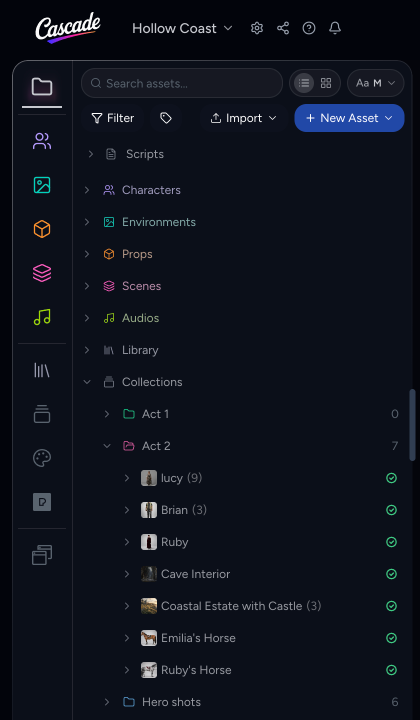
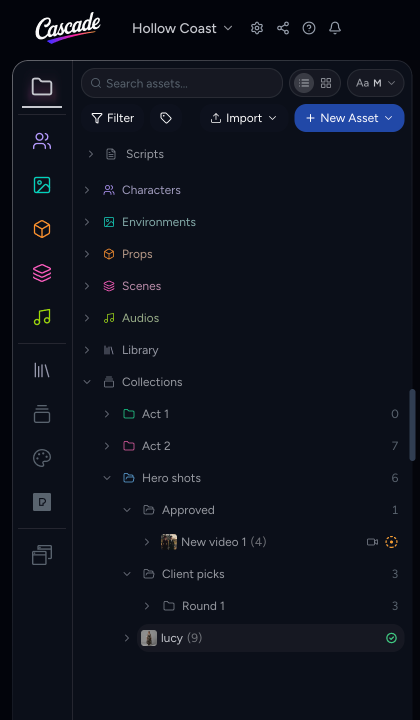
Folders give a collection structure as the project grows.
Tags label individual versions, so the good takes are easy to spot anywhere.
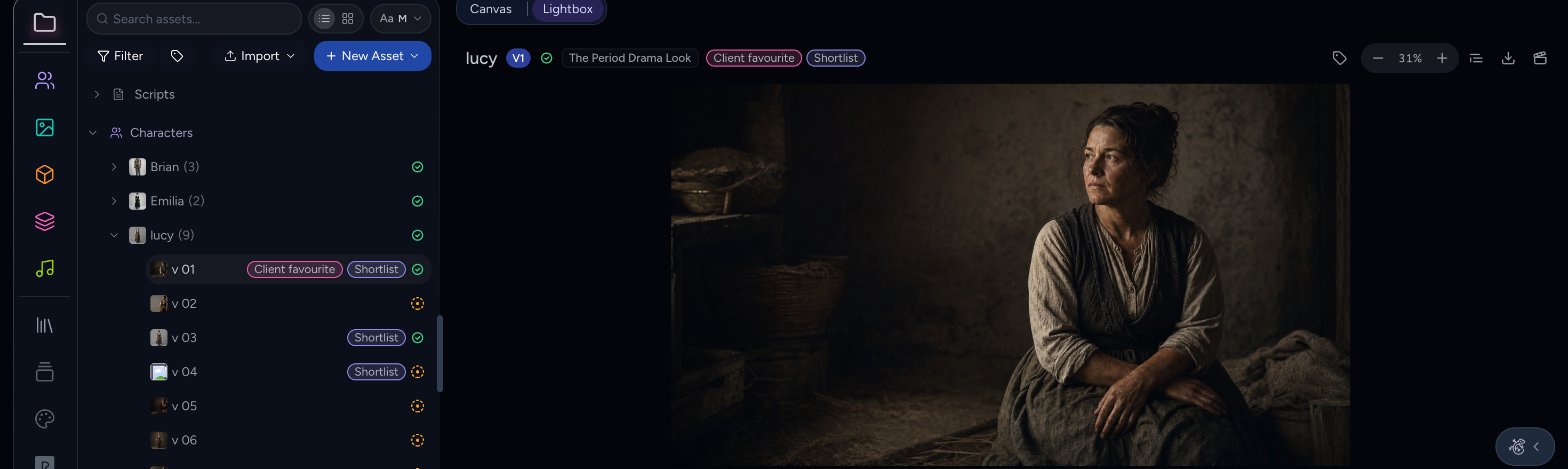
Filtering turns a tag into a shortlist.

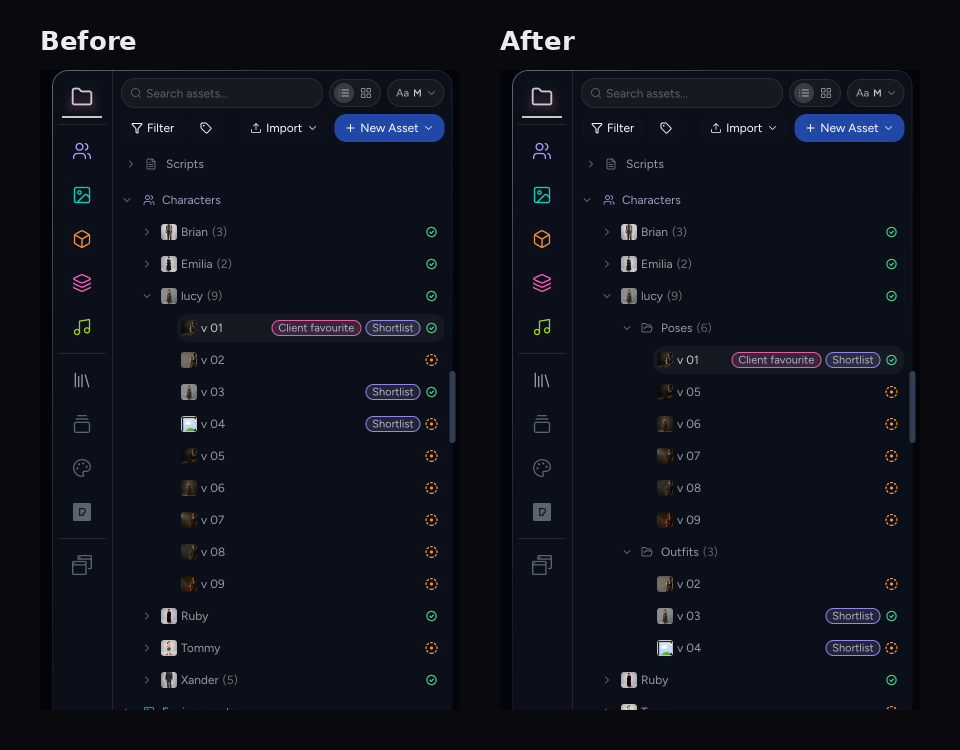
Version folders tidy up the inside of a single asset.
No. Removing something from a collection, or deleting a folder, never deletes the asset itself. Organisation also travels with your work: folders, tags and collections are kept when you duplicate an asset or a whole project. And version numbers never repeat. If you delete v3, the next version is v4, so "v3" always means the same image in every note and review.
A collection groups assets and versions from anywhere in the project. A tag labels individual versions. A version folder sorts the versions inside one asset.
No. The asset stays where it is and appears in every collection you add it to. Nothing is duplicated.
No. Deleting a folder or removing an item from a collection never deletes the asset. If you remove something by mistake, click Undo on the pop-up message.
Yes. Tags work on versions and on Library uploads.
Yes. Folders, tags and collections are kept when you duplicate an asset or a whole project.
Version numbers never repeat. If v3 was deleted, the next version is v4, so a version number always refers to the same image.
More on managing a production: · How to Create a Short AI Film · Export an AI Timeline to Premiere Pro or DaVinci Resolve · Review Burn-ins: Label Every Frame of Your AI Film Review Copy