
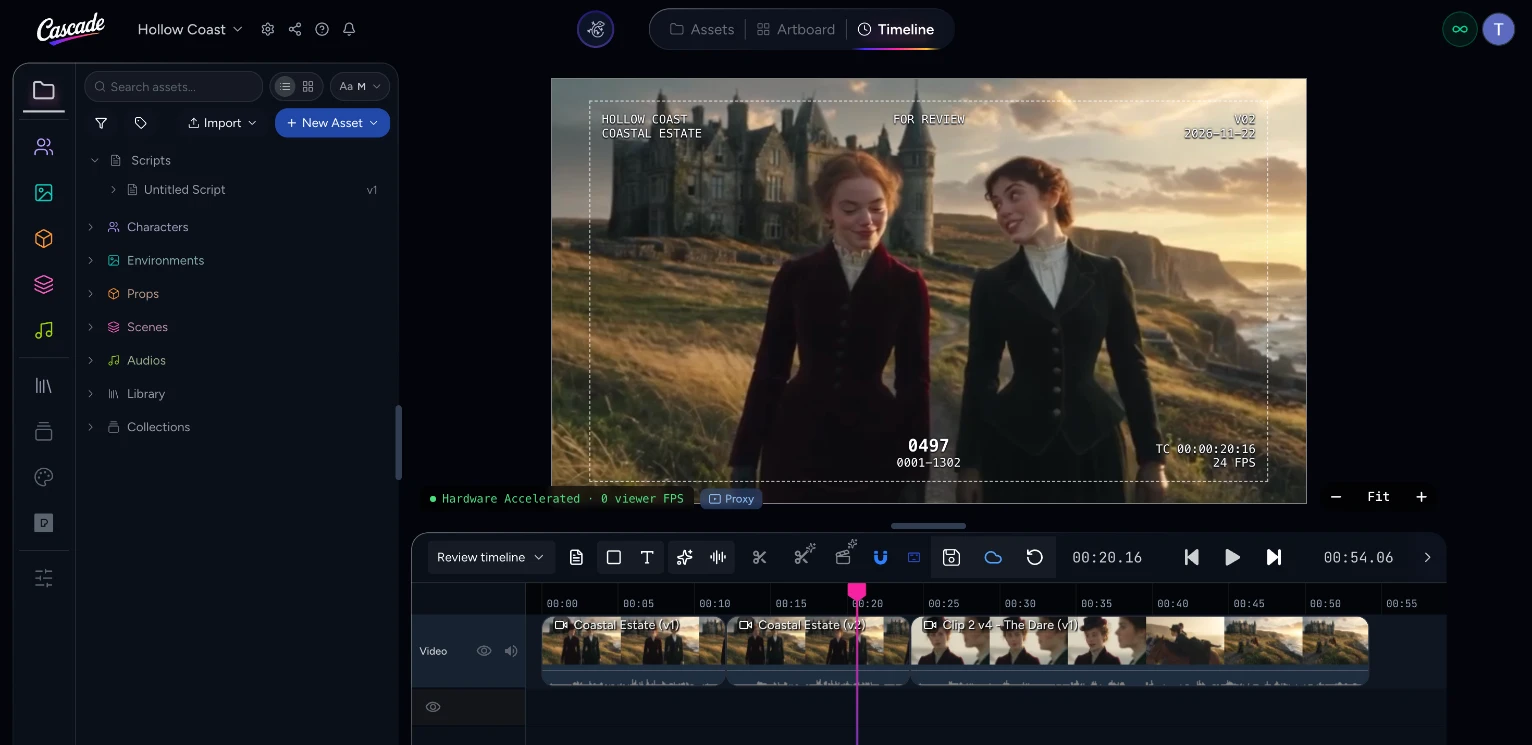
A review burn-in stamps the shot, version, frame number and timecode onto every frame of your video, so anyone giving notes can say exactly which shot, which version and which frame they mean. In Cascade it is one switch in the timeline editor, and it goes into a render only when you ask.
A review burn-in stamps the shot, version, frame number and timecode onto every frame of your video, so anyone giving notes can say exactly which shot, which version and which frame they mean. In Cascade it is one switch in the timeline editor, and it goes into a render only when you ask.
In short: switch on the burn-in · check it follows the edit · render a review copy · collect notes by frame · render a clean copy.
On this page: What a burn-in shows · The 5 steps · Principles · FAQ
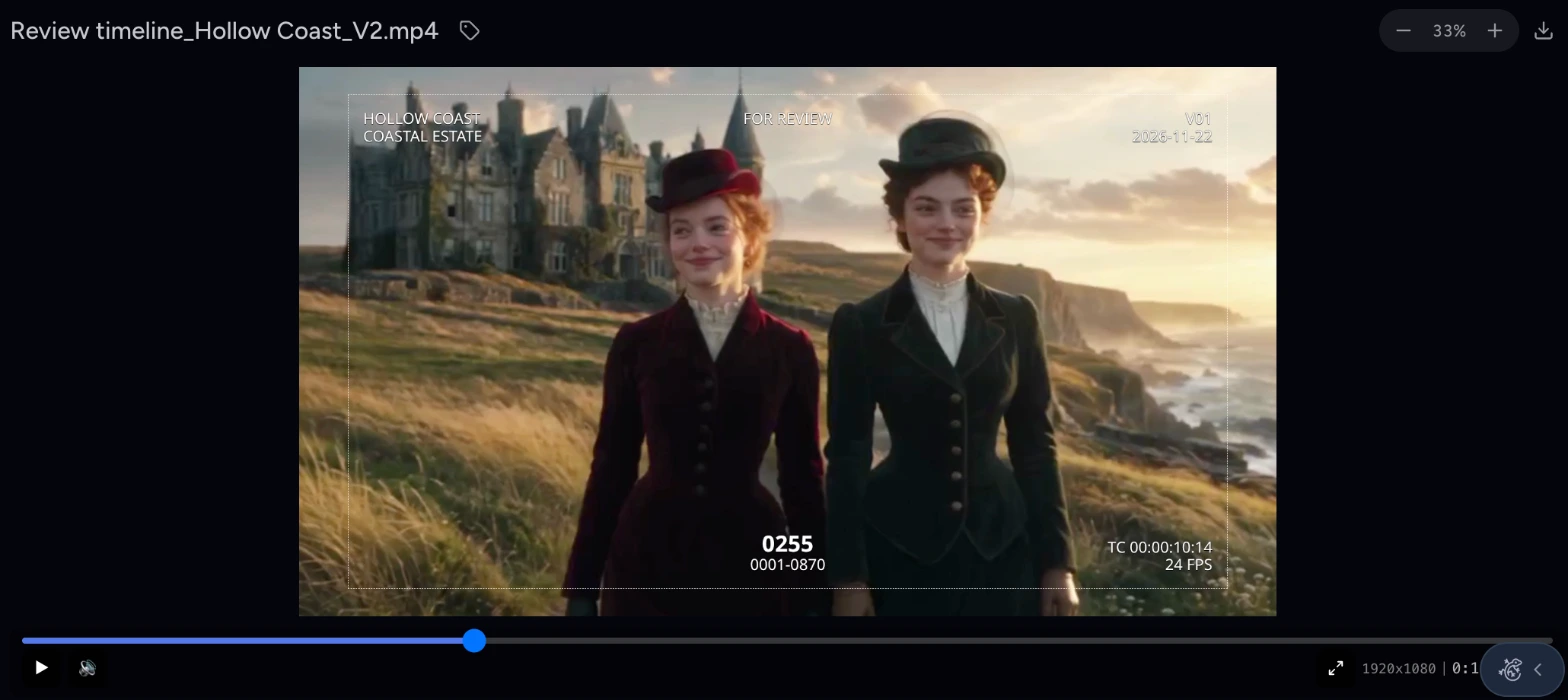
Five blocks of information sit around the edge of the frame, inside an optional dashed border.
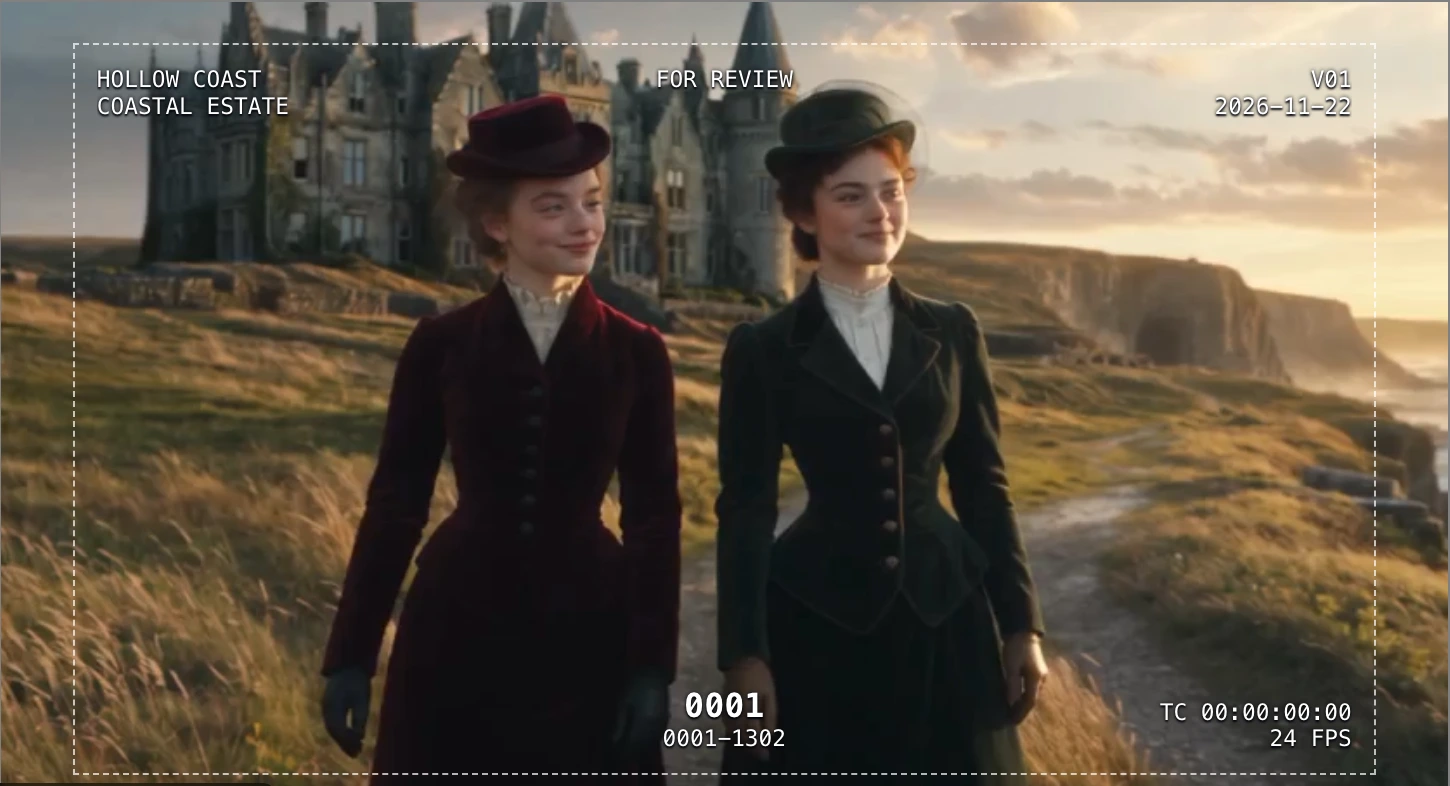
Top left: The project name and the shot on screen right now
Top centre: Always FOR REVIEW, so nobody mistakes it for the final film
Top right: The version of that shot (for example V03) and the date that version was made
Bottom centre: The frame number, large, with the full frame range of the timeline under it
Bottom right: The timecode and the frame rate
In a vertical (portrait) project, the information rearranges into a column down the left side so it still fits.
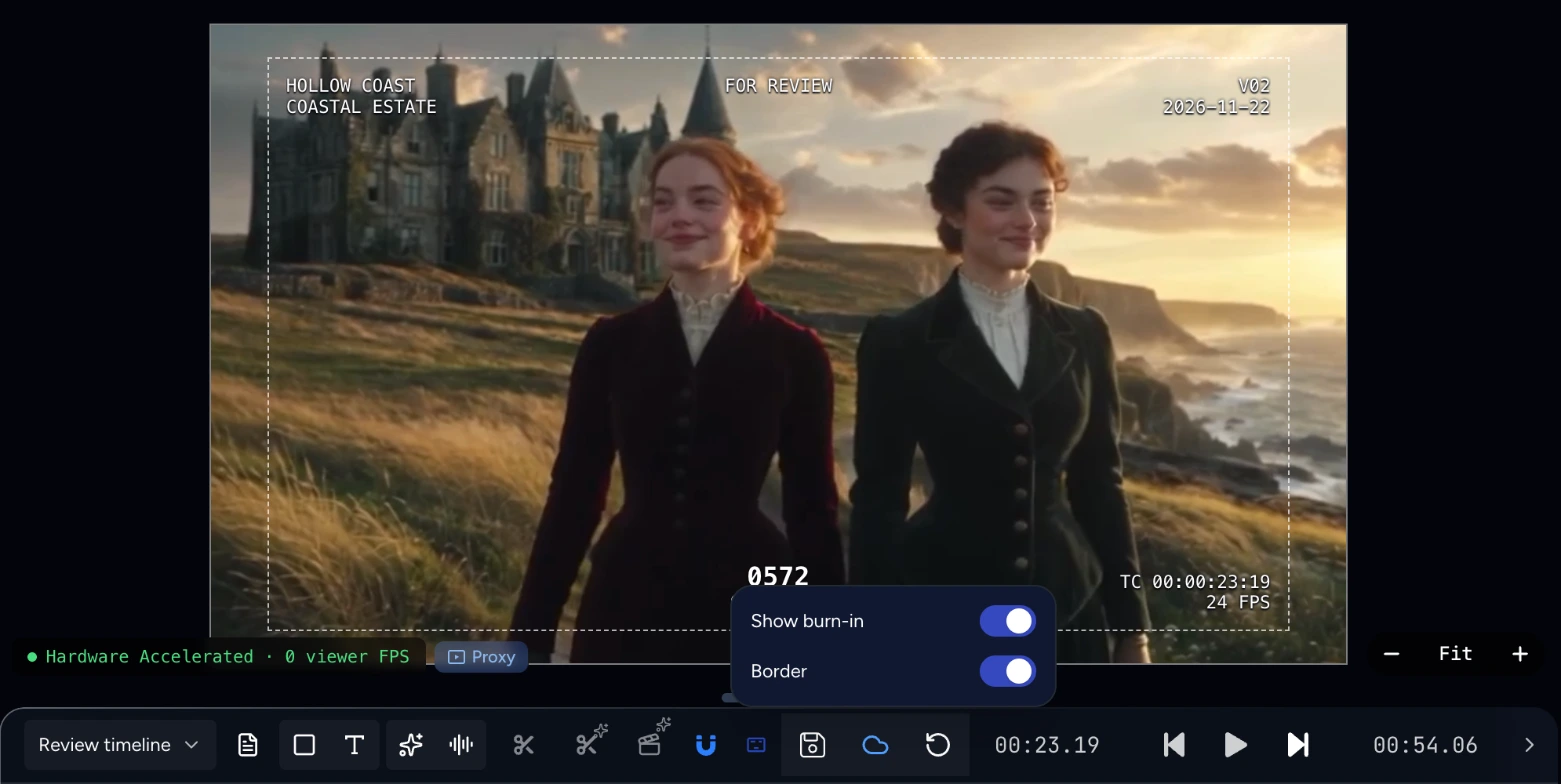
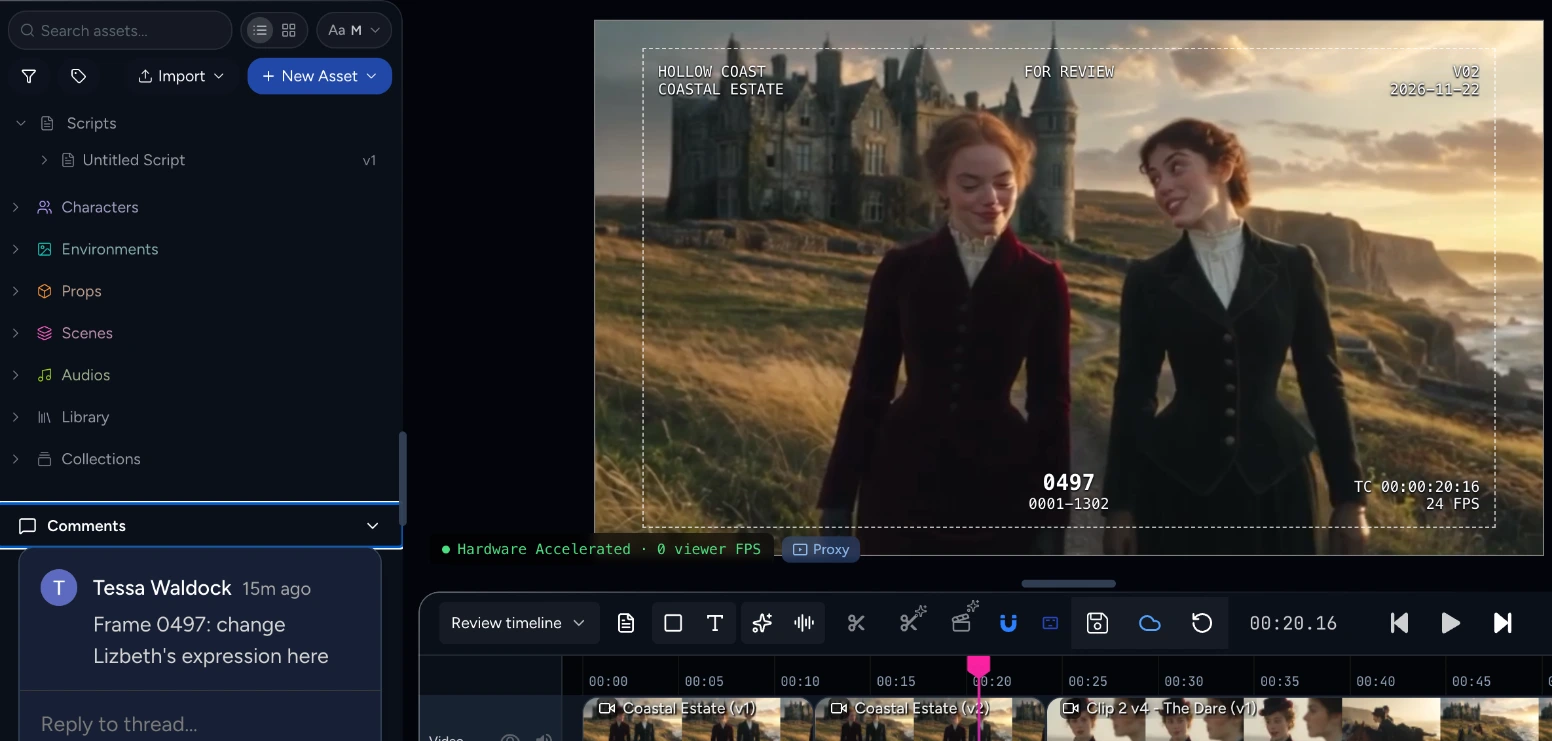
One switch, in the toolbar under the timeline preview.
Cascade remembers the setting in your browser, so it is still on after a reload.
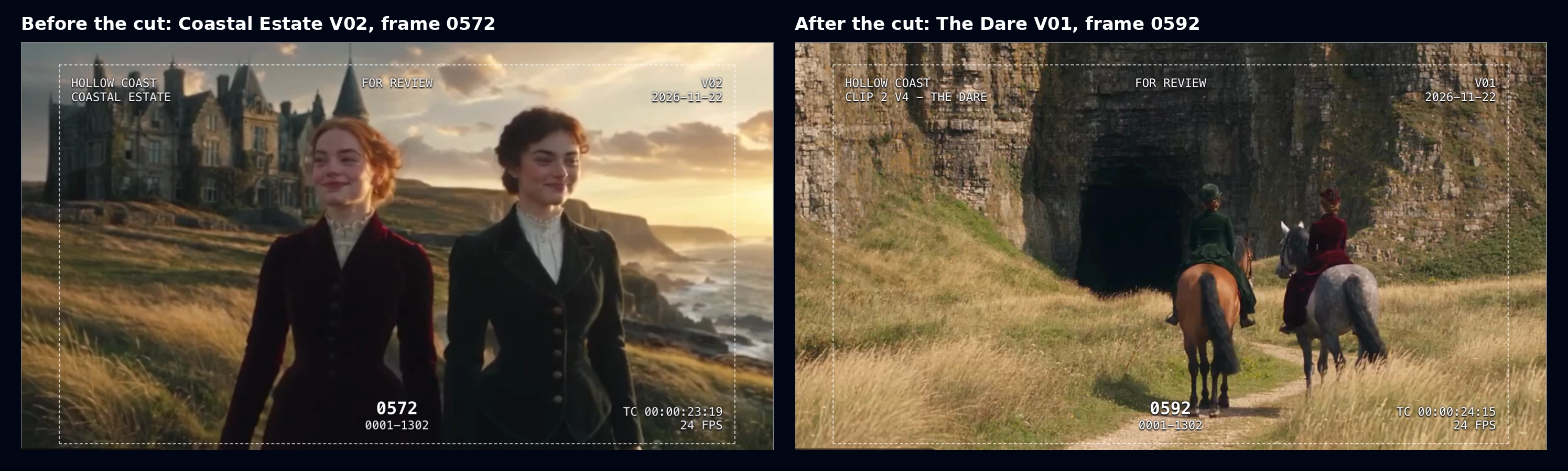
The burn-in reads the timeline, so it changes as the shots change.
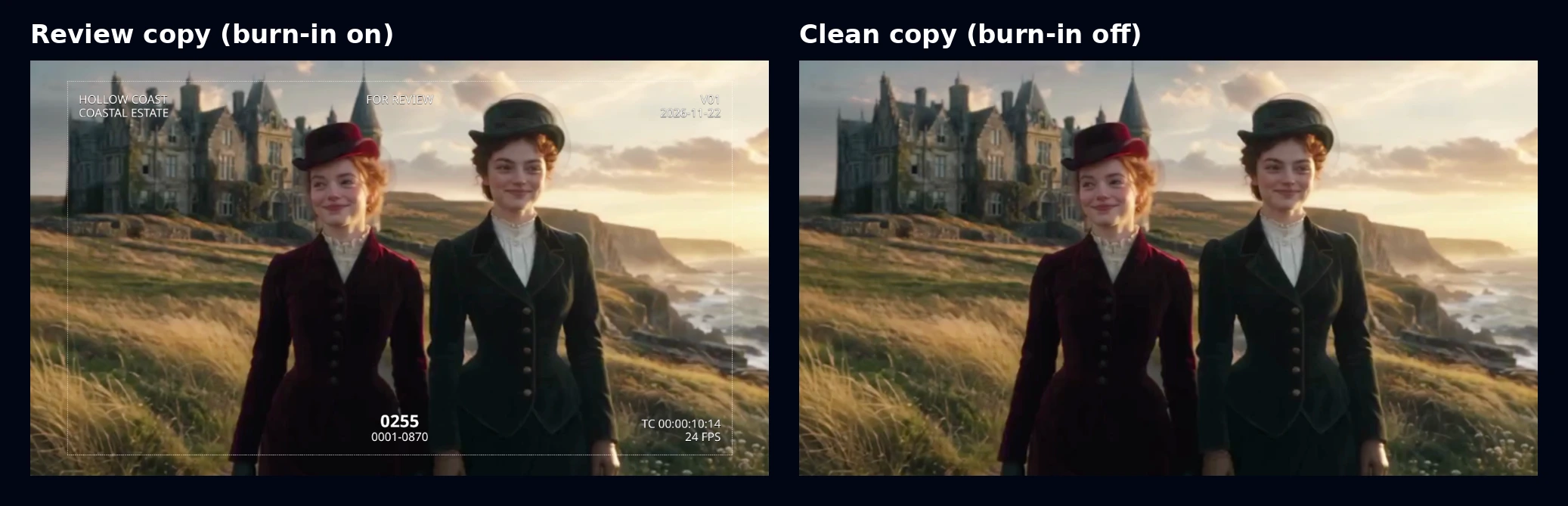
The burn-in goes into a render only while it is switched on.
Now every note can point at an exact frame.
The same edit, without the labels.
Information, such as timecode and shot name, printed into the picture itself, so it shows on any player and can't be switched off by the viewer. Editors have used burn-ins on review copies for decades.
No. It sits on top of the preview, is not saved into the timeline and never changes your shots.
Only if you render with it switched on. Switch Show burn-in off before the final render.
No. The setting is yours, remembered in your browser only. Each teammate has their own, and a different browser starts with it off.
No. The timeline export to Premiere Pro and DaVinci Resolve (experimental) carries the edit, not the burn-in.
Yes. In a portrait project the information moves into a column down the left side.
More on editing and delivery: Export an AI Timeline to Premiere Pro or DaVinci Resolve · How to Make an AI Short Film