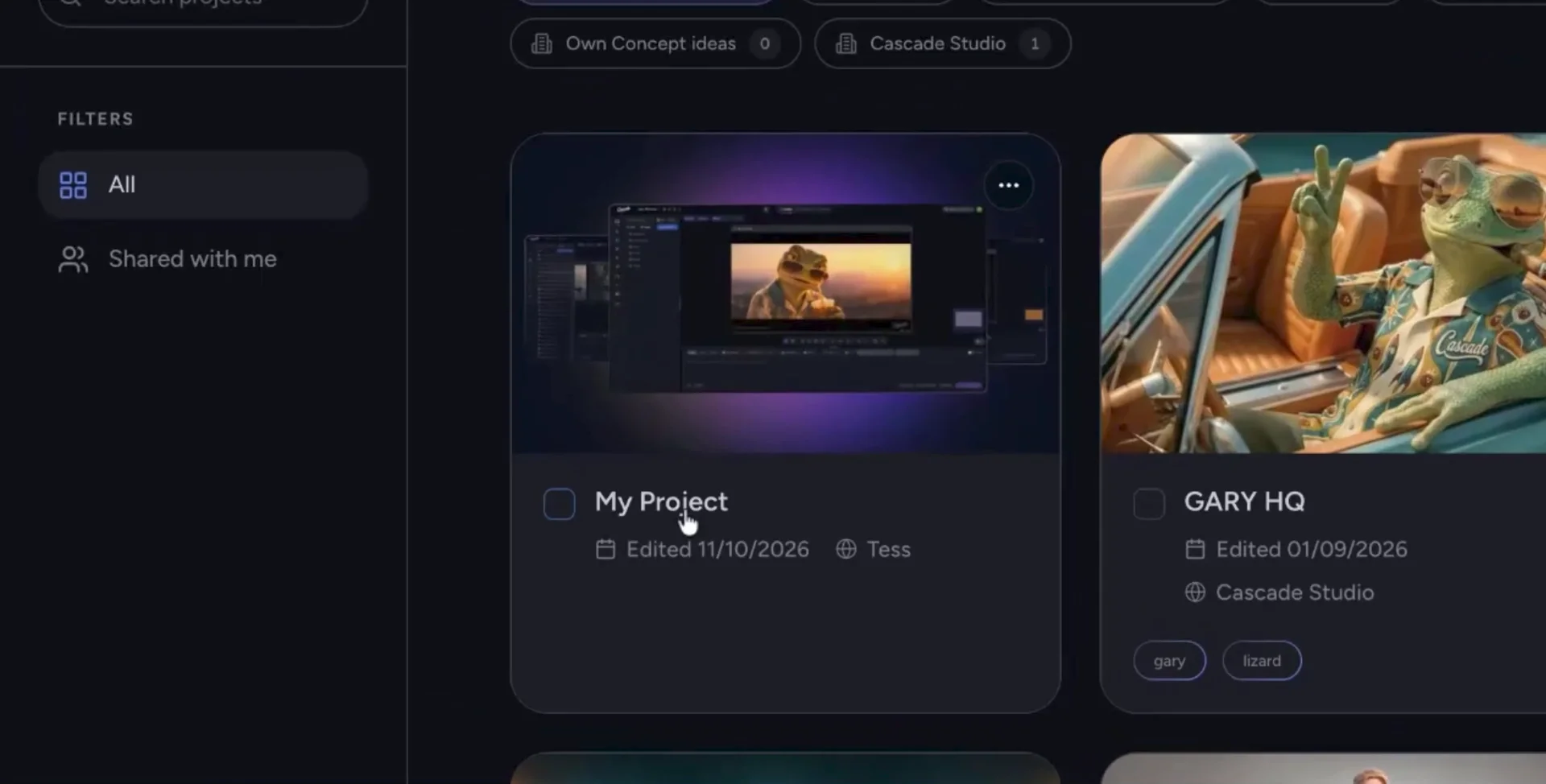
Welcome to Cascade's tutorial on how to make your first project. First, click Create New Project to start setting up a new project.
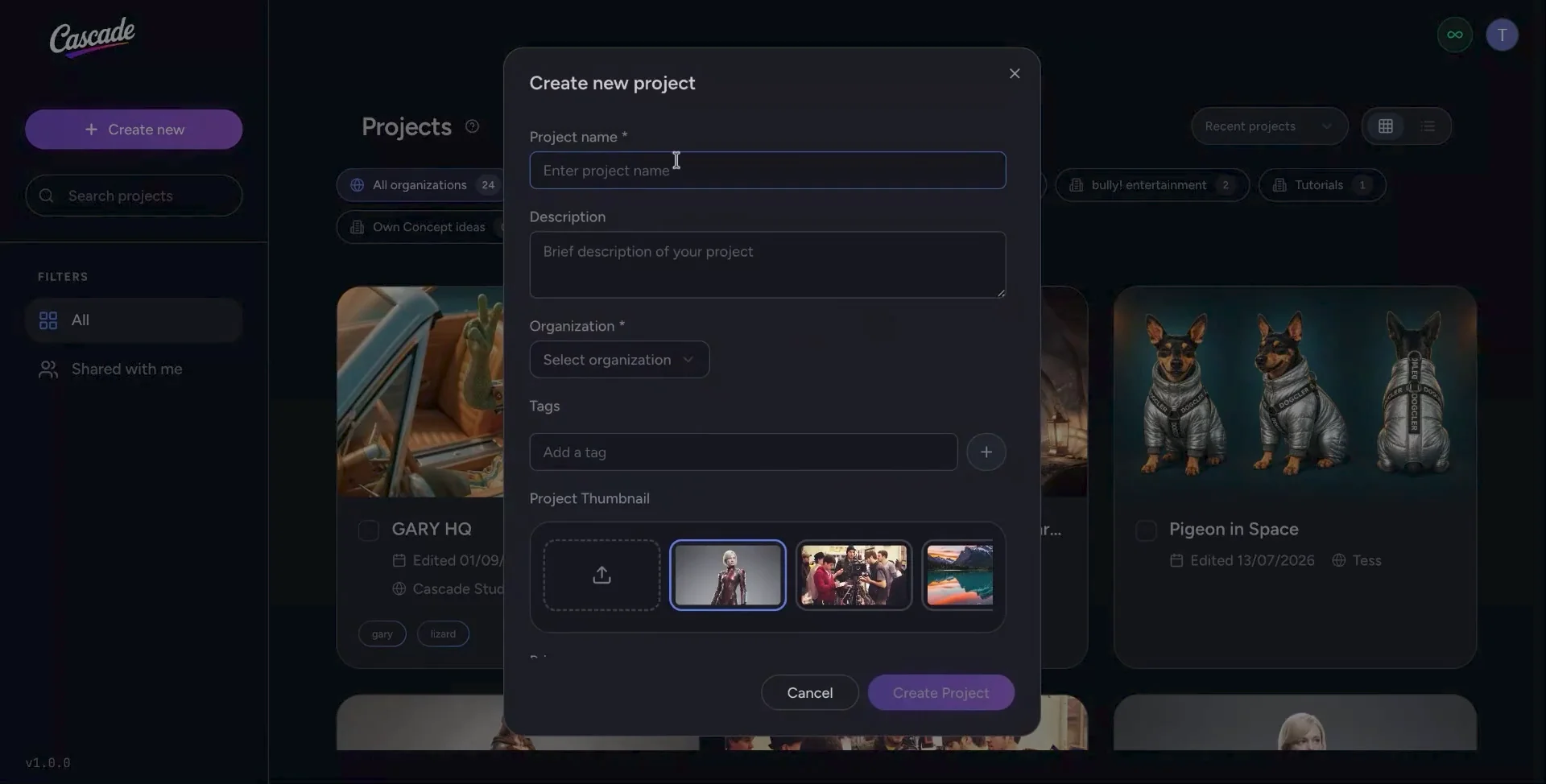
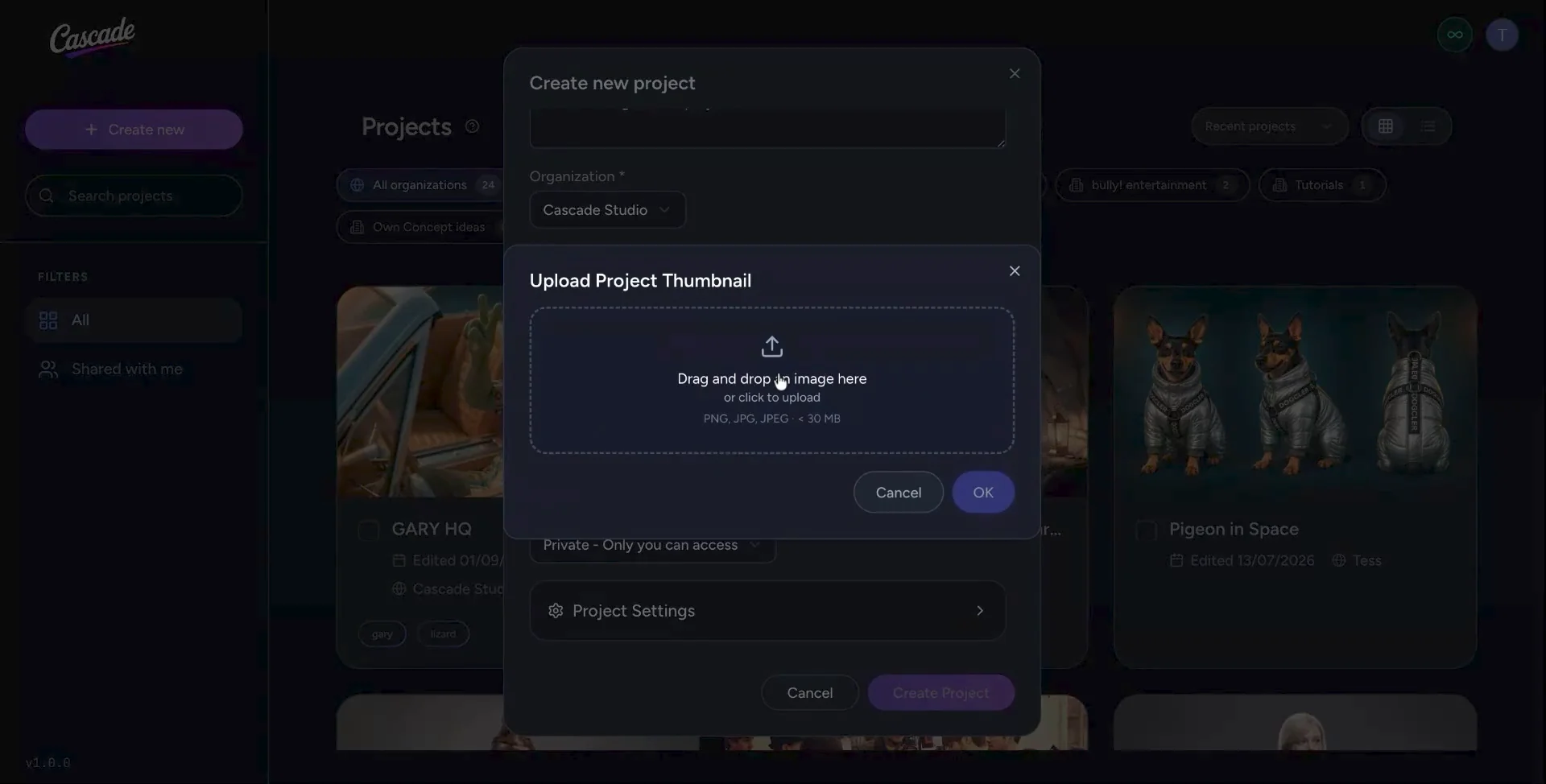
Add a project name and an optional description, then select the organization in which you want to save your project. You can choose a thumbnail from existing options or upload your own custom image. Scroll down to continue configuring your project.
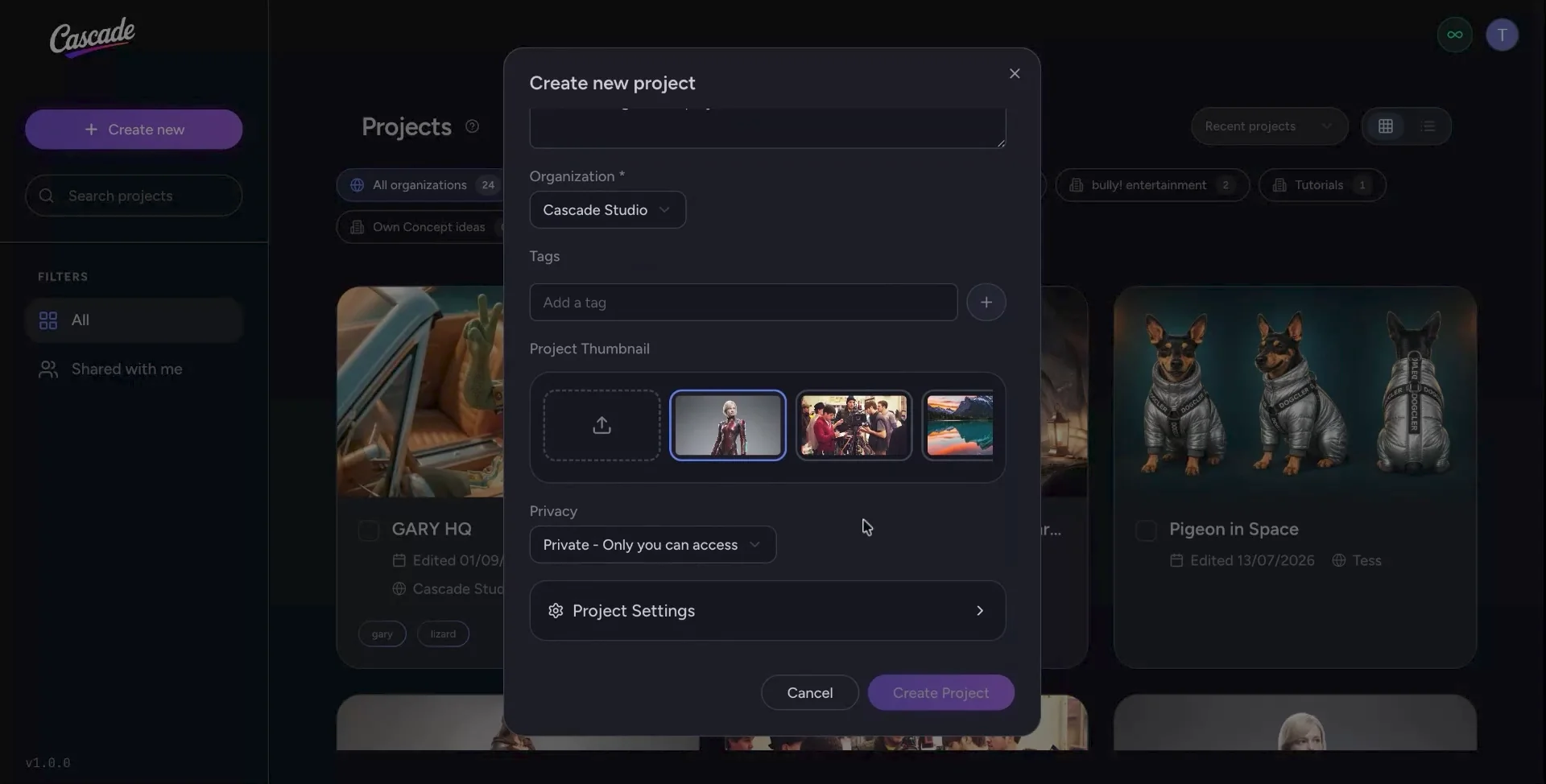
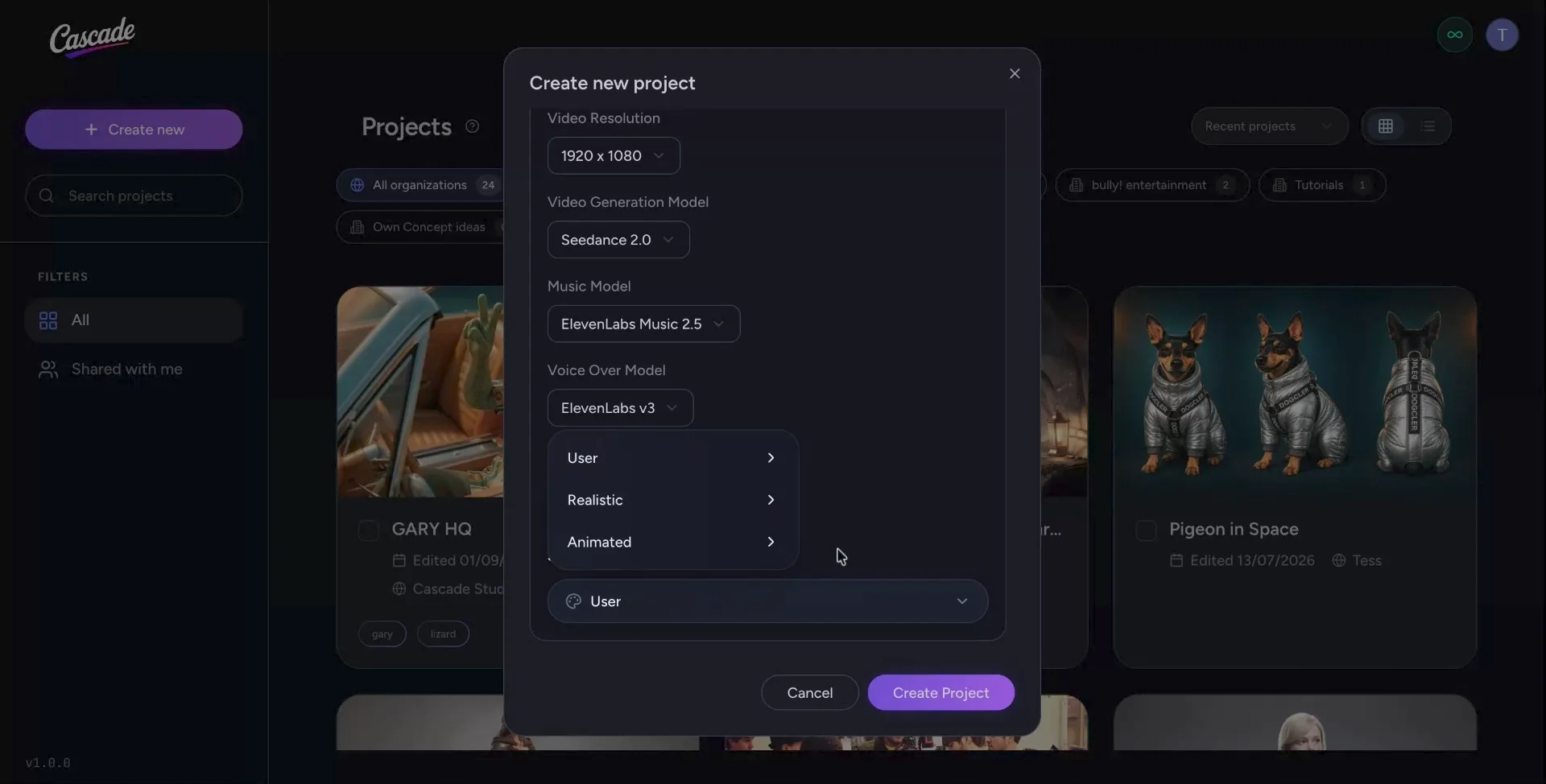
Select Set your project settings. This is where you can choose your preferred image generation resolution as well as your preferred image generation model. Set the resolution for renders and choose your preferred video generation model from Cascade’s curated list of leading models. You can also select music models , voiceover options, and sound effects to use in your project.
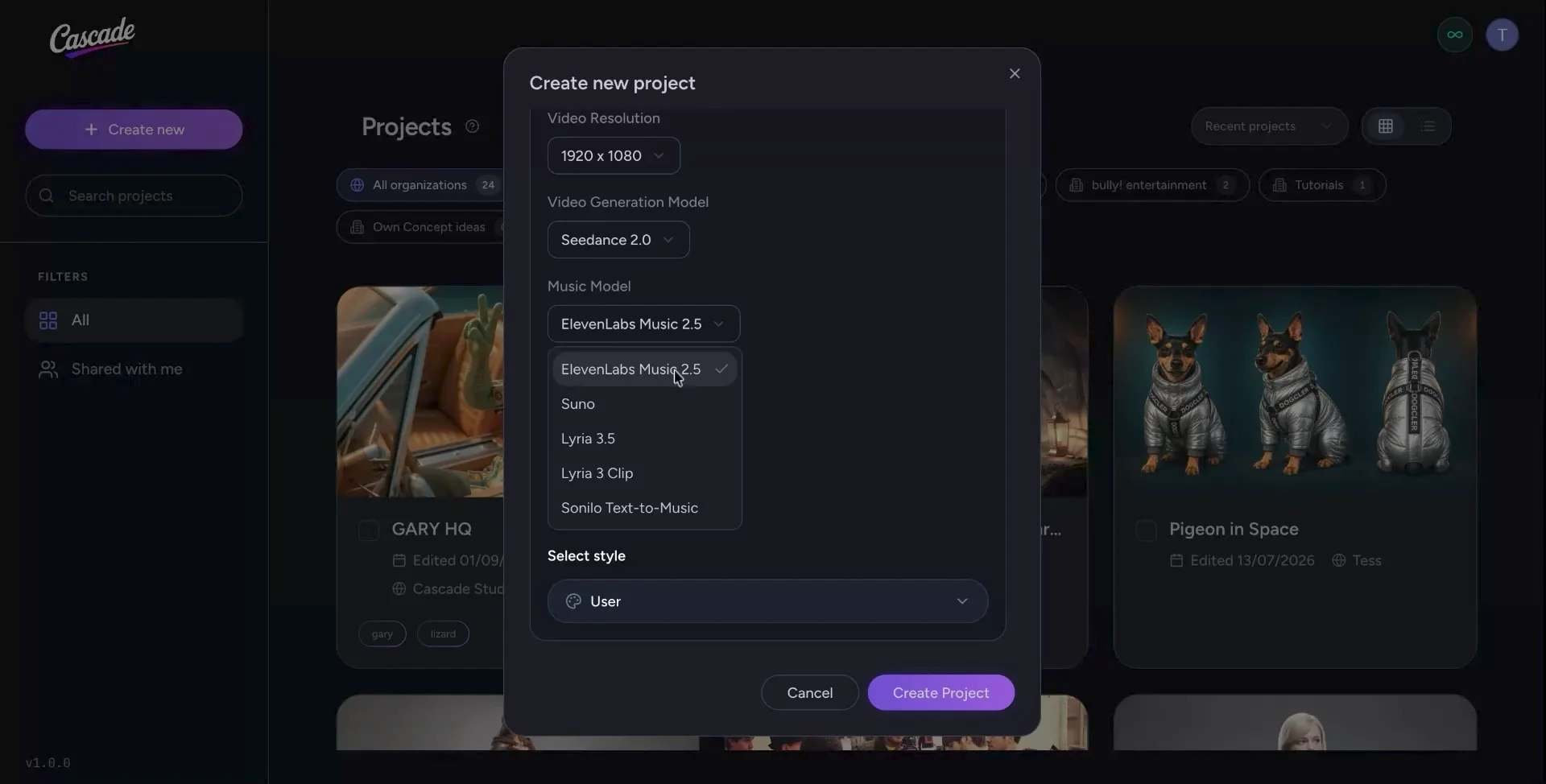
Next, you can choose your preferred style for generations, including your own saved user styles. Alternatively, choose from Cascade’s selection of realistic or animated styles. When you are ready, click Create.
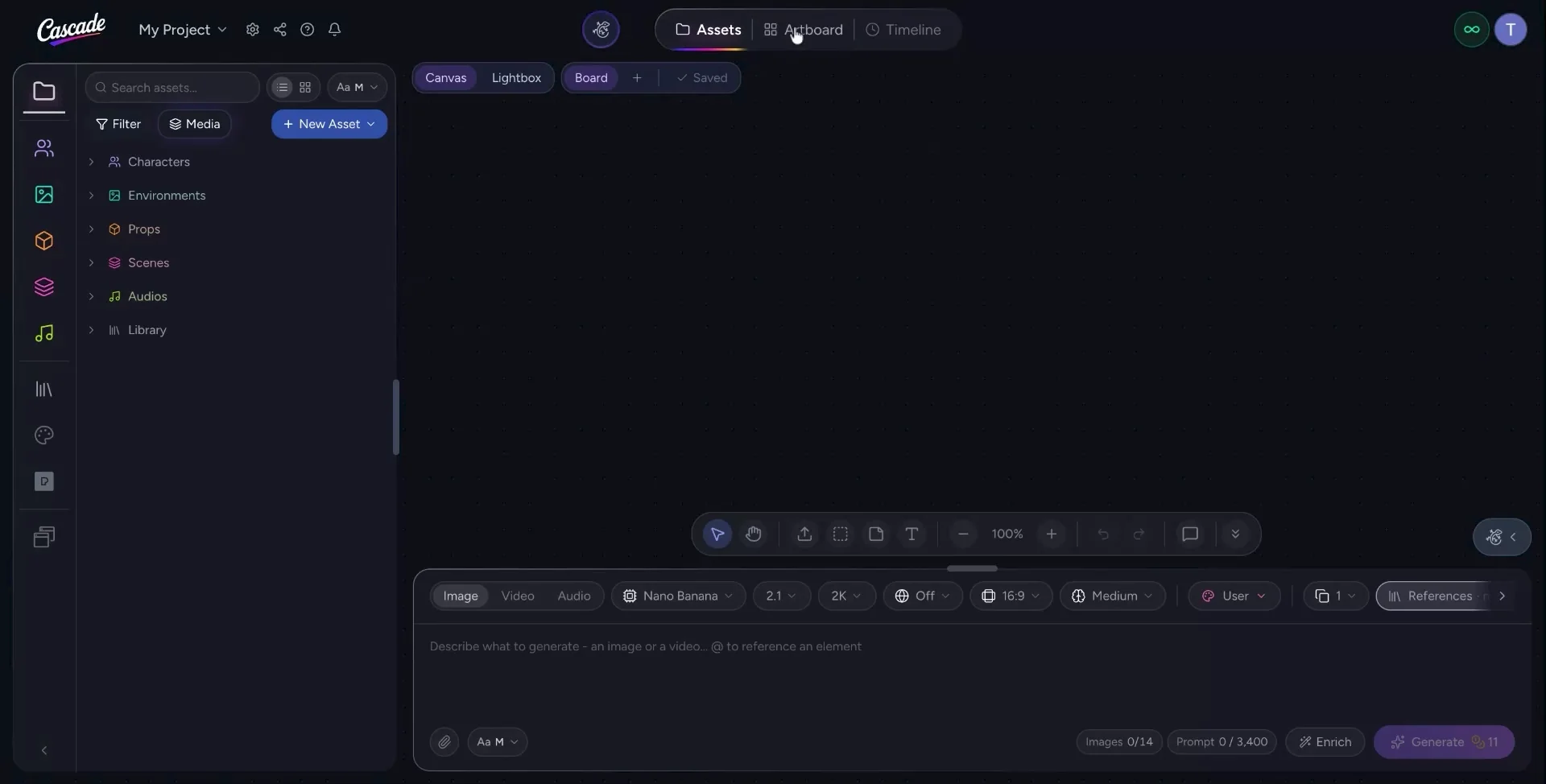
Project. You can now see your projects listed in the project dashboard. Click your new project to open it; you will arrive on the Assets page. Before exploring the assets, take a look at Gary, Cascade’s AI agent, who can assist you with working inside your project.