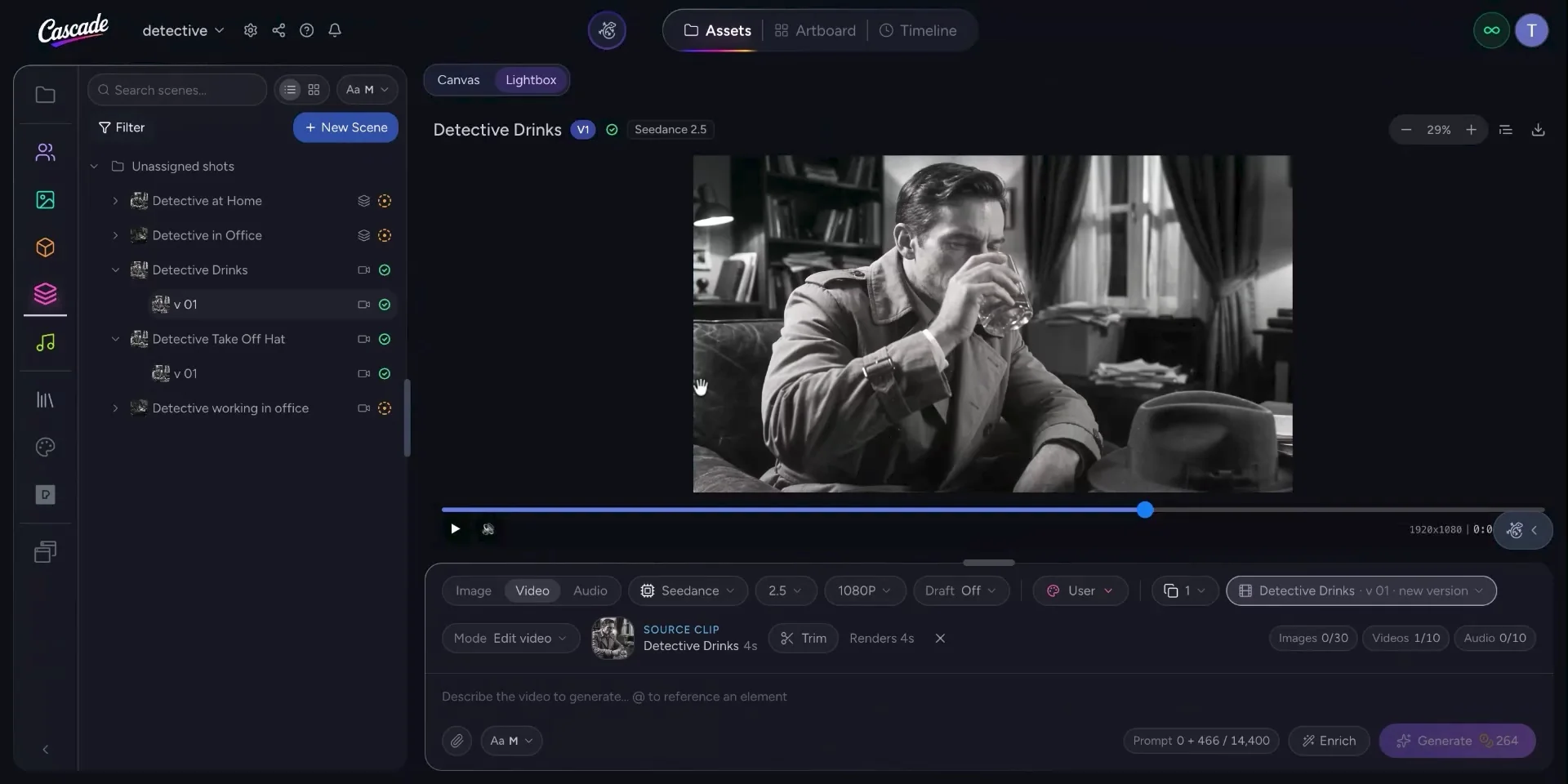
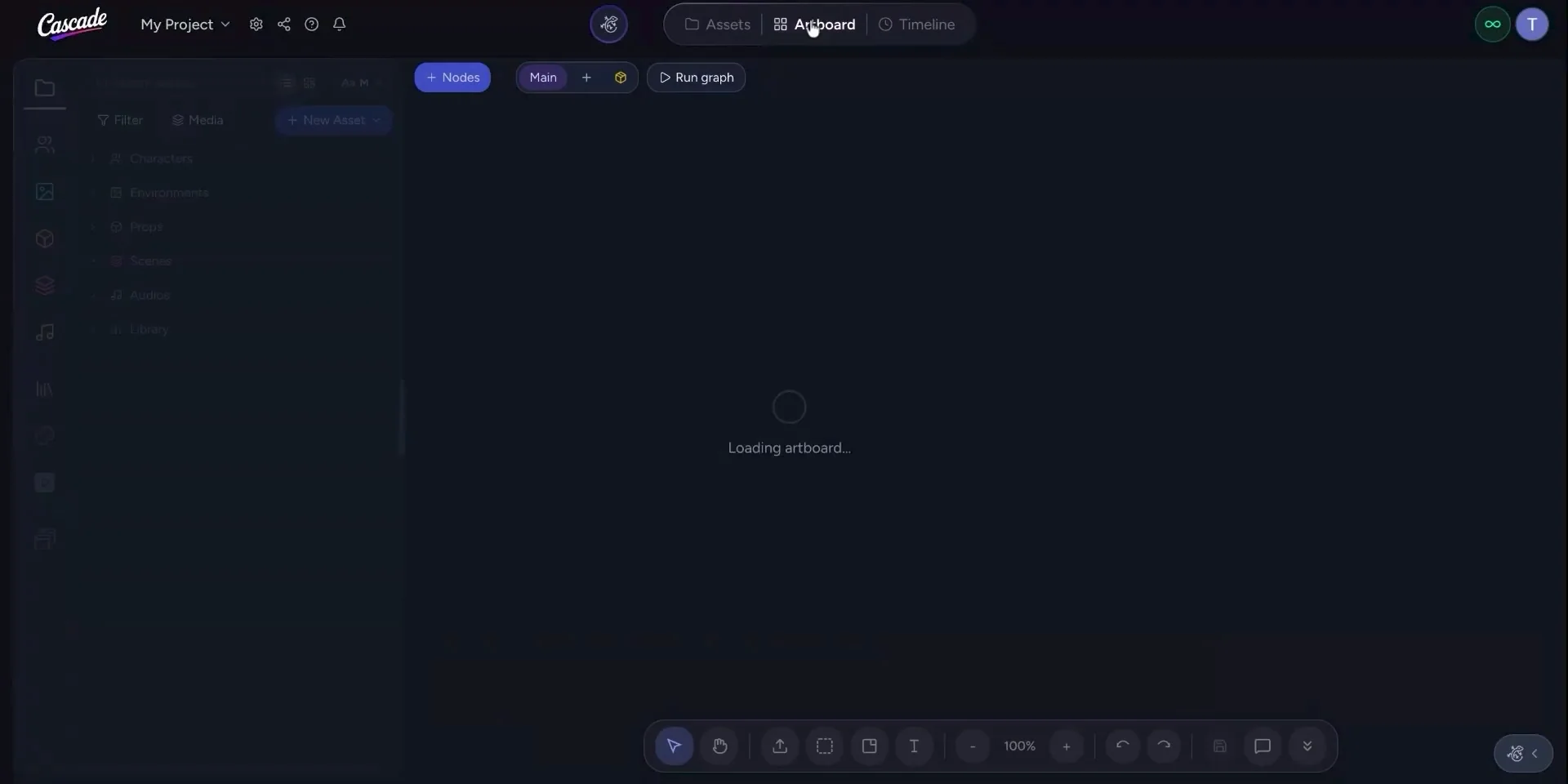
To begin working in the node-based art board, drag any asset onto the empty art board. You can zoom out and use the space bar to pan around the canvas for easier navigation. Drag all of your approved assets onto the canvas; you do not need to expand an asset to select its approved version—the approved asset will be uploaded automatically. All assets are color‑coded so you can easily distinguish the different elements on your art board.
Once all assets and elements for your first scene are on the art board, add a scene node from the available node agents. Click and drag the scene node onto the canvas.
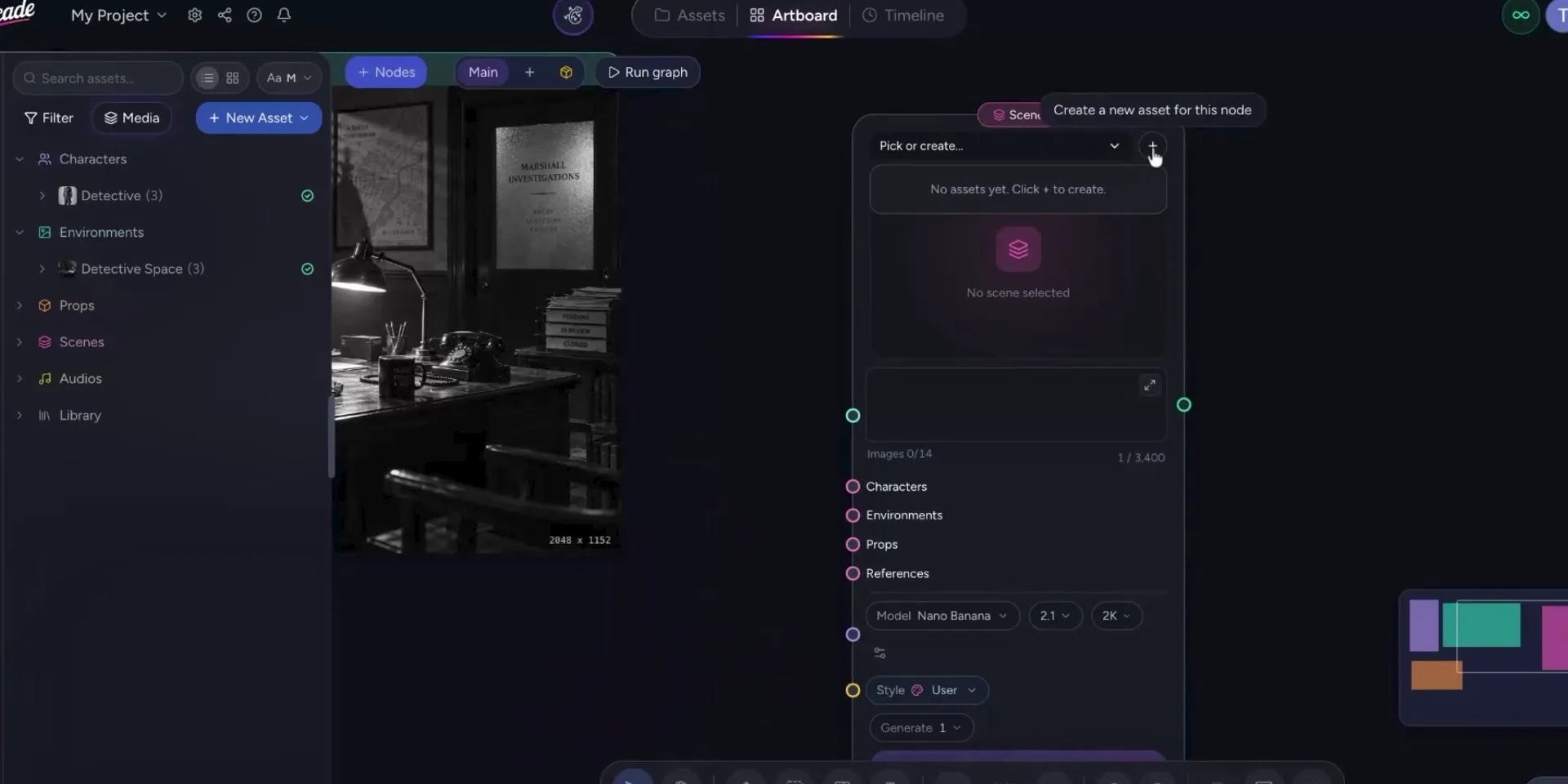
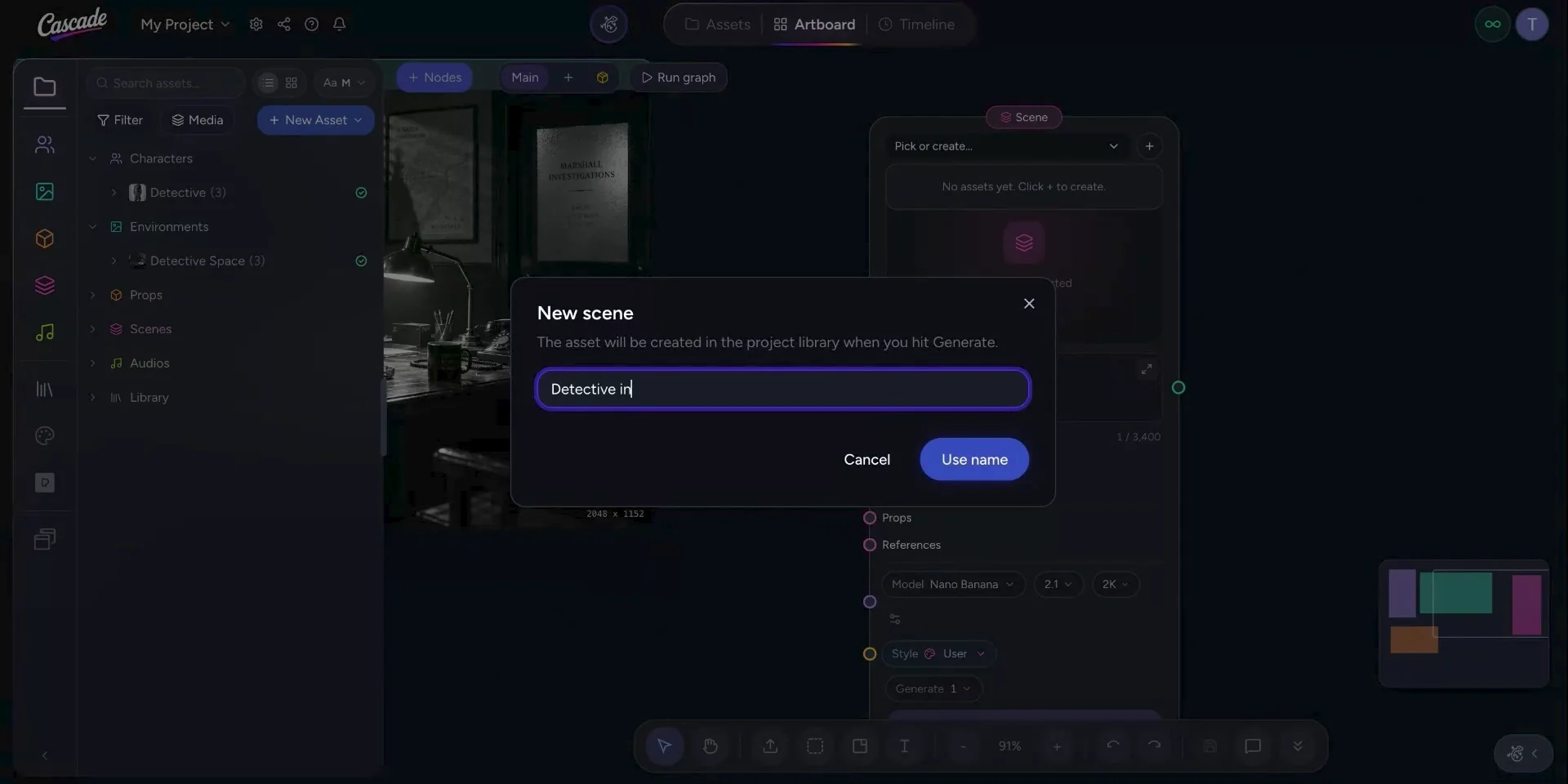
In the scene node, choose an existing scene asset or create a new one, then name this scene.
Start referencing your assets by dragging connection wires from each asset to the scene node. Confirm that all references are correctly tagged.
Open the prompt editor on the scene node. Click to expand the prompt editor and describe your scene with a clear, detailed prompt.
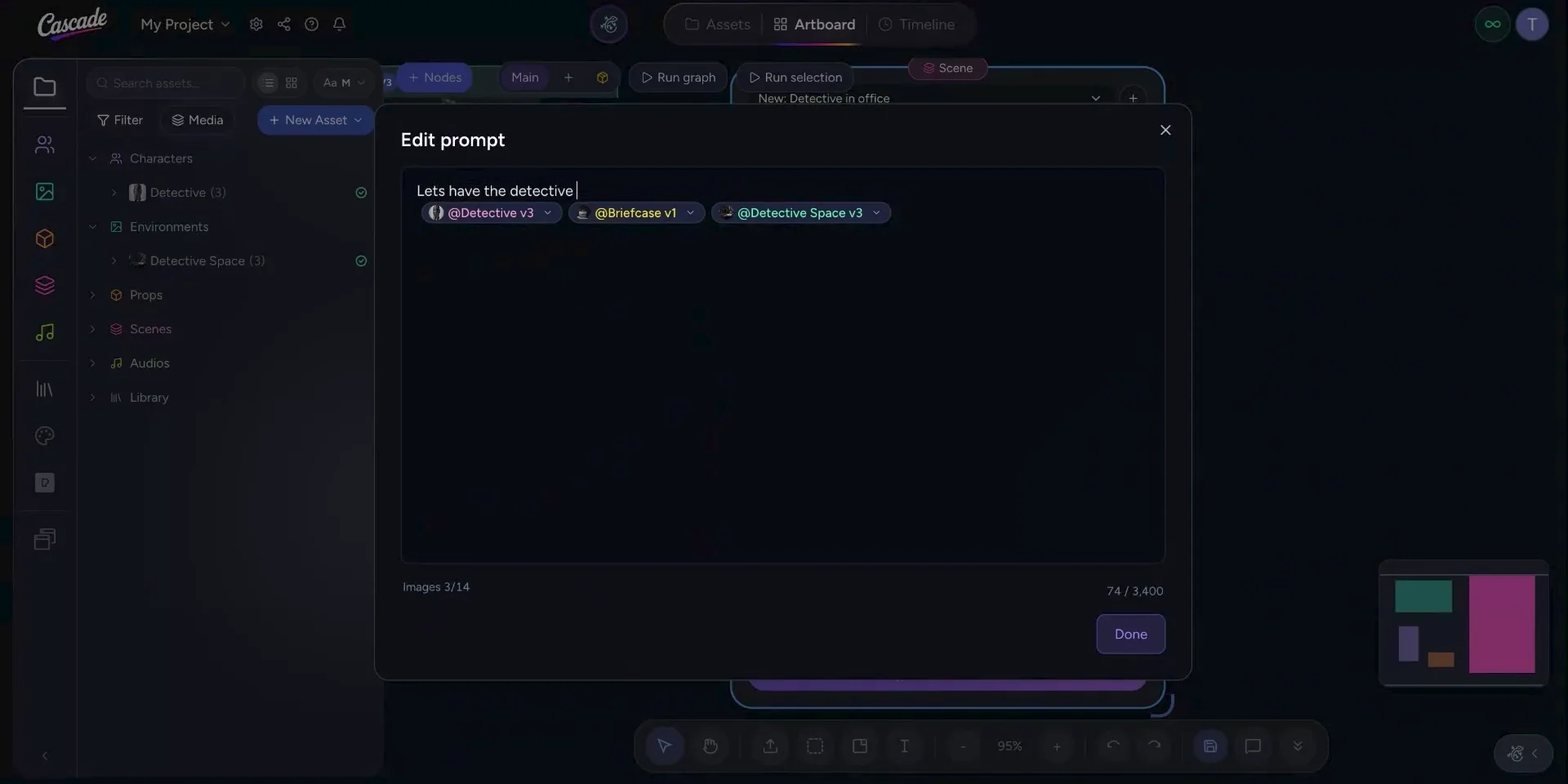
If needed, open the advanced settings to adjust the aspect ratio and the thinking level for generation quality.
Once you are satisfied with the prompt and settings, select Generate to create the scene.
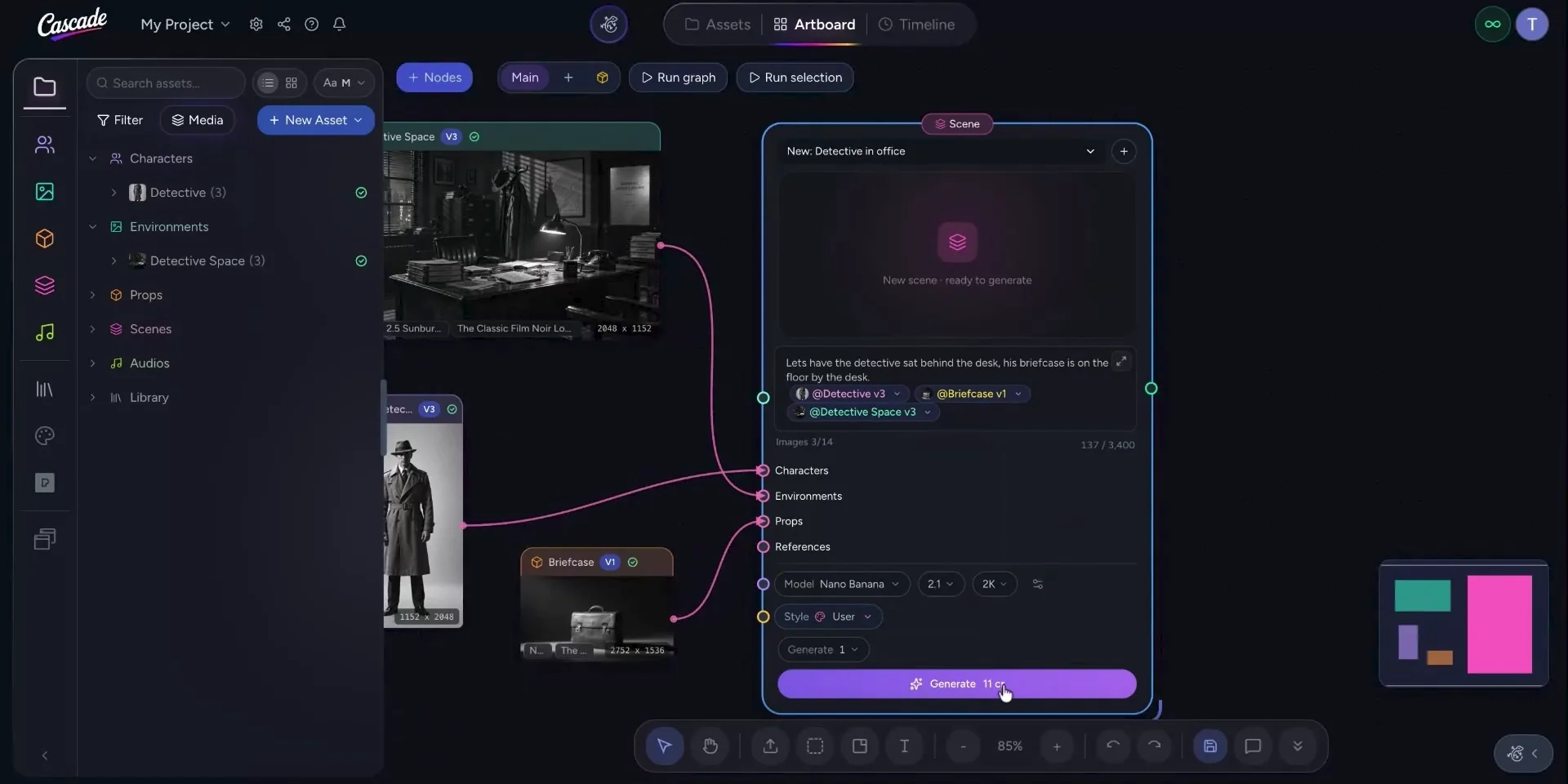
While the scene is generating, create a new art board to keep your projects and assets organized. Click the plus icon to add a new board.
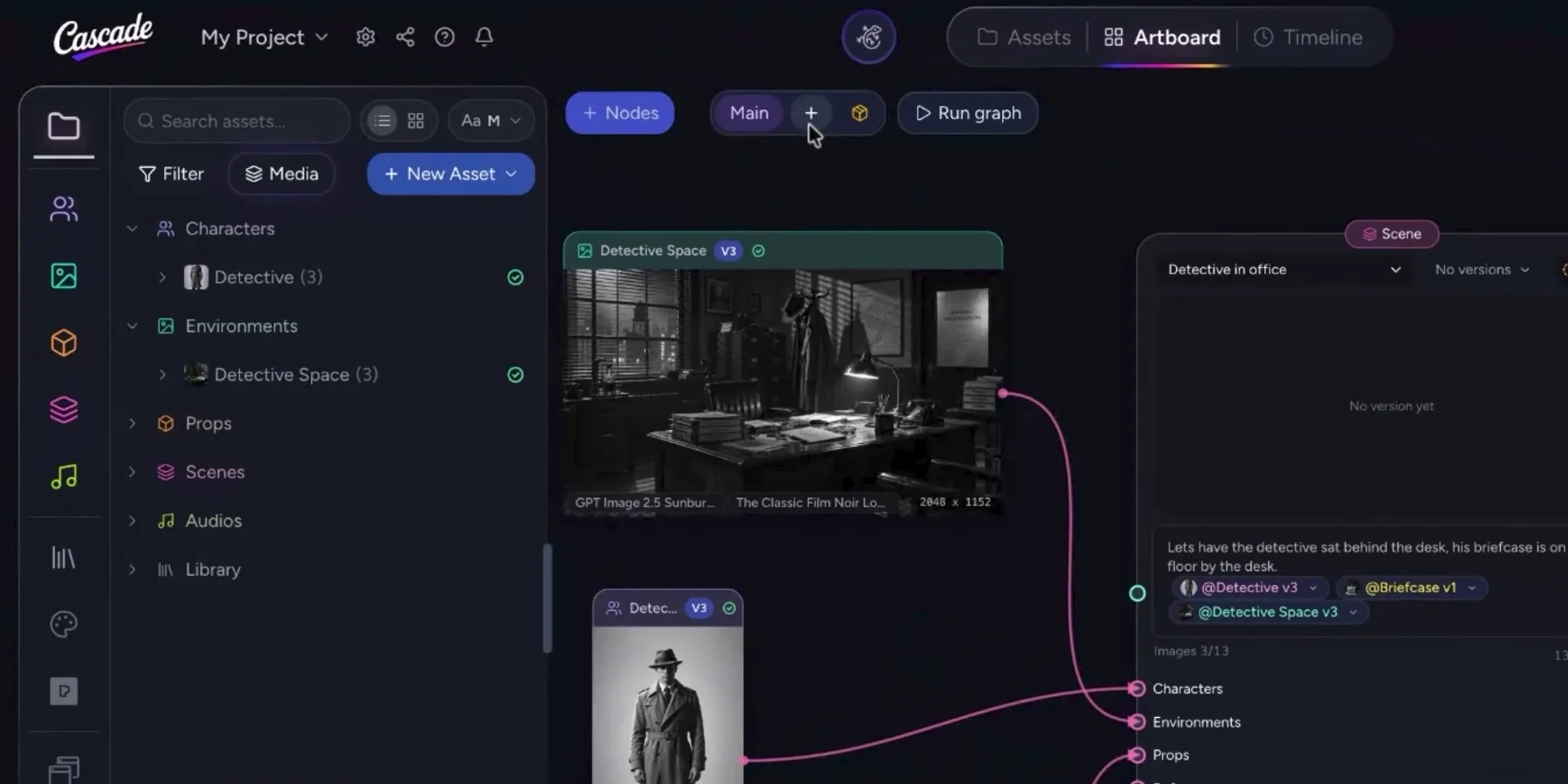
Name the new board, and if desired, double‑click the main art board to rename it as well so each board has a clear, descriptive title.
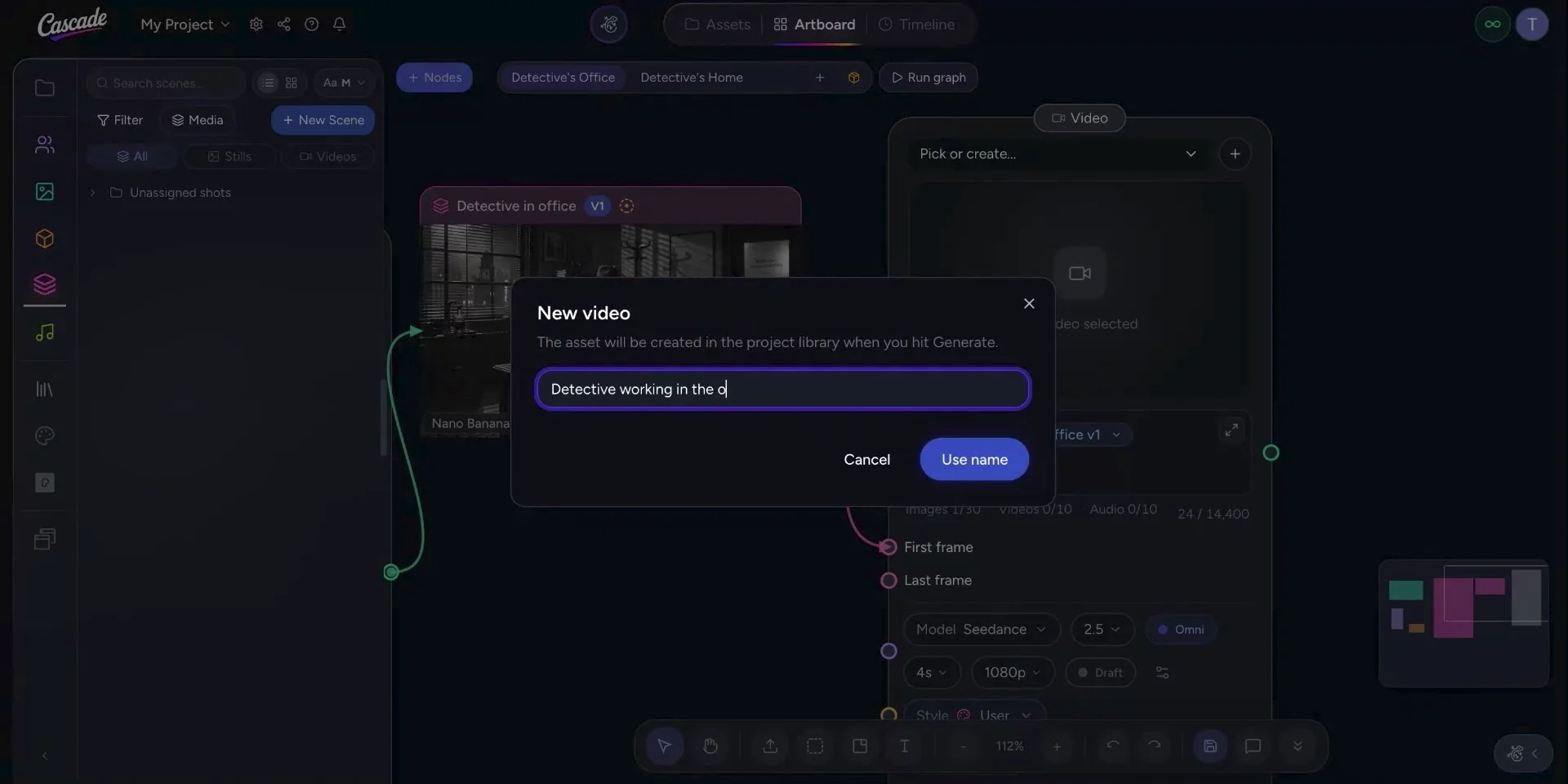
To turn your scene into a video, add a video generator node to the art board by selecting it and dragging it onto the canvas. Connect the scene node to the video generator node to use the scene as the first frame of the video. Create a name for this new video asset.
Next, write a prompt describing the video you want to generate, such as how the character should act within the scene.
After confirming your settings, select Generate to start the video creation.
Allow the video to generate in the background while you continue exploring other features.
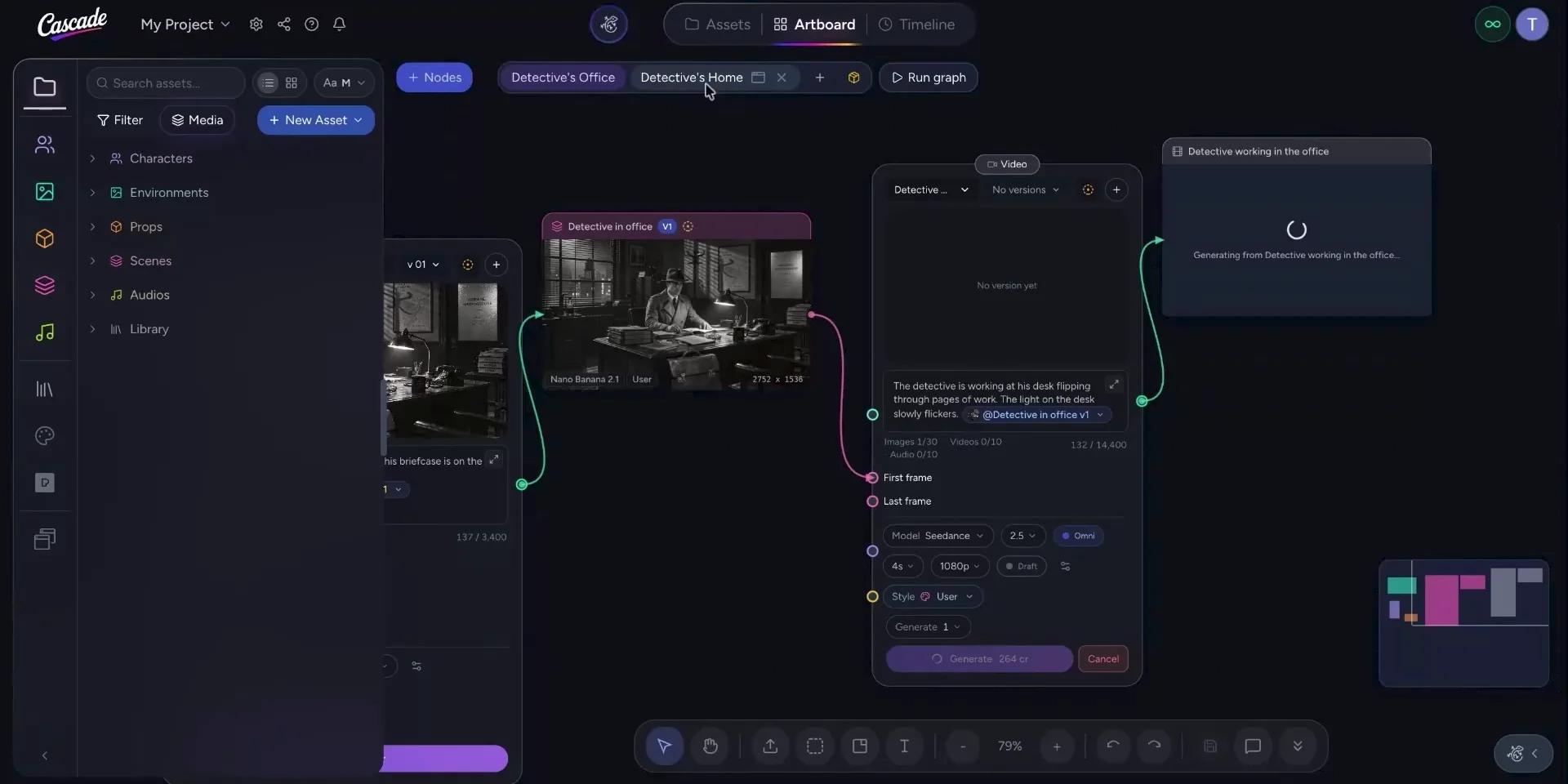
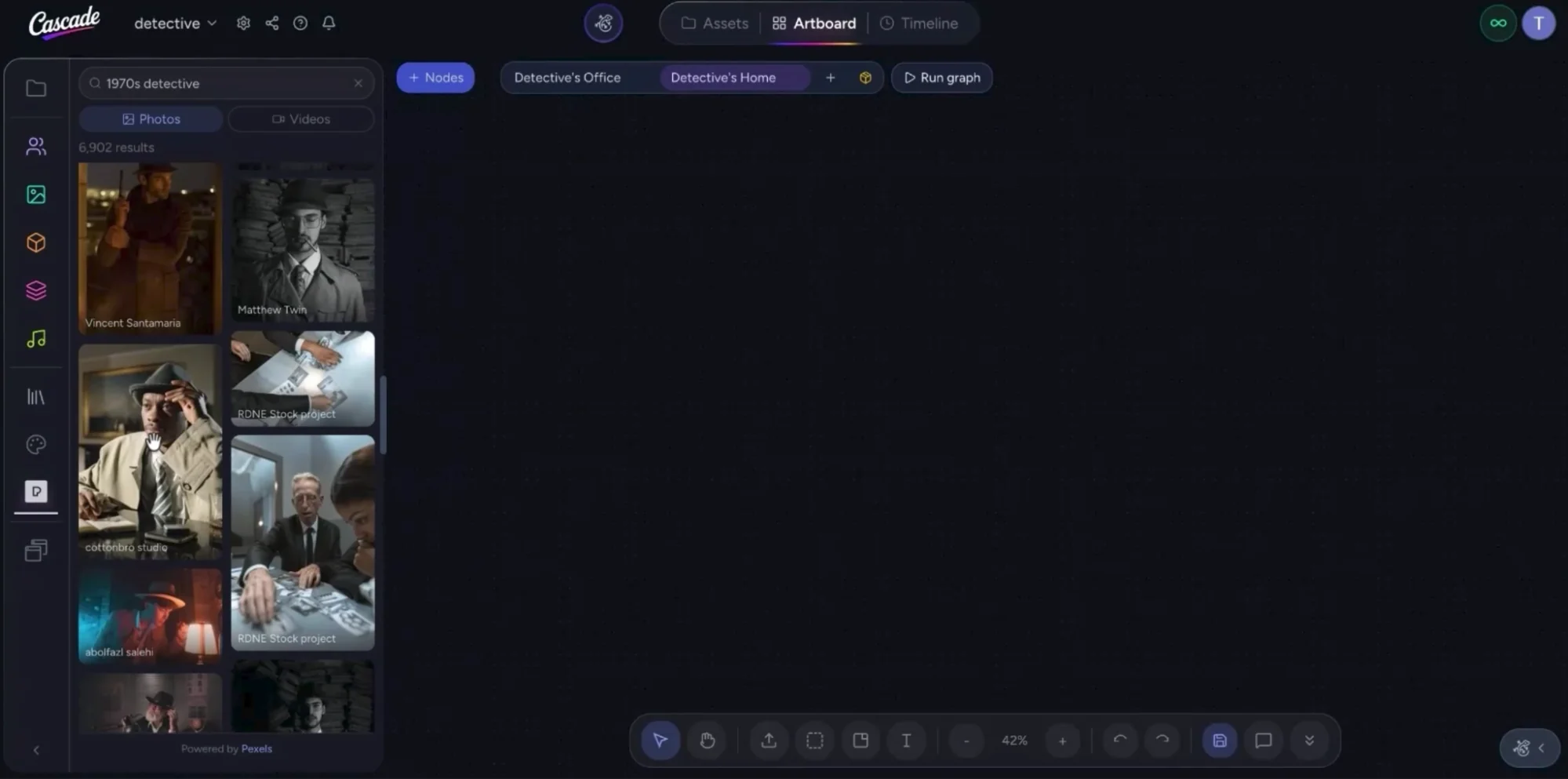
Open your second art board to work on additional concepts. Cascade includes a Pexels library that provides stock footage under a free license.
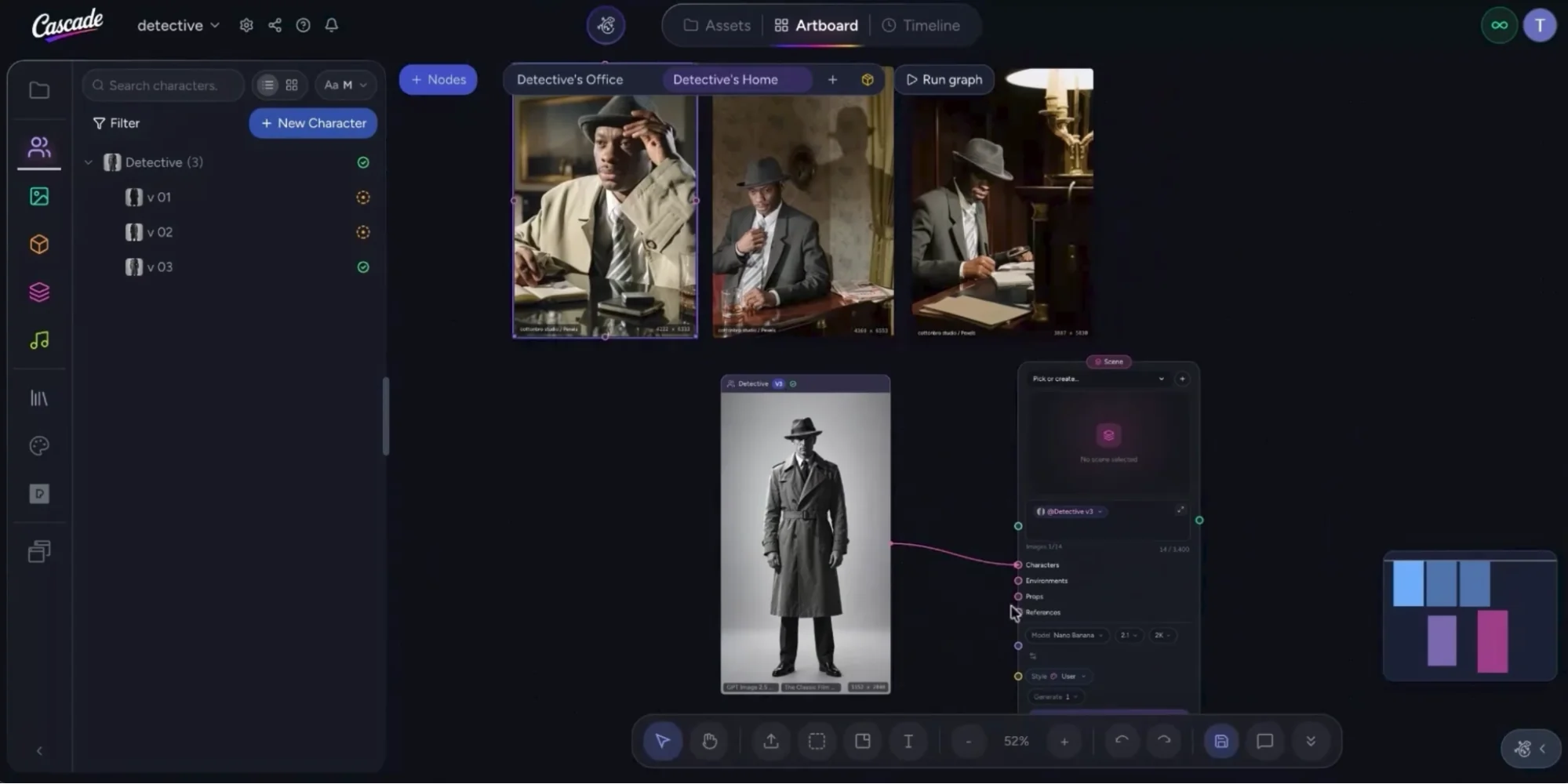
Use this library to build a mood board and develop your creative direction. Search for references—for example, “1970s detective”—then scroll through the asset library and drag and drop the images or clips you like onto your art board. Also drag your detective character asset onto this art board. You will use these references as shot‑composition inspiration for a new scene with your character.
Create a new scene by dragging a scene generator node onto the art board. Connect your character asset and the selected reference images as inputs to this scene node. Name your new scene.
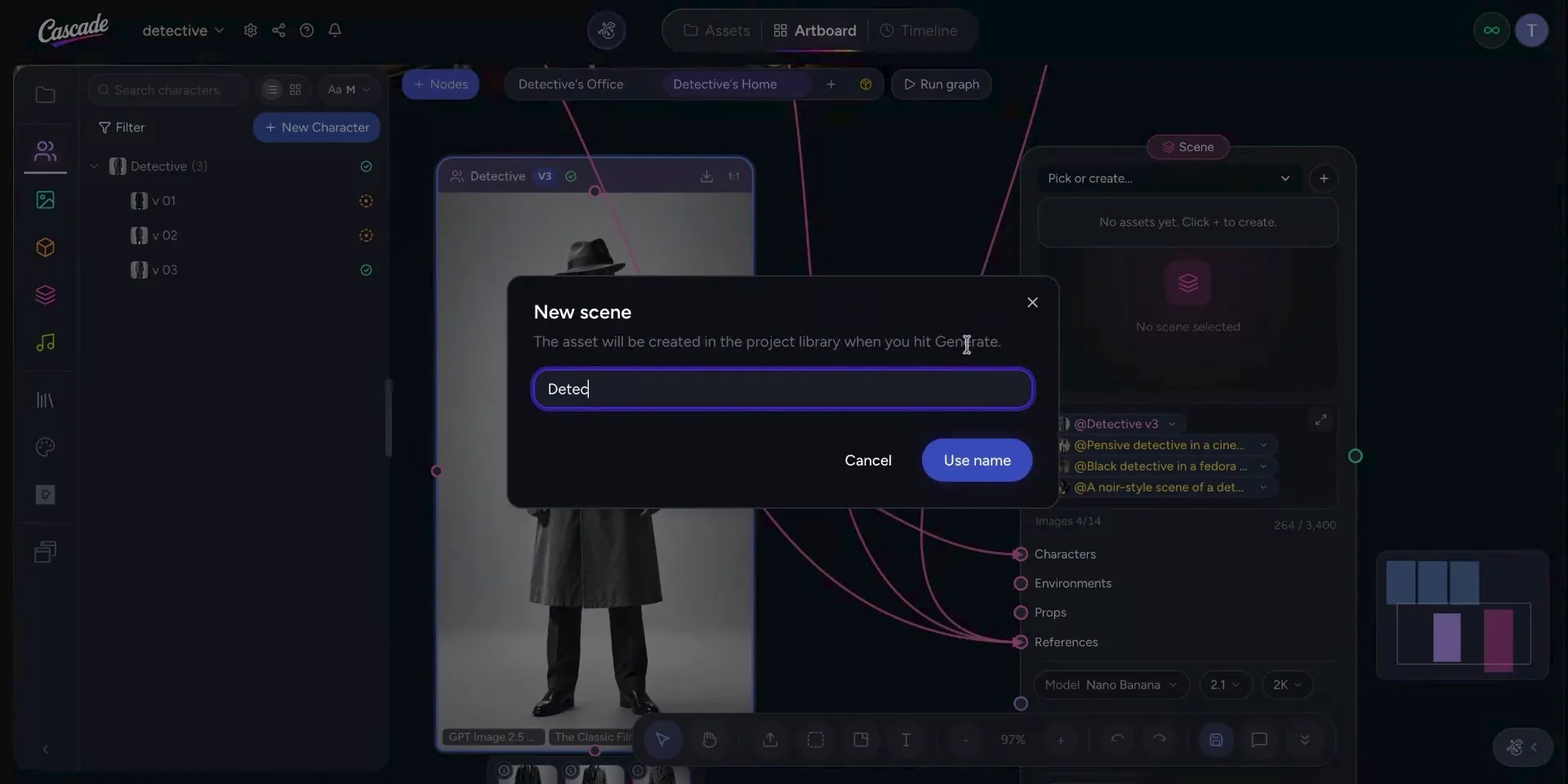
Enter a prompt describing the scenario—for example, the detective being at home. When you are ready, select Generate to create the scene based on your references.
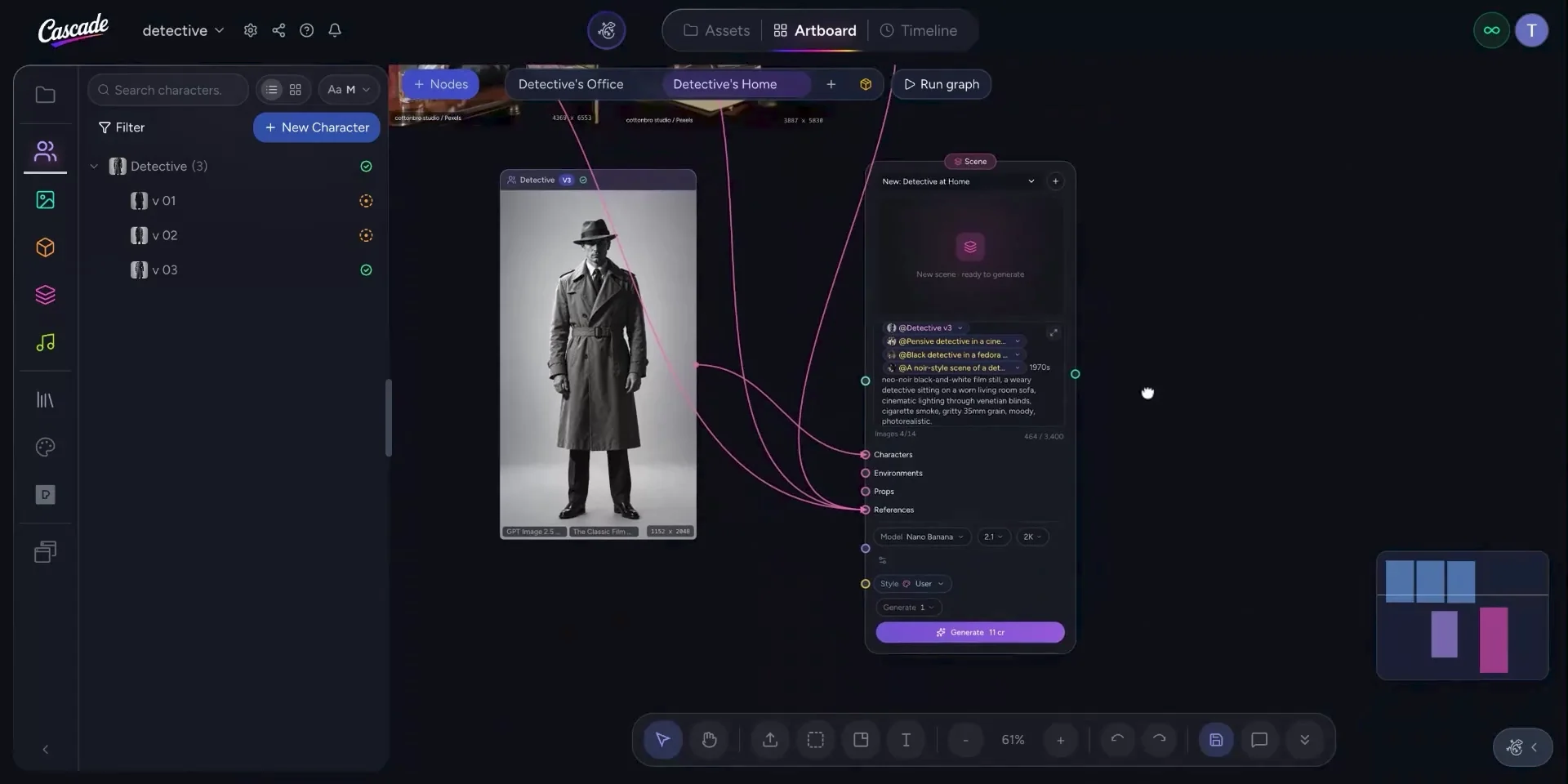
After generation, open the scene (double‑click) to view it in full and confirm that it matches the intended composition.
Before continuing, switch back to the detective office art board to check whether the original video has finished generating.
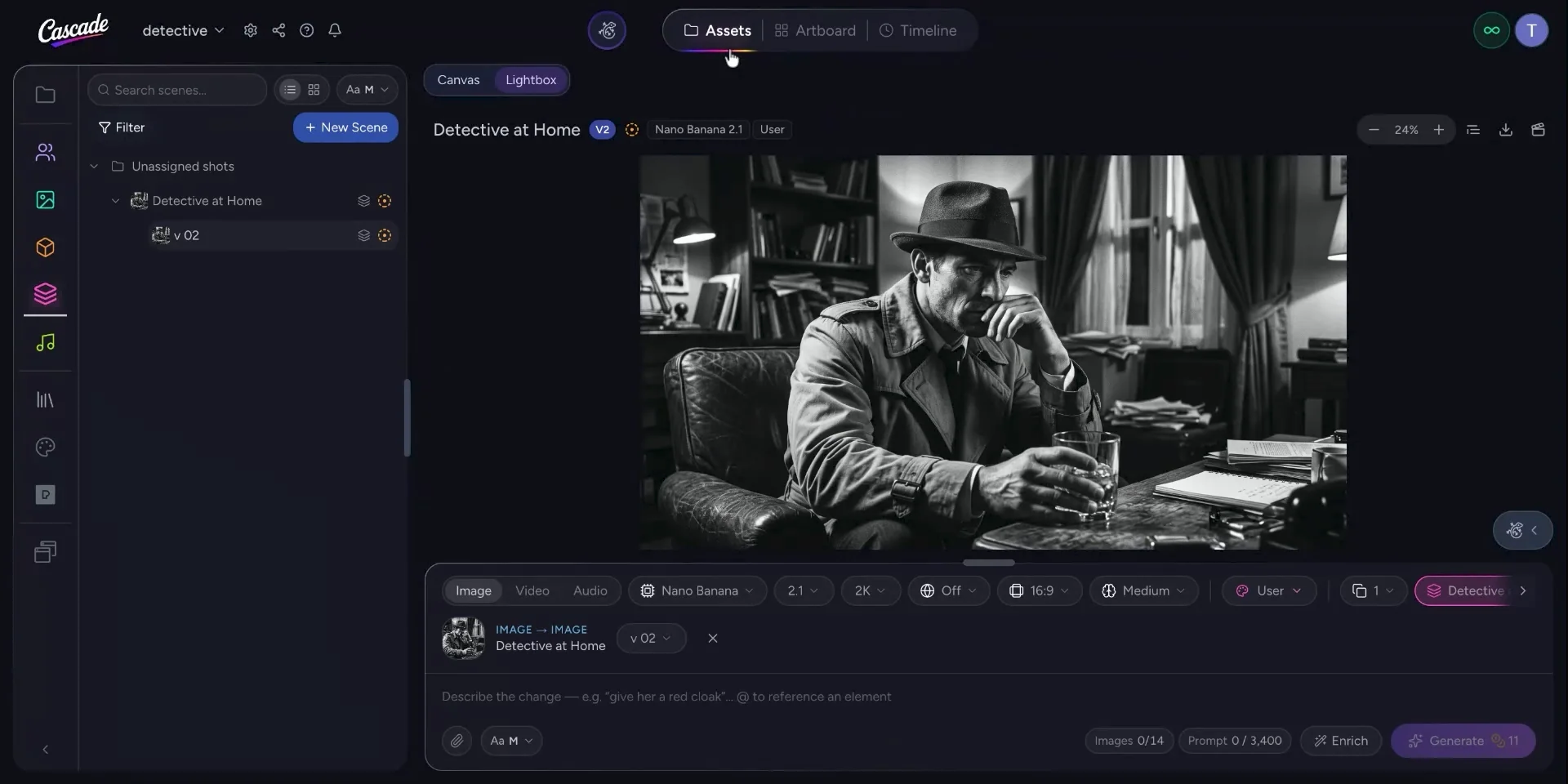
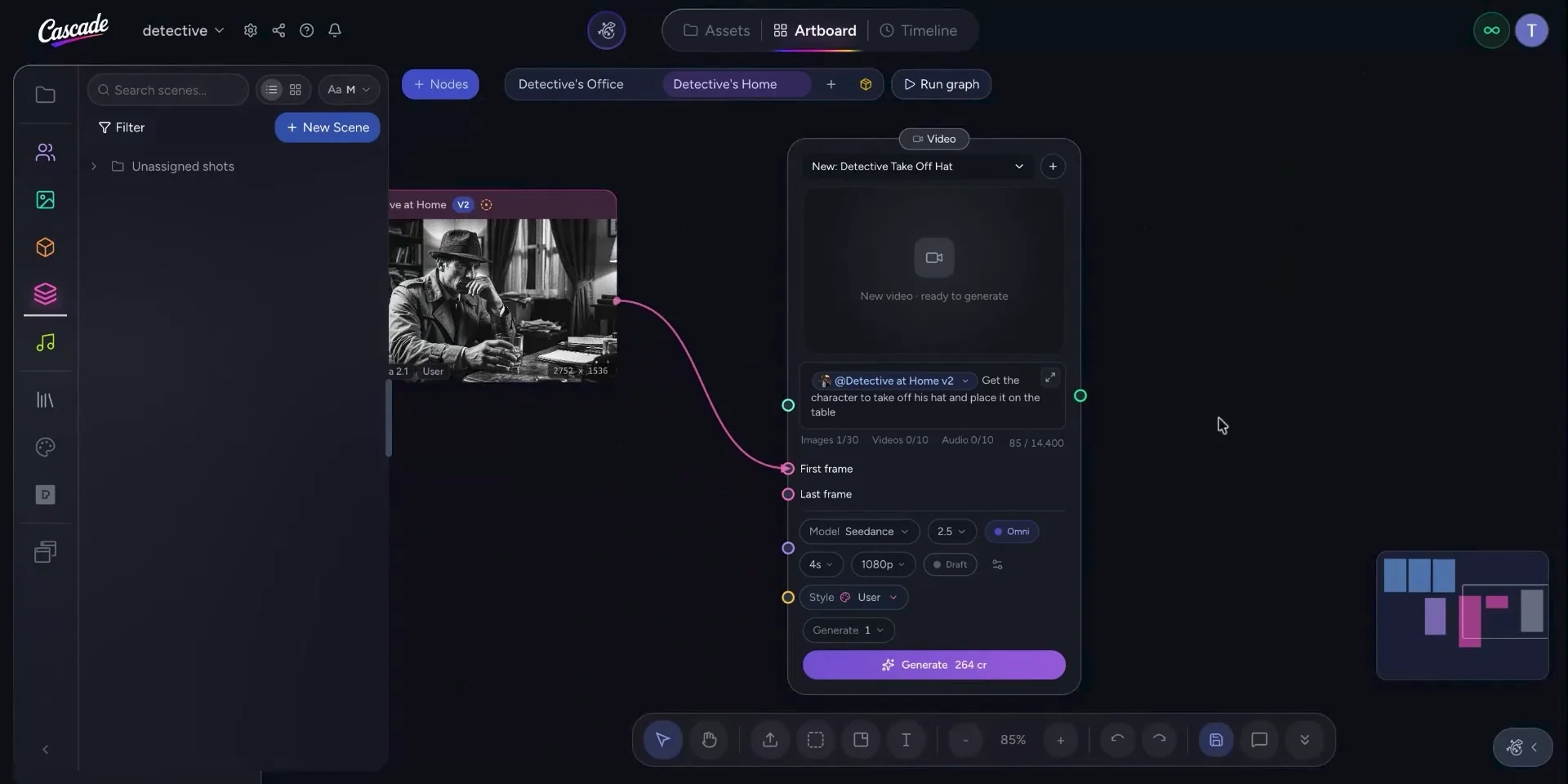
Now create a new video from your newly composed scene. Drag a video generator node onto the art board and connect the scene node to it as the first frame. Create a name for this video, for example one where the detective will take off their hat.
Enter a prompt describing the action and style of this new video, then select Generate.
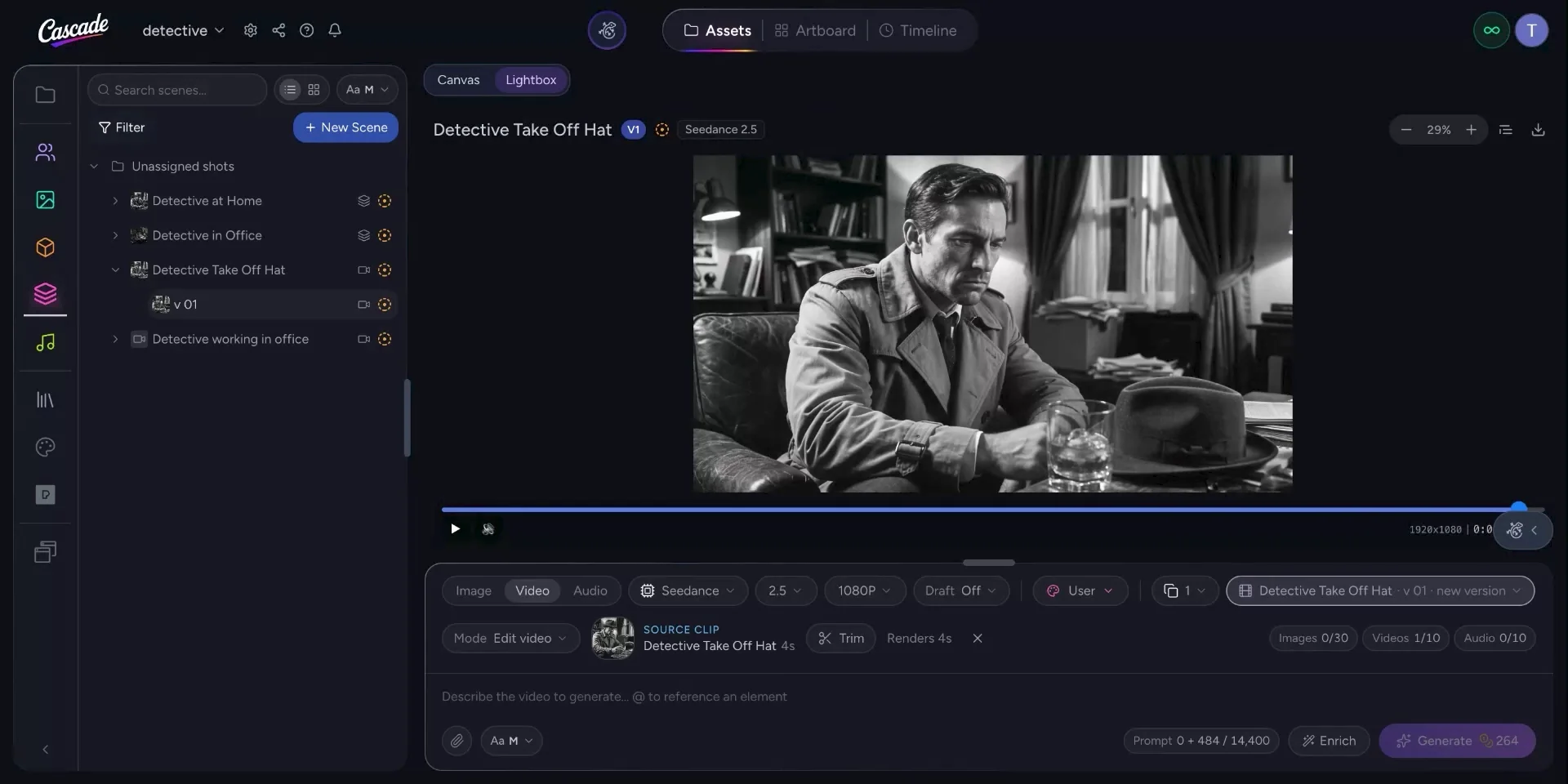
When the video has finished generating, double‑click it to view it in full. You can scrub through to specific moments; here, for instance, you might skip to the end of the video.
In the video viewer, right‑click on the video and choose the option to save a video frame. This still frame can be reused as the first frame of your next video. After saving the frame, return to your art board.
Upload that saved video frame back onto the art board as a new asset.
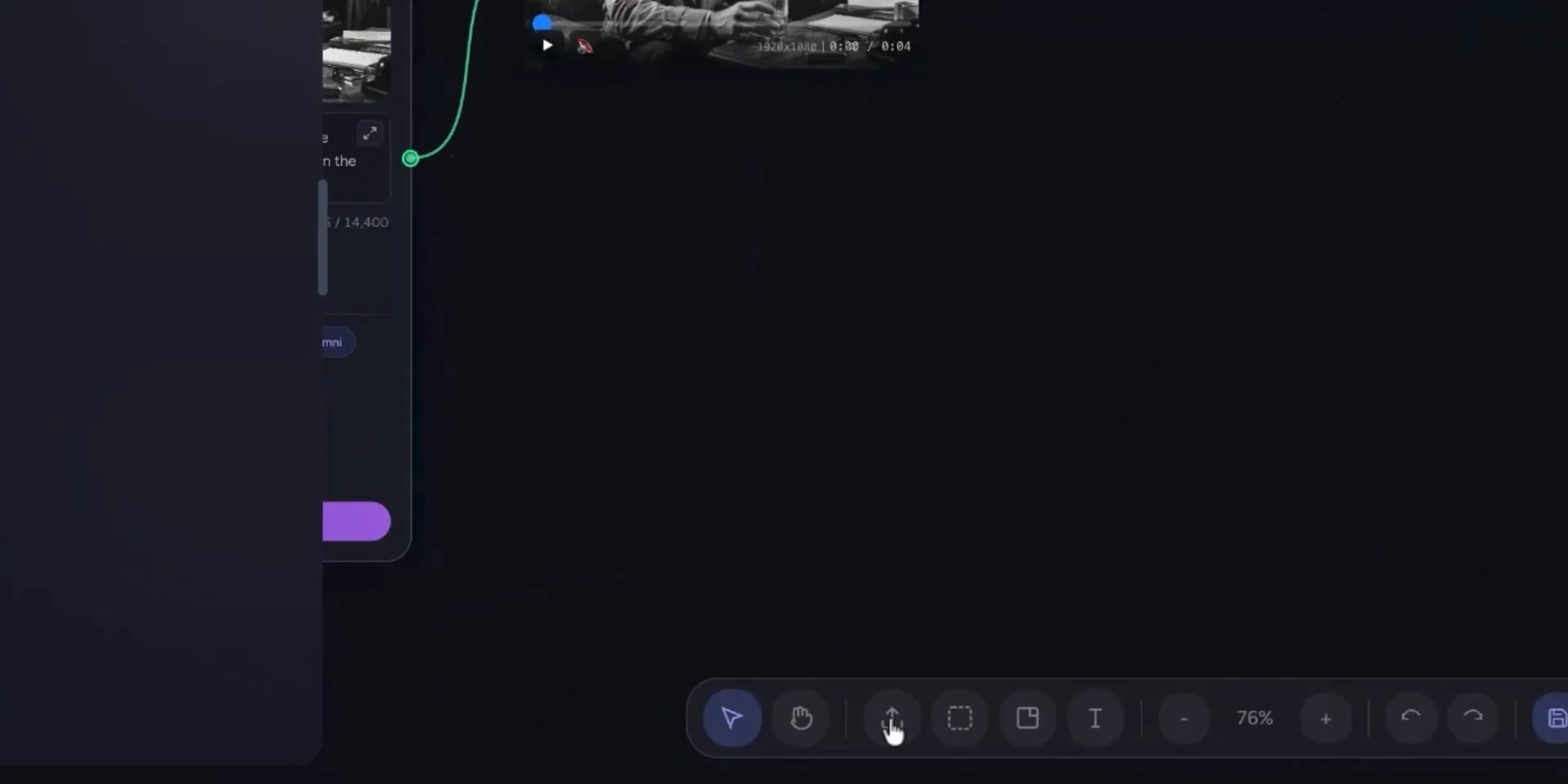
Confirm that the uploaded frame appears on the canvas and is ready to be used as a reference.
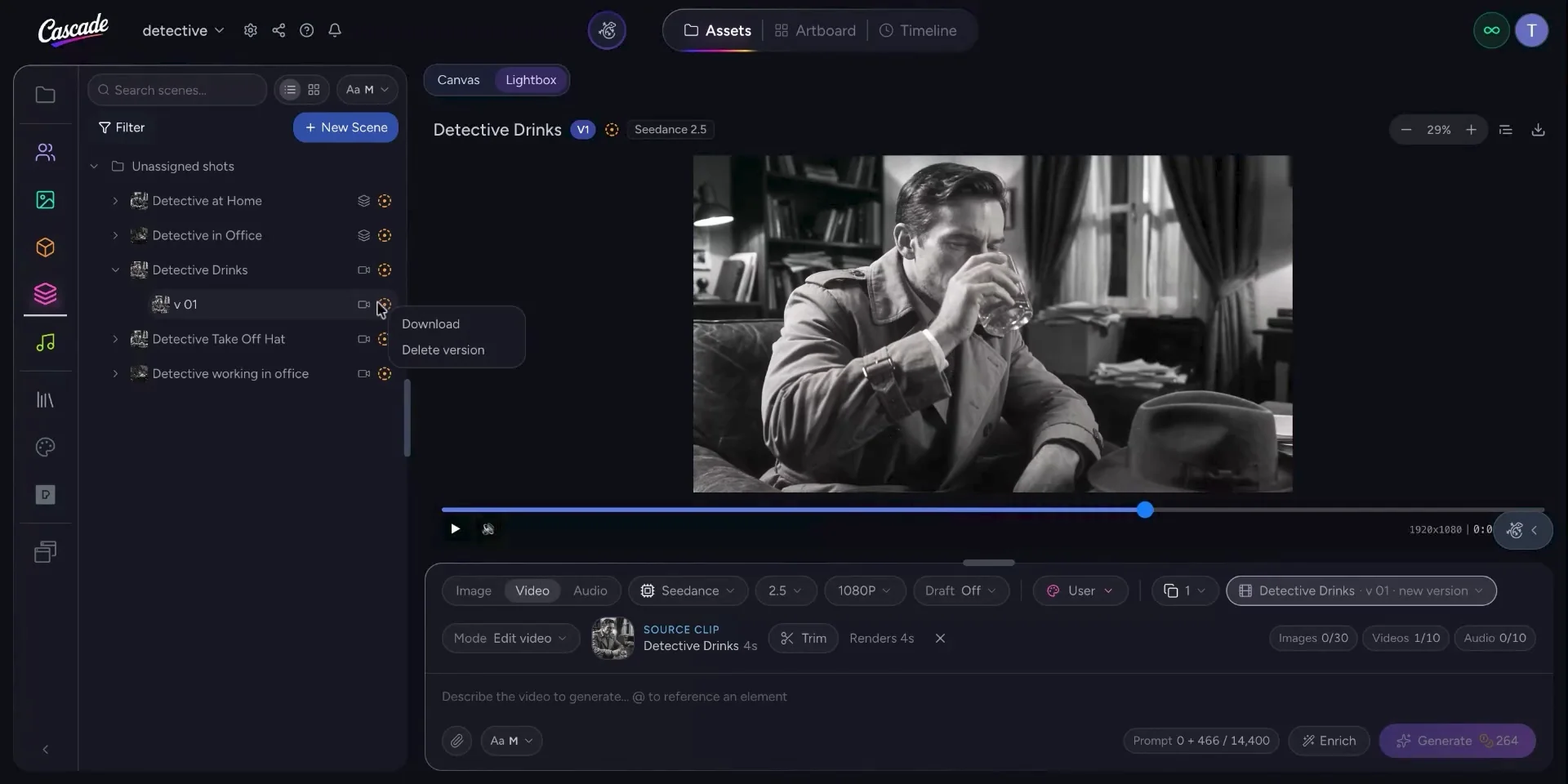
Use the final frame from the previous video as the first frame for a new video to create a seamless sequence. Connect the uploaded frame asset to a new video generator node so that it appears as the first frame, then write a prompt describing the new action—for example, the detective taking a drink.
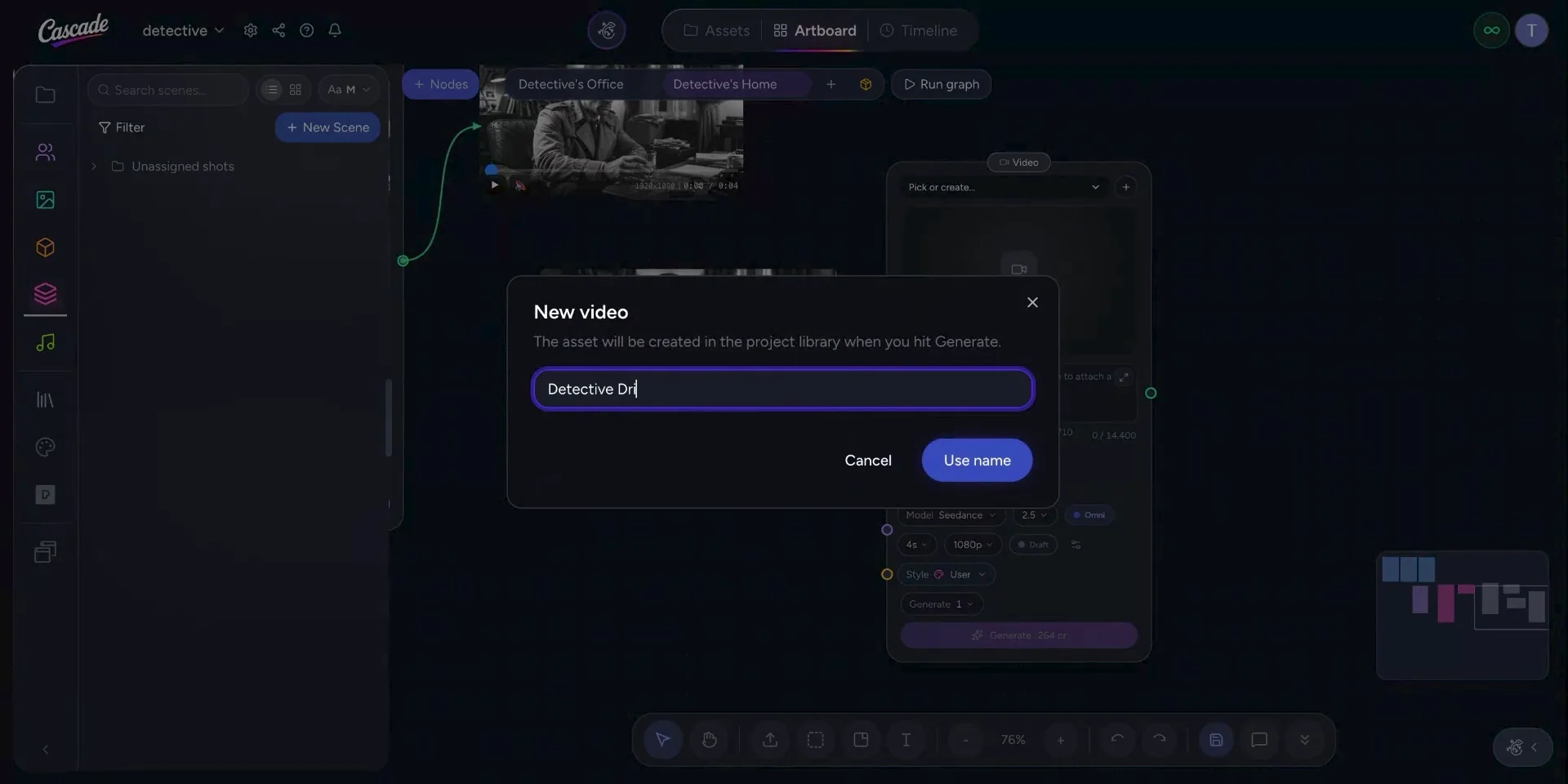
When you are ready, click Generate to create this follow‑up video.
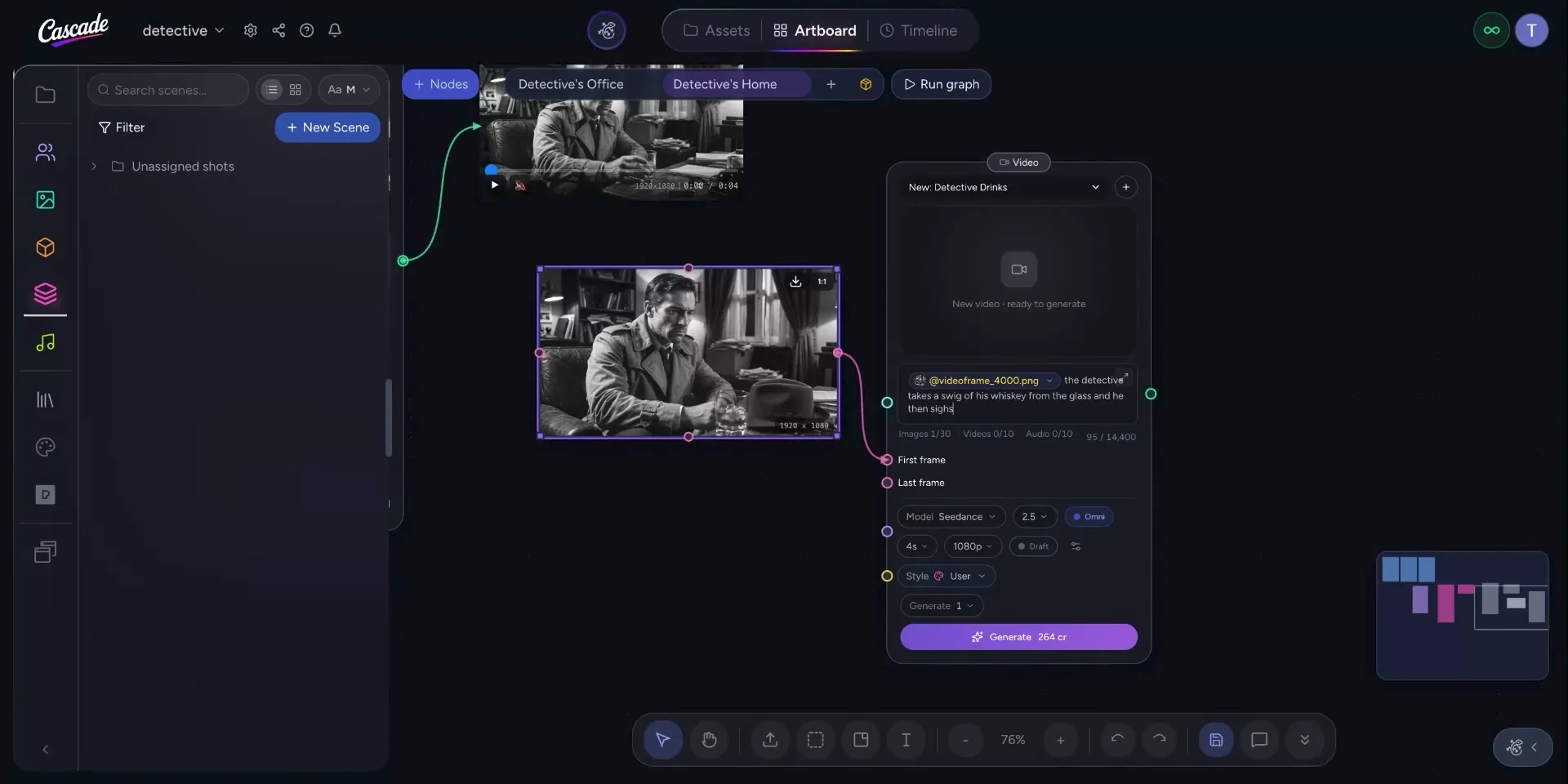
After generation completes, play the video to review the continuity and action.
Once you are satisfied with your generated assets and videos, approve them from within the art board.
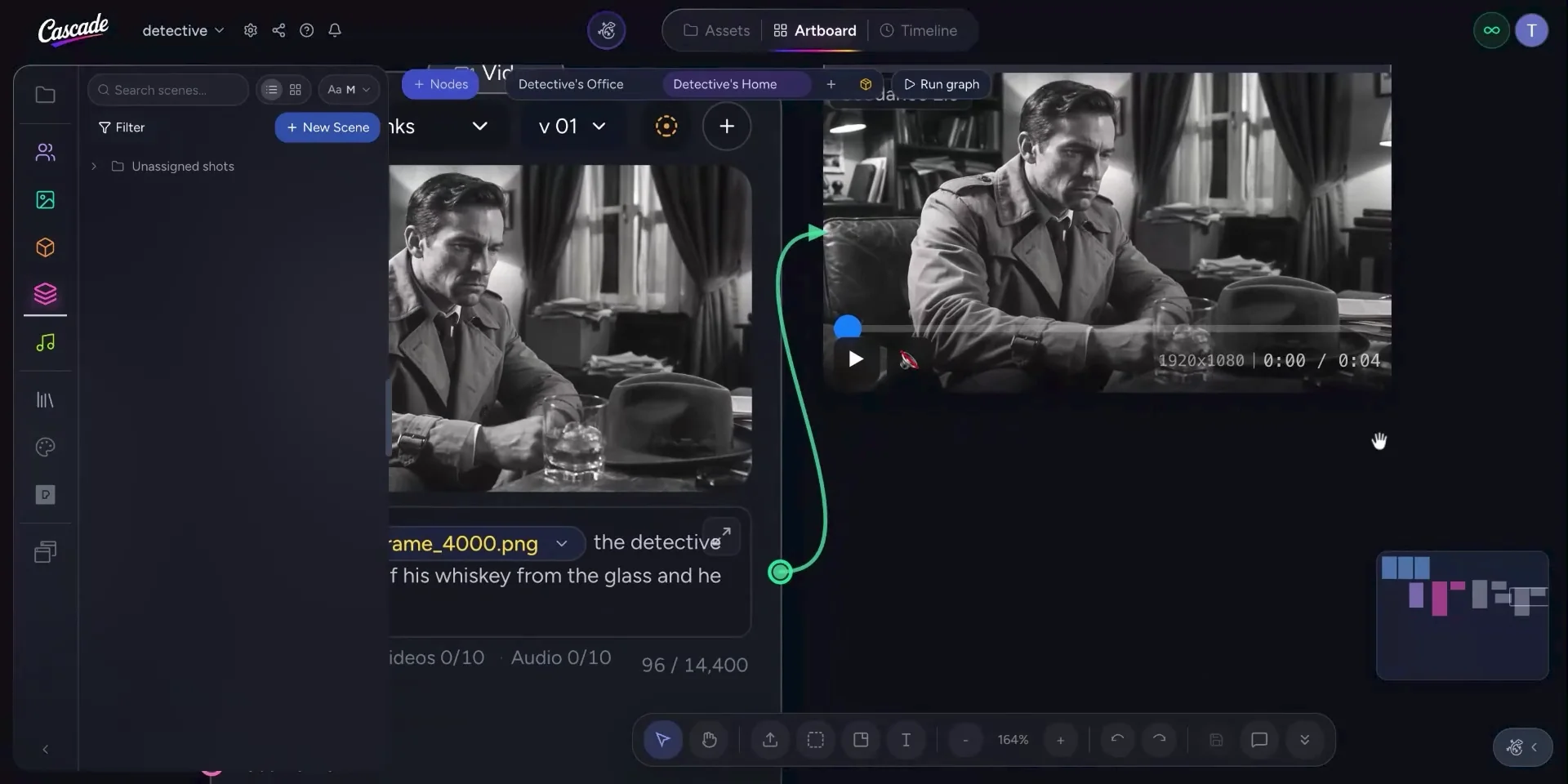
Click over the asset and select Approved to mark it as finalized.
With your approvals complete, you are now ready to move on to the timeline for further editing and sequencing.