
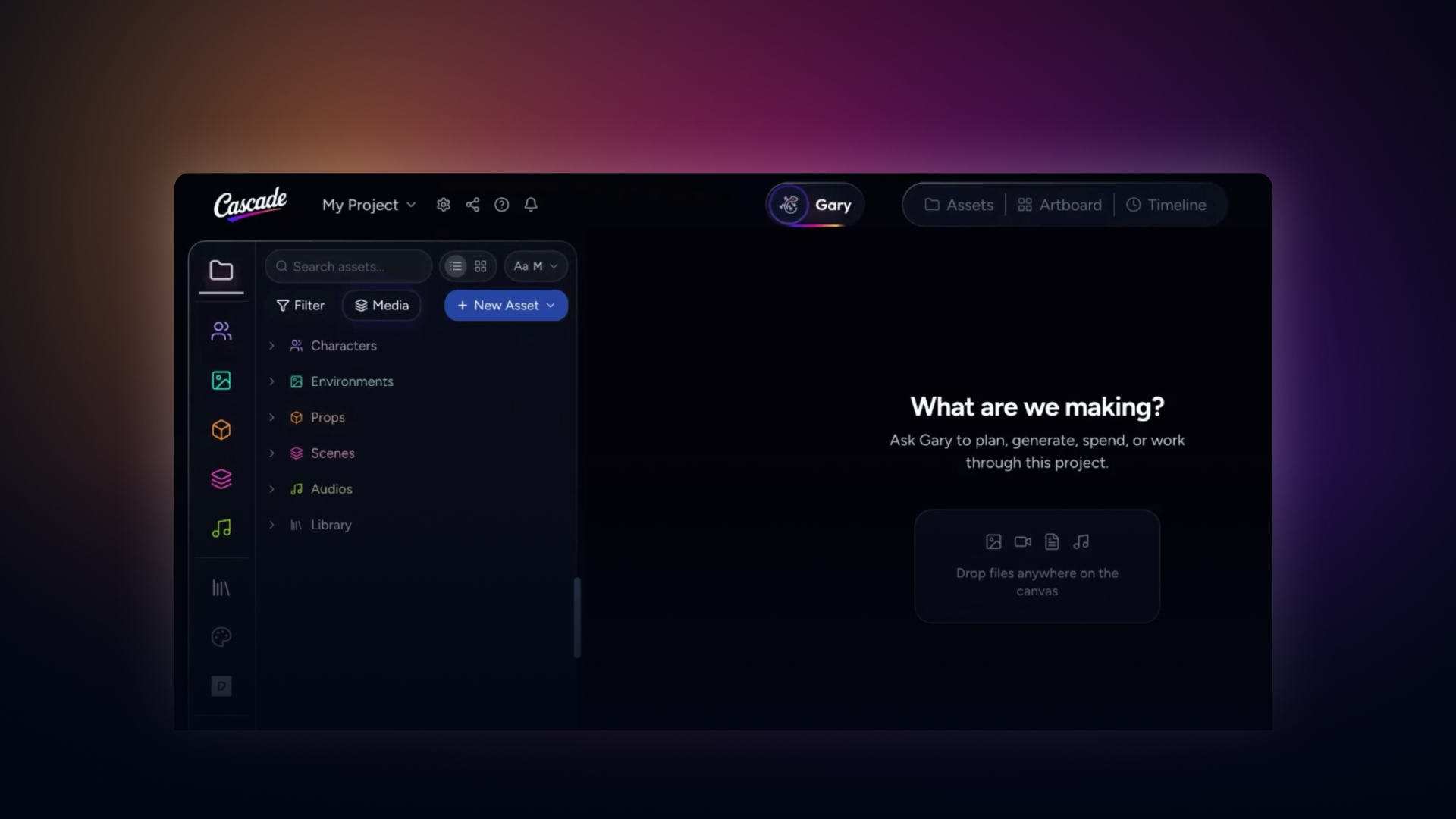
How to interact with Gary, your AI assistant, to ideate on a scene, develop a character, from brainstorming to execution, review and approve a production plan, and then continue building assets from the outputs.
Begin by writing your project idea in the prompt box. If you need more space, drag the prompt box to resize it. You can upload references (scripts, characters, music, video) either directly into the workspace or via the prompt toolbar so Gary has everything needed to understand your project.
Gary is voice-activated. To speak with him, press the voice button in the top navigation bar or use the voice control in the prompt toolbar.
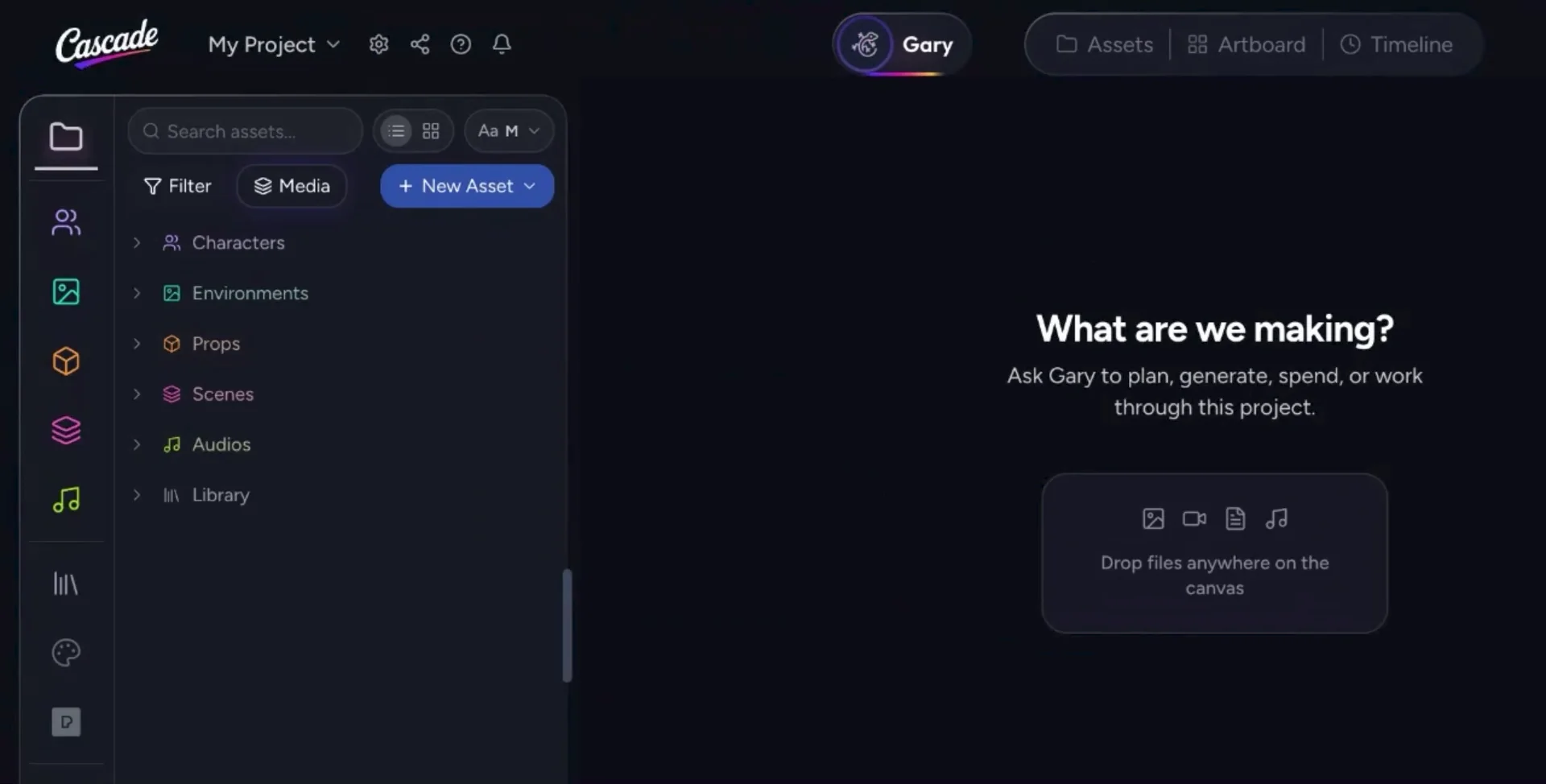
Use this to start a conversation, for example by greeting Gary and describing the kind of story or scene you want help with (such as a detective in his office), and clarify whether you want a full feature film or just a specific scene description.
Once you’ve finished your voice interaction, you can turn the voice agent off by clicking the X in the navigation bar.
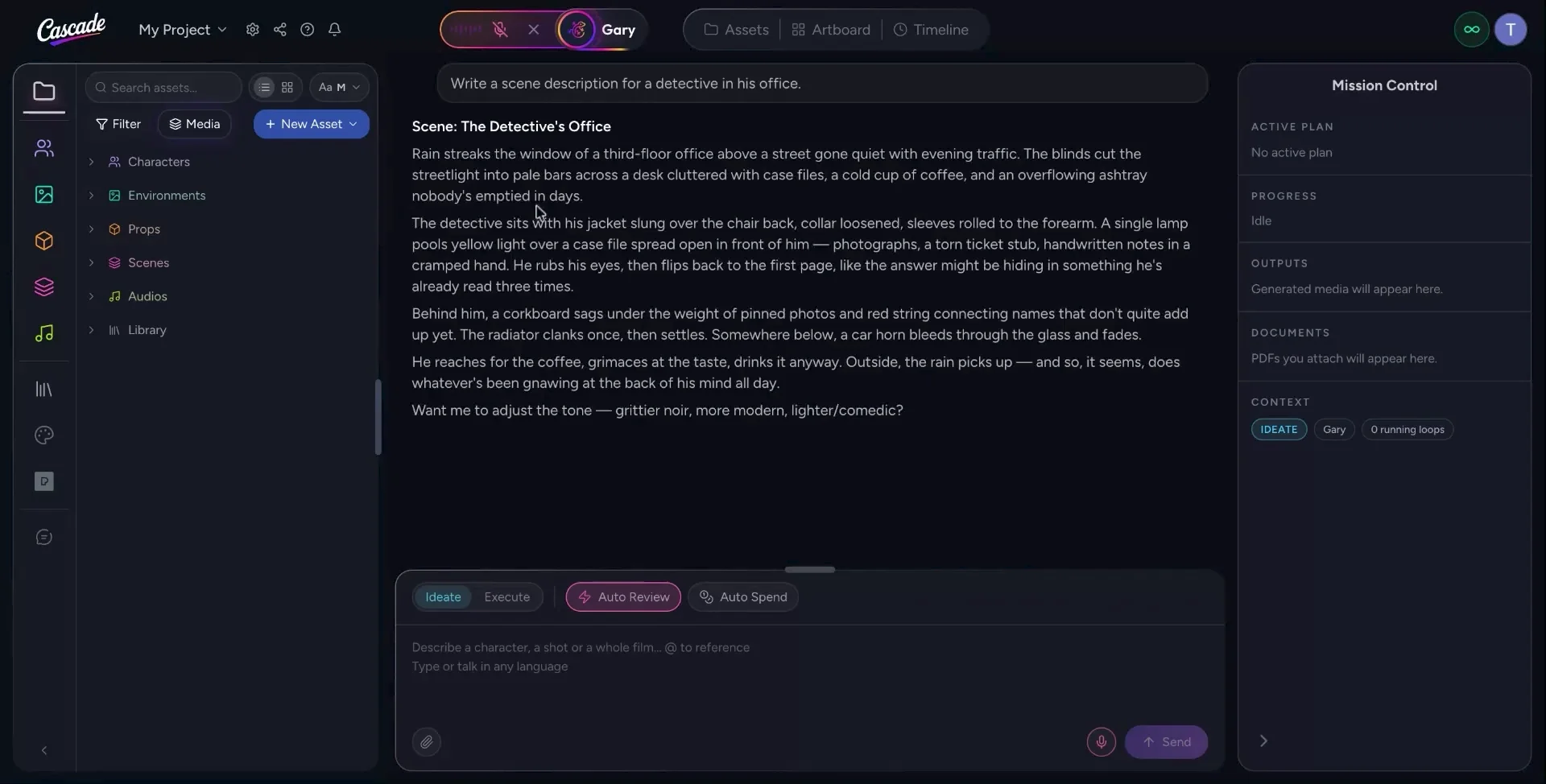
After turning off voice, continue ideating with Gary via text in the prompt toolbar. For example, you can ask Gary to further develop your main character or expand on the scene.
While Gary is generating ideas, open Mission Control to monitor his status and see what he’s currently working on.
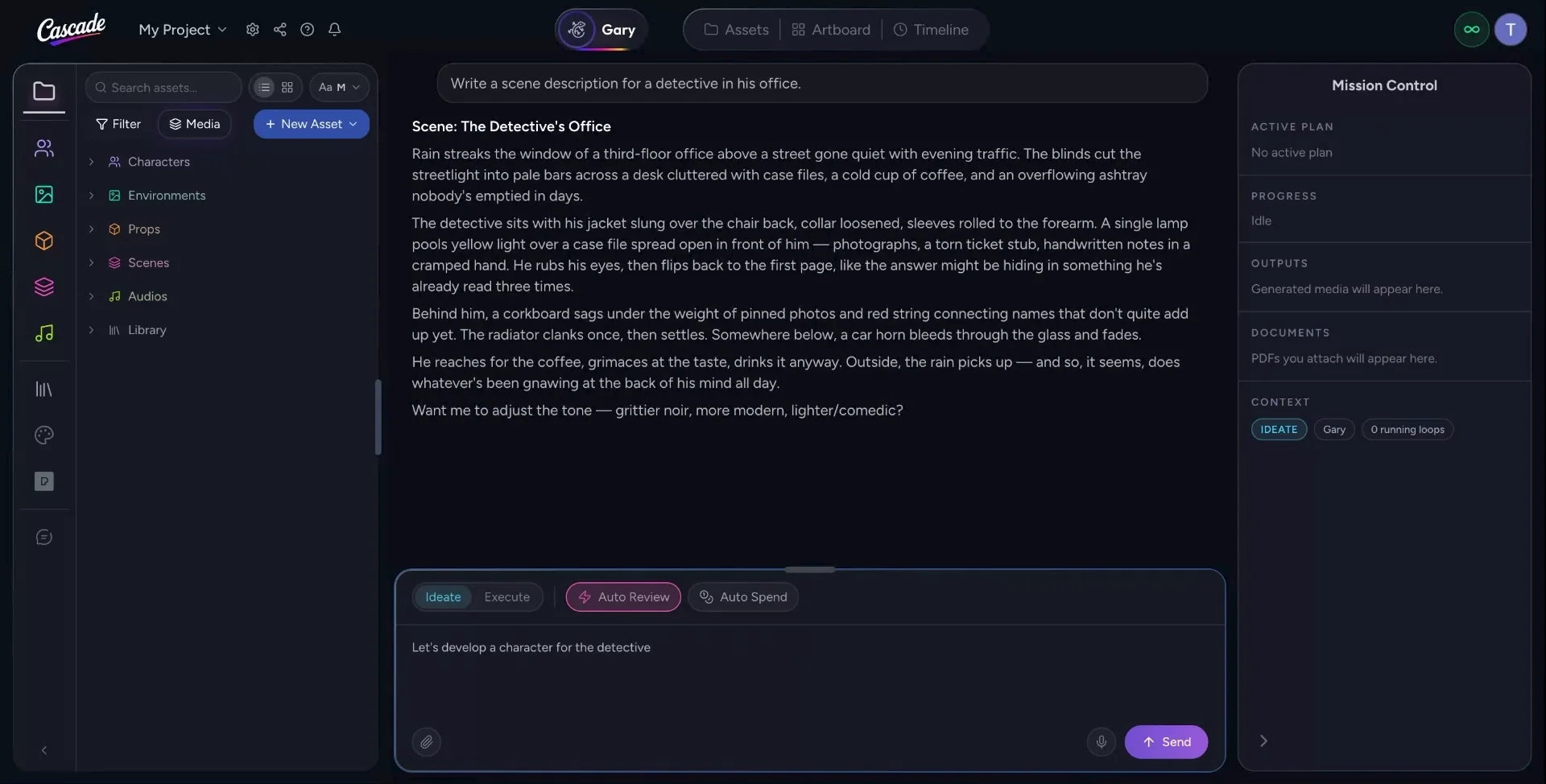
Here you can observe progress as Gary develops a complete character for your project based on your prompts.
Once you’re satisfied with the initial ideation (such as the developed character concept), switch Gary from ideate mode to execute mode.
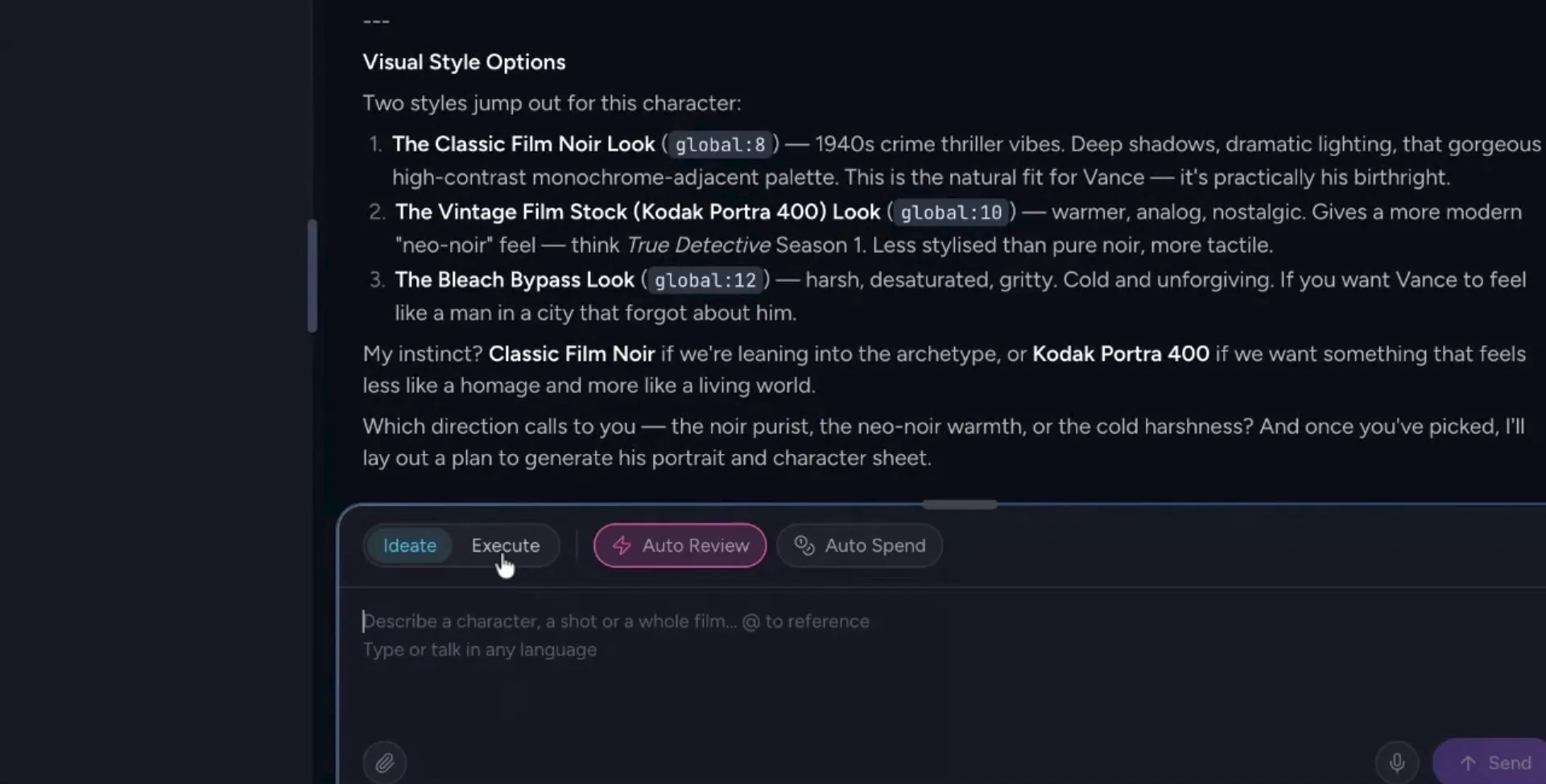
In execute mode, Gary can generate concrete outputs, plan a production, and run various tools. For instance, you can ask him to generate a visual or stylistic character treatment for your detective.
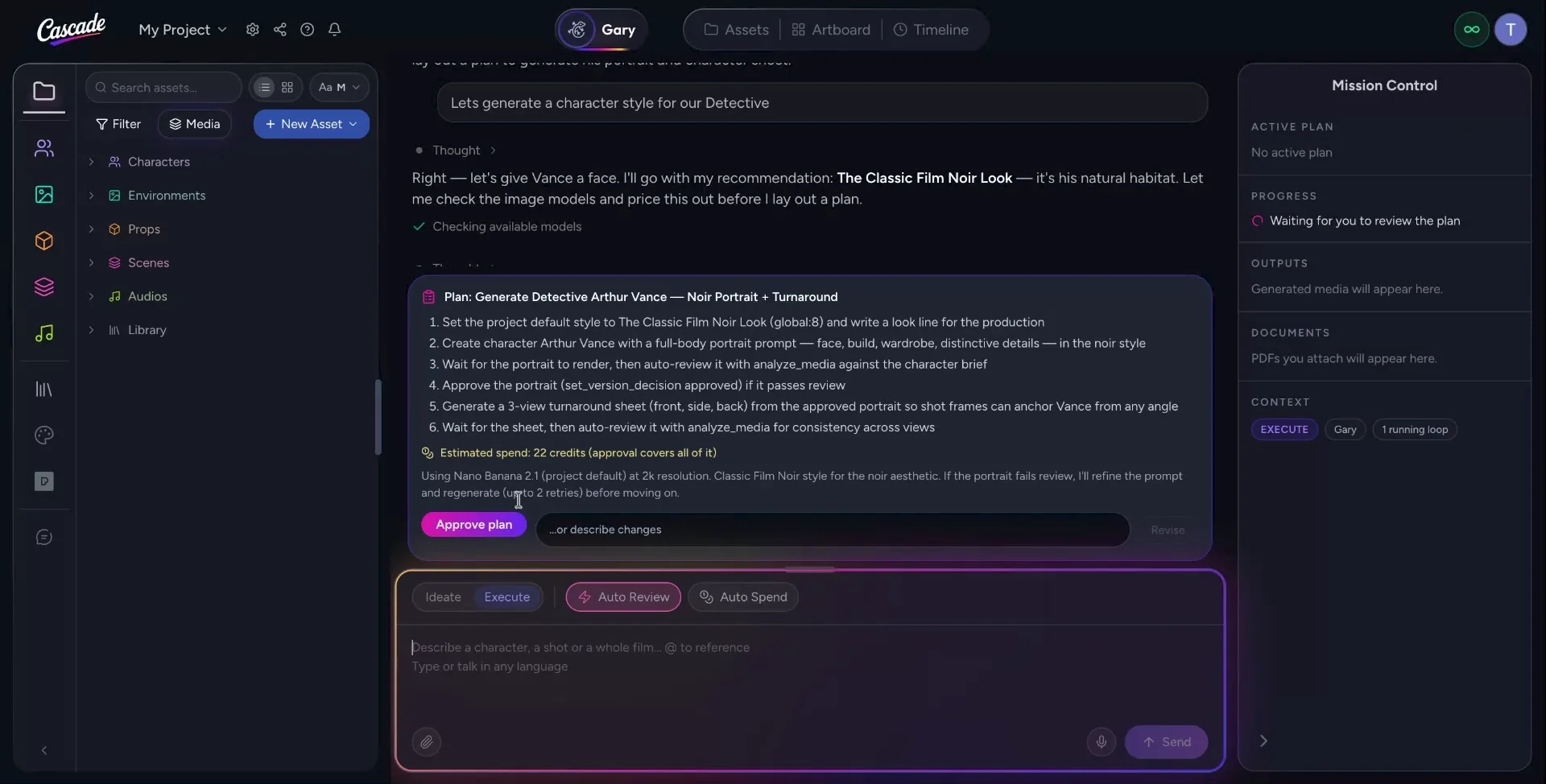
After switching to execution, ask Gary to generate a character style or production plan for your character. Gary will produce a full, production-style plan, including a breakdown of tasks and an estimated spend for developing the character.
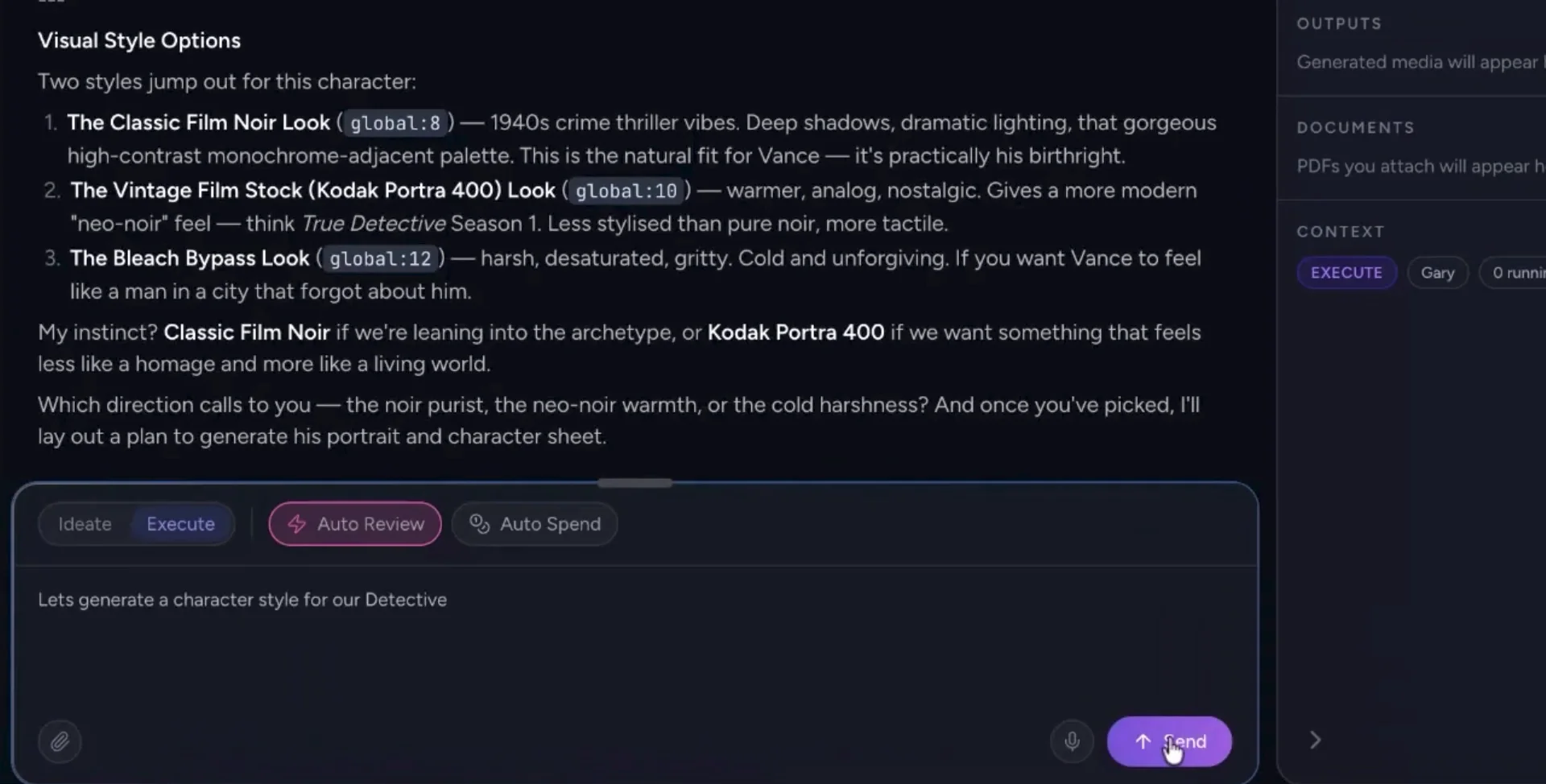
Review the plan details carefully. If you are satisfied with the scope and estimated spend, click Approve Plan; otherwise, describe any changes you’d like Gary to make.
Once the plan is approved, Mission Control will continuously update to show Gary working through the active plan.
You can watch as Gary completes tasks such as creating the character, generating a character sheet (for example, in a classic film noir style), and producing character-related outputs.
After Gary finishes executing the plan and the character outputs are ready, you can move on to the Assets tab to start ideating and creating additional project materials based on what Gary has produced.
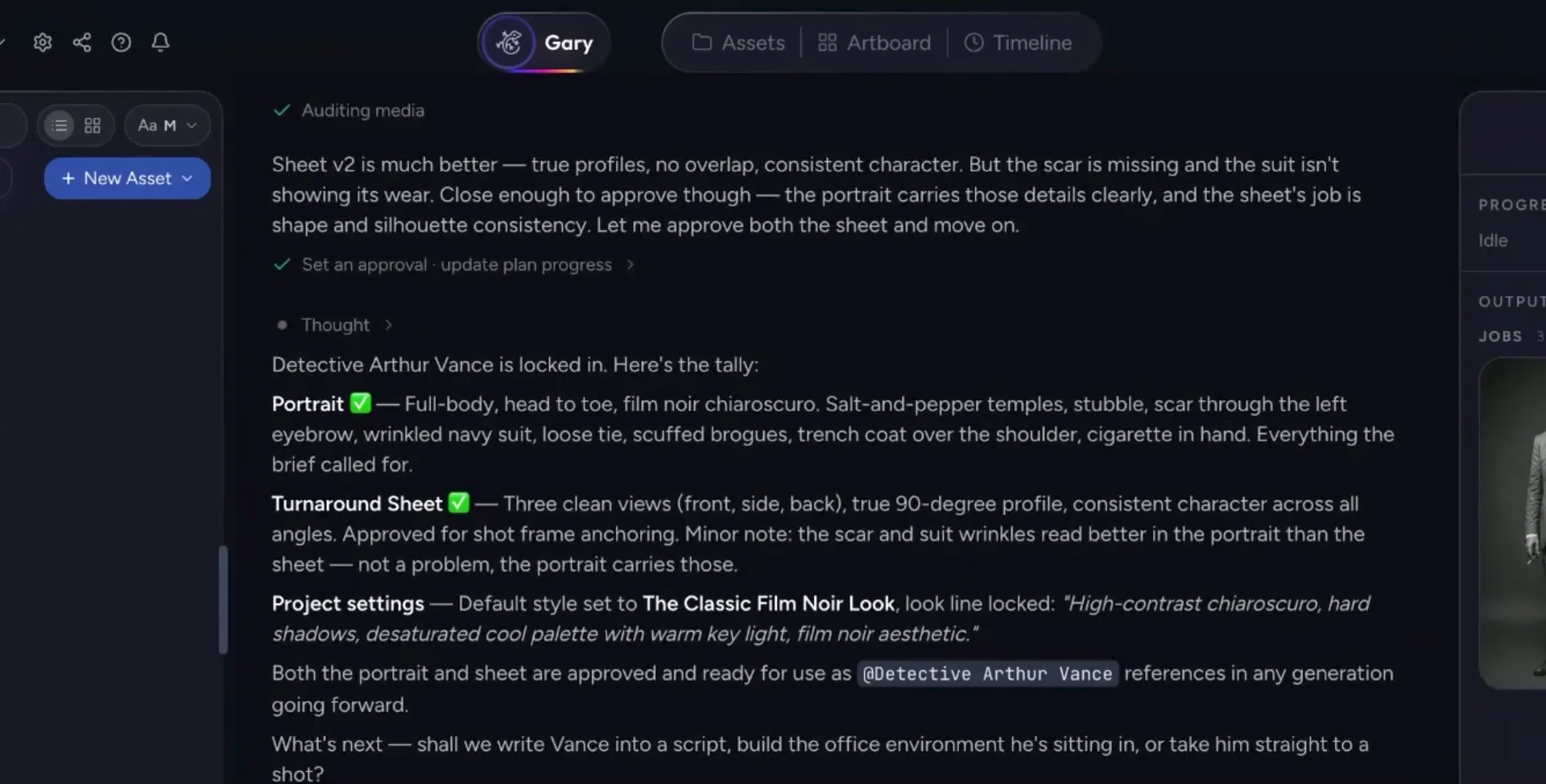
You’re now ready to use the Assets tab to further develop your project, build scenes, or expand into other elements, using Gary’s outputs as your foundation.