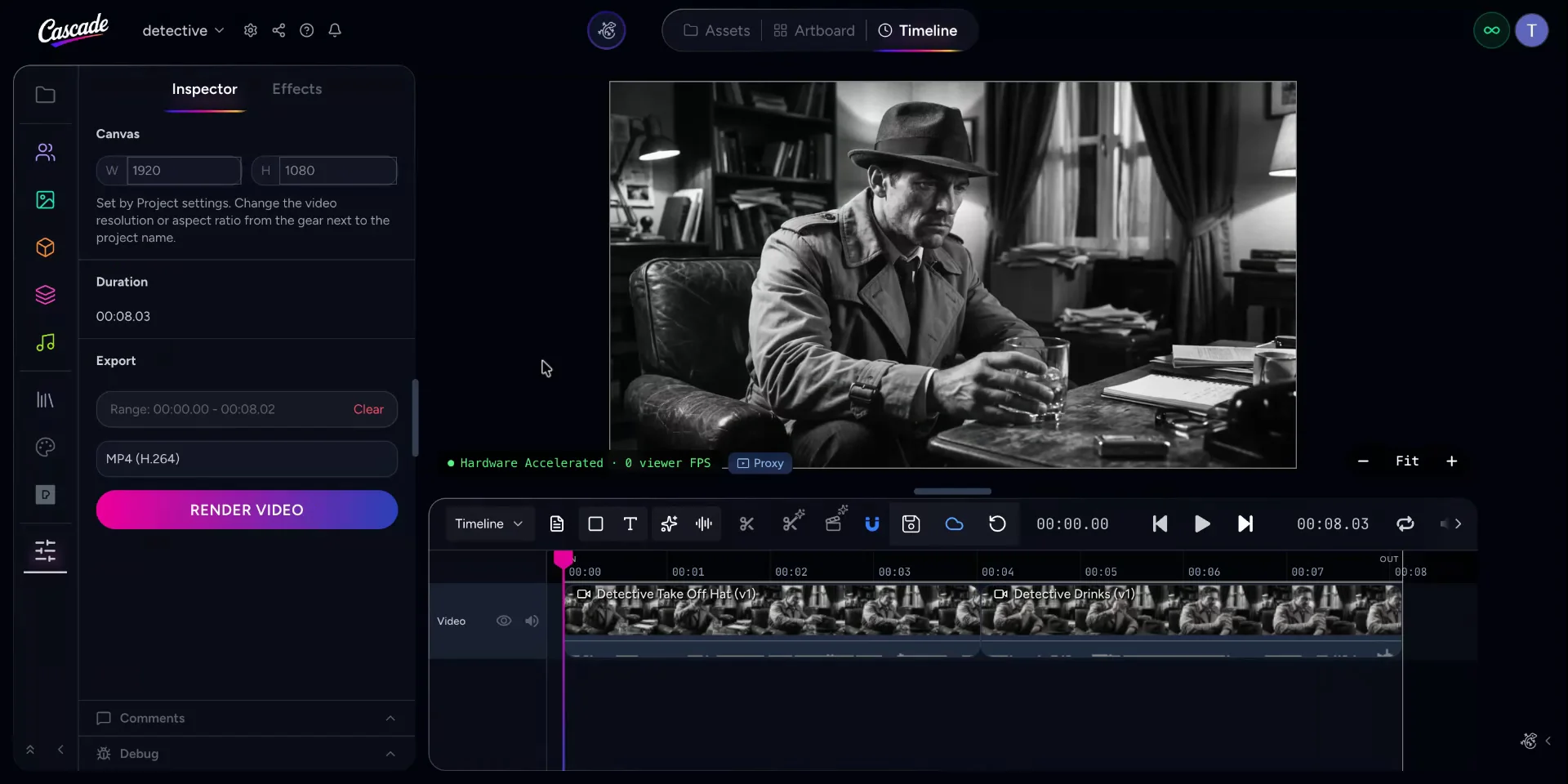
How to place approved shots on a timeline, adjust their visual and audio properties, apply effects, navigate the sequence, manage timelines, and render the final video.
You are now in the timeline workspace.
Place your approved shot onto the timeline editor by dragging and dropping it from your media area into the timeline.
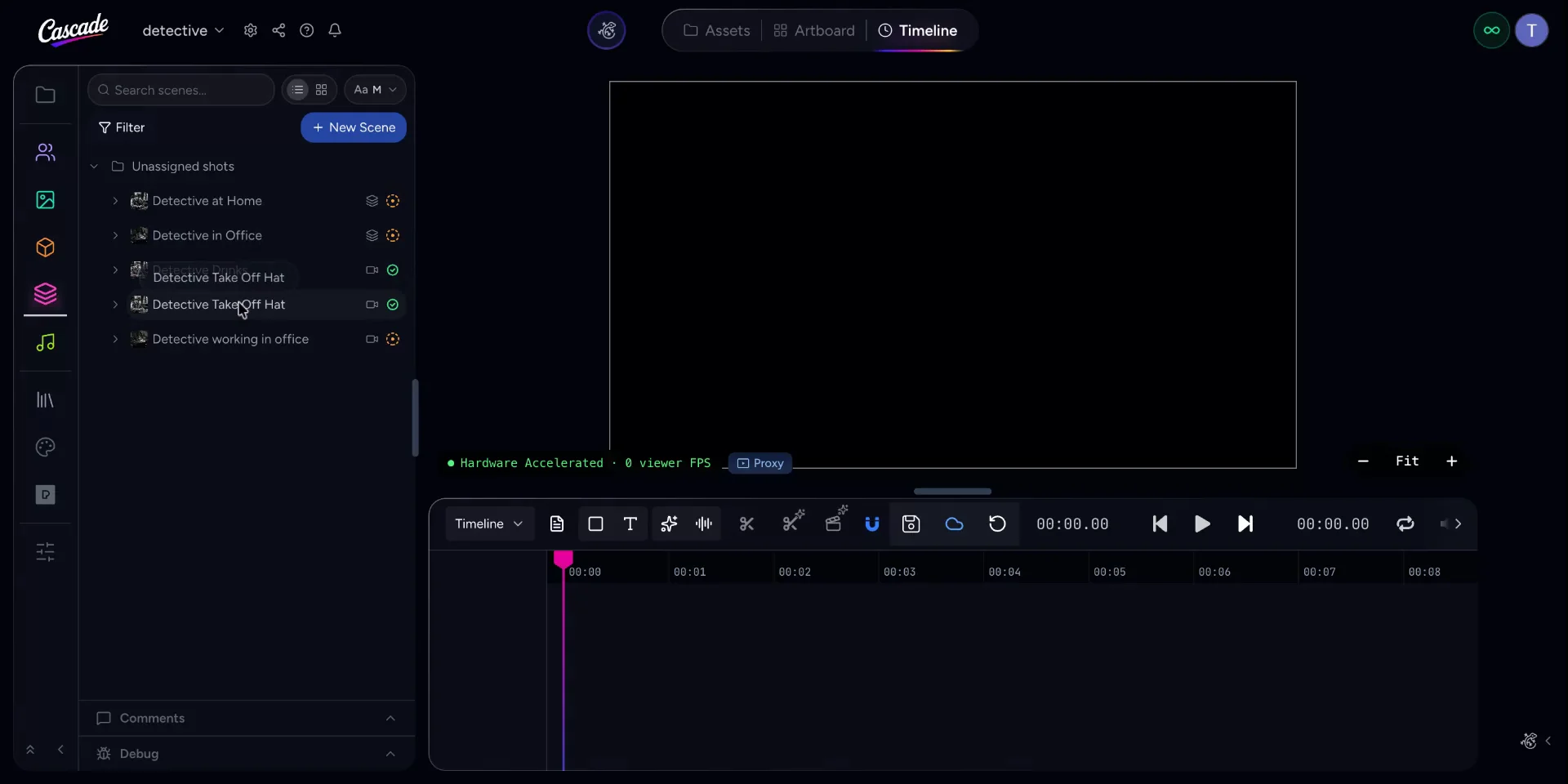
Once the shot is added, the inspector opens automatically, allowing you to refine the clip.
You can:
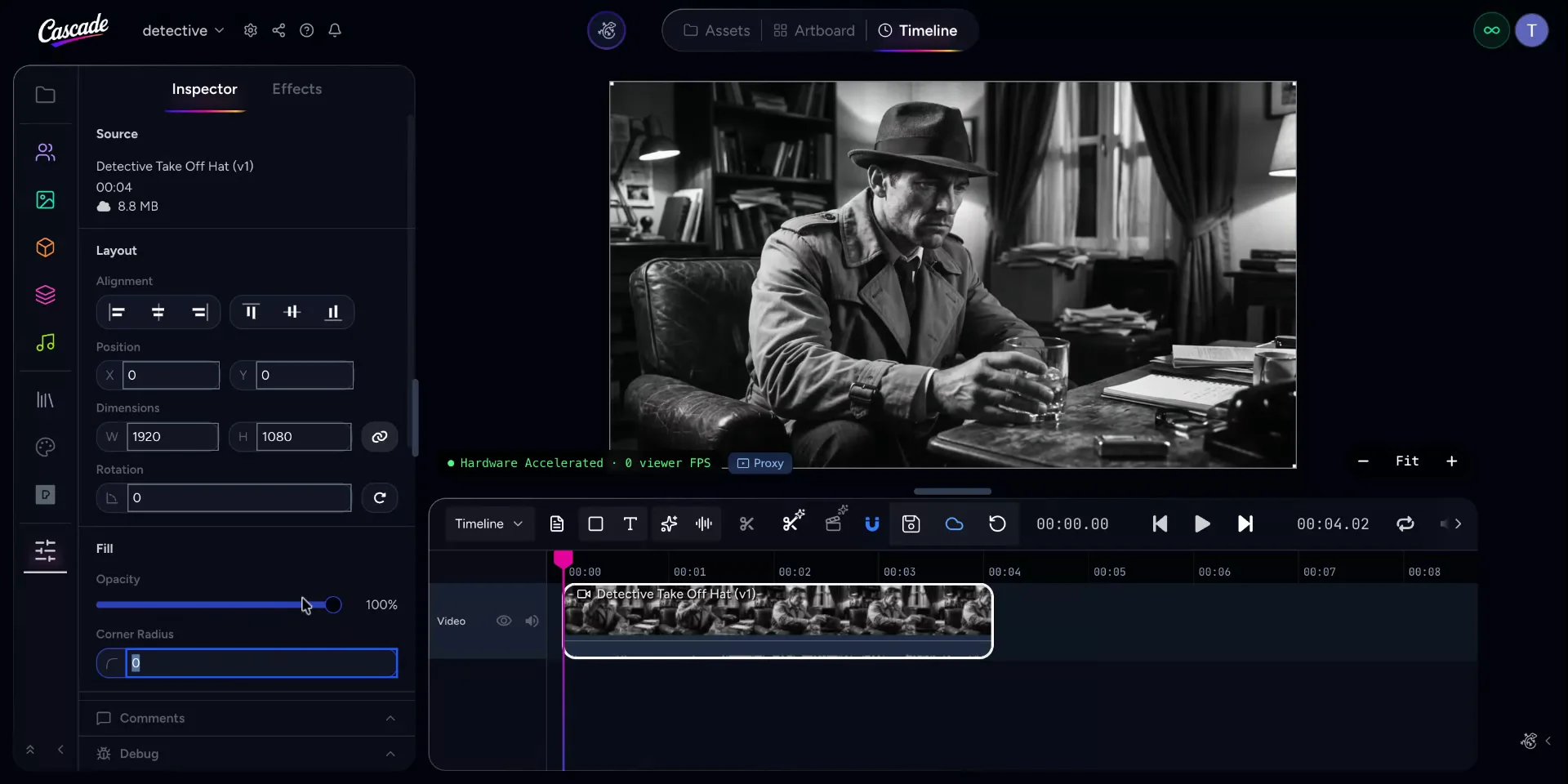
Use the inspector to add smooth transitions at the beginning and end of your clip.
Press the play button to watch the transition.
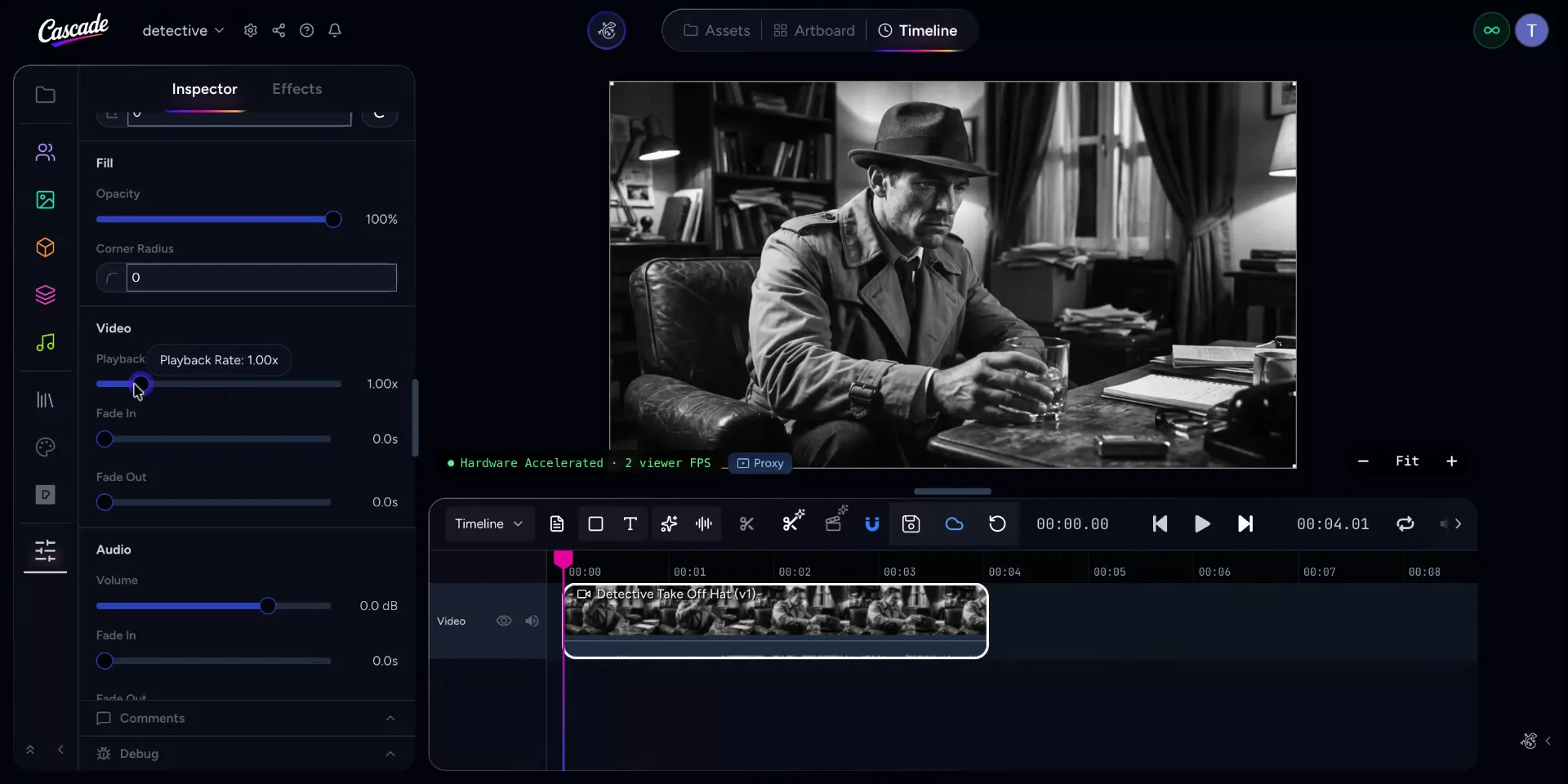
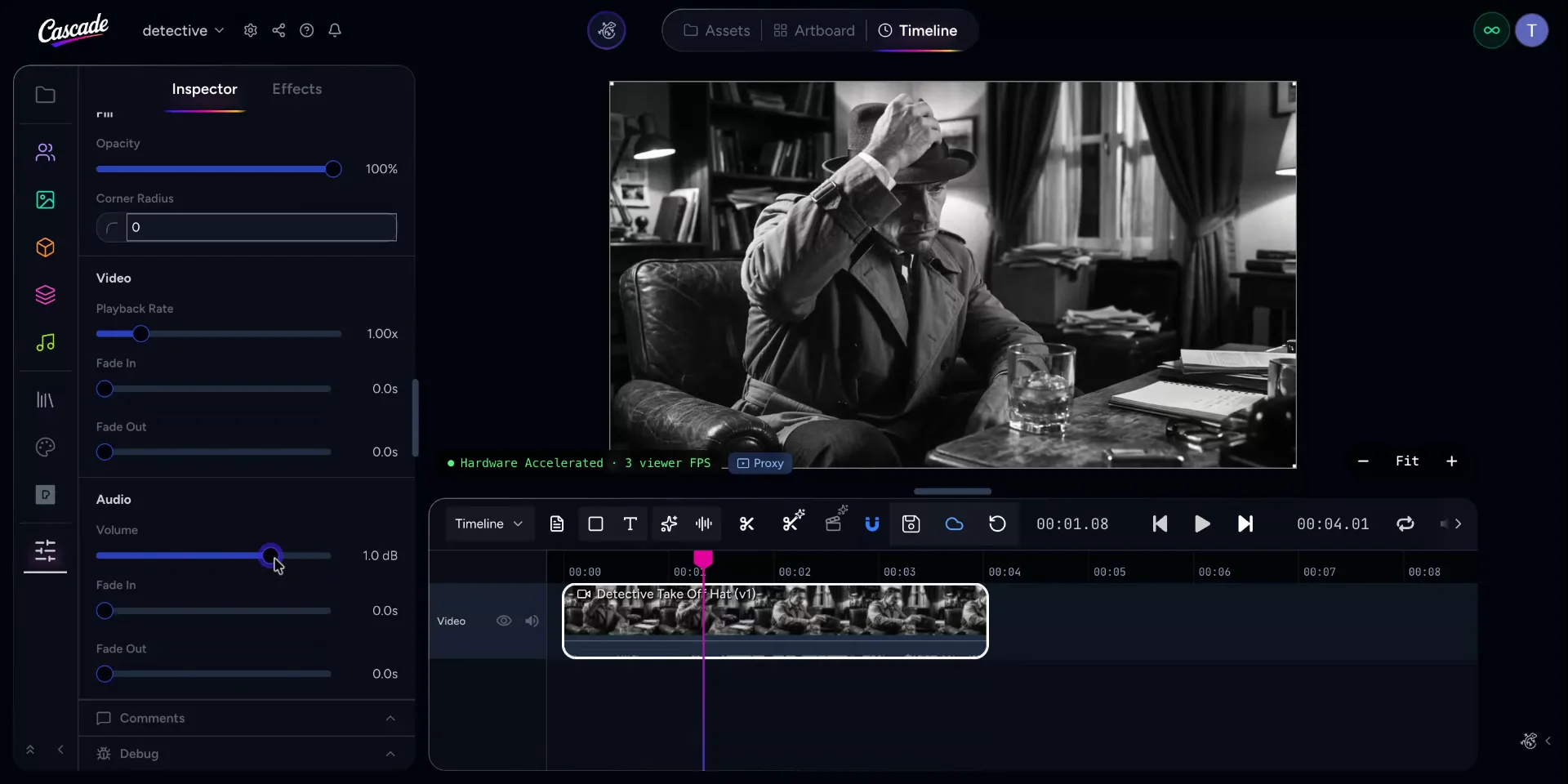
Refine your audio levels and transitions within the same inspector panel.
You can:
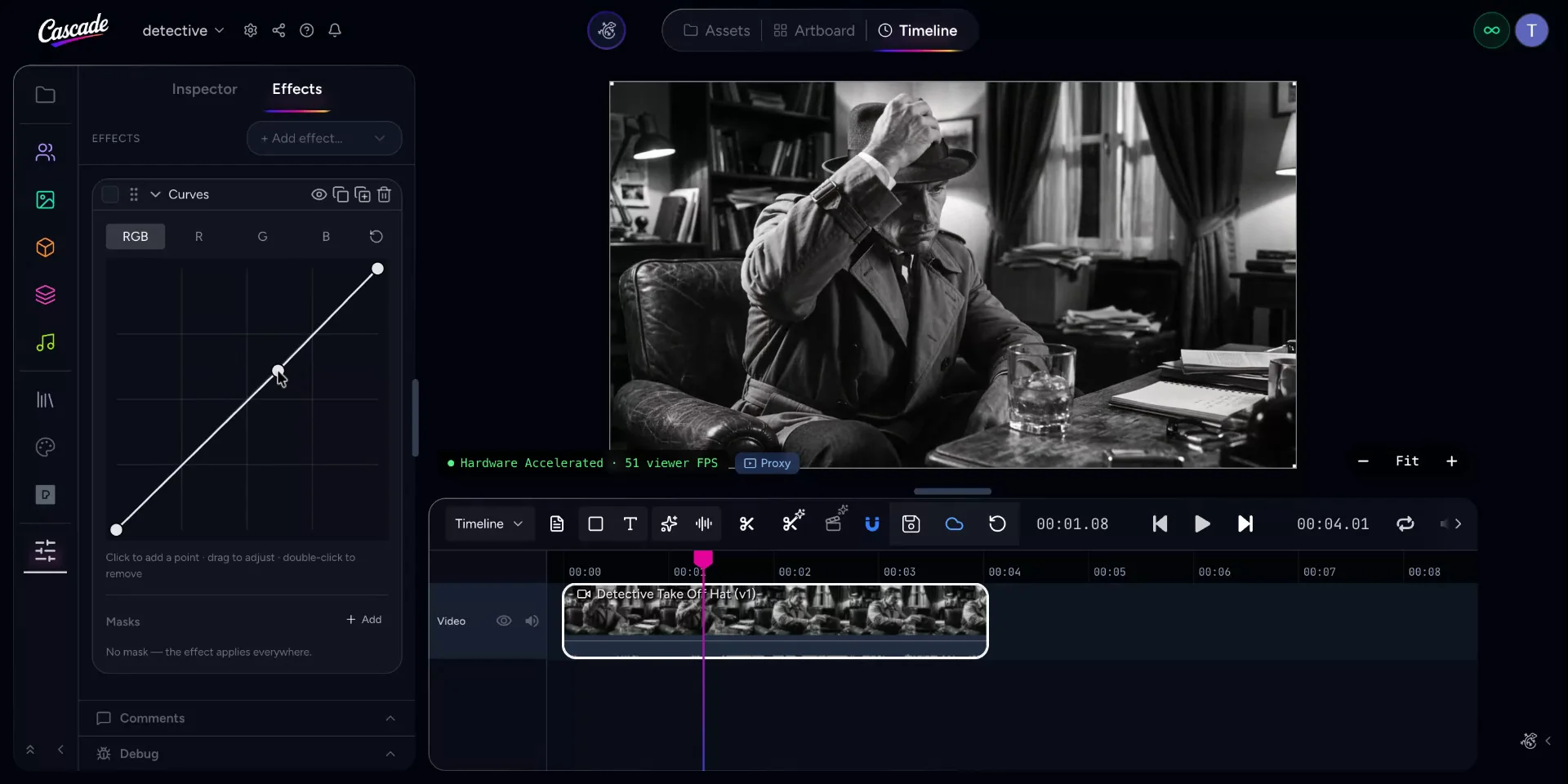
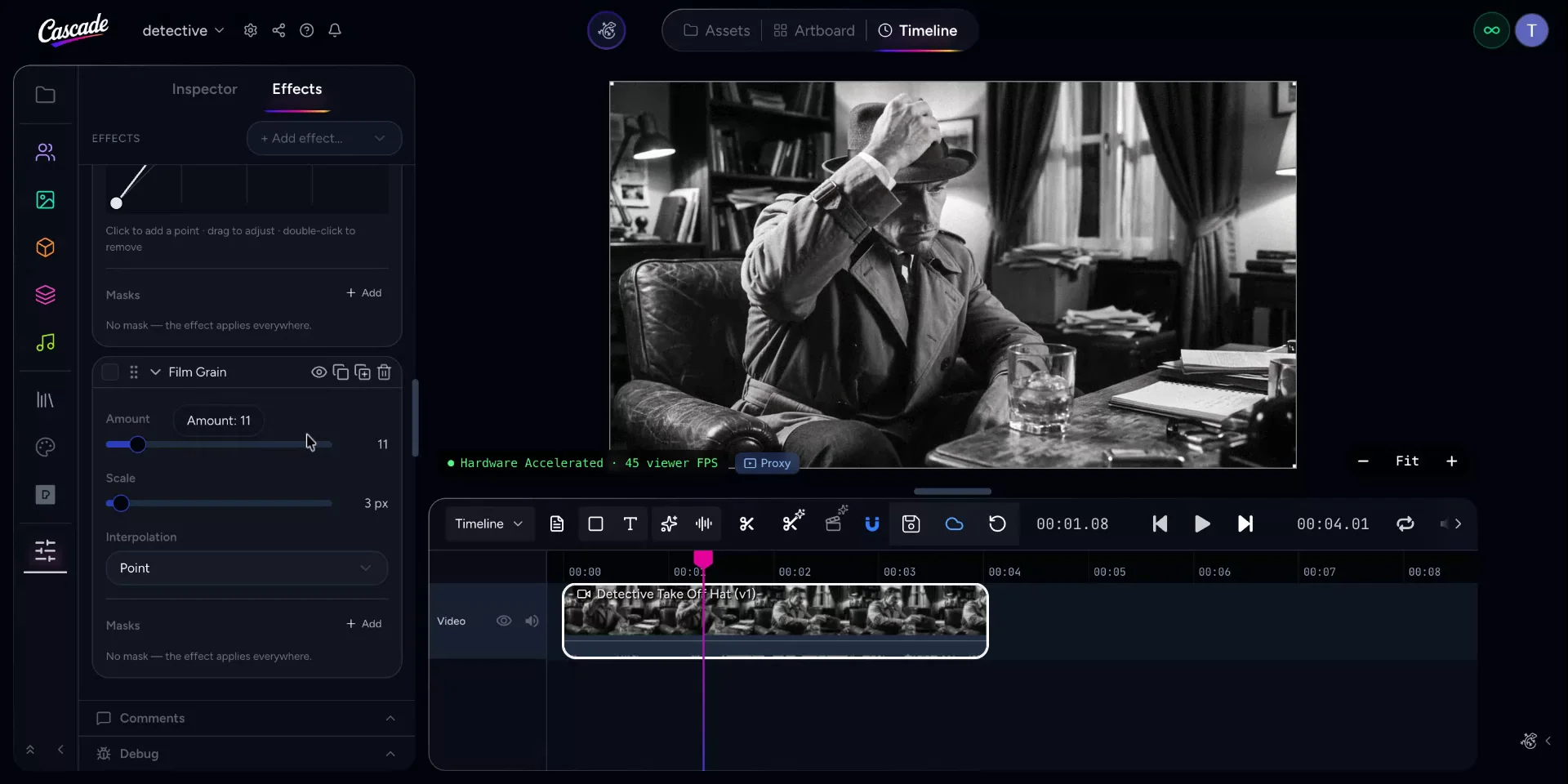
Open the effects section to enhance the look of your clip.
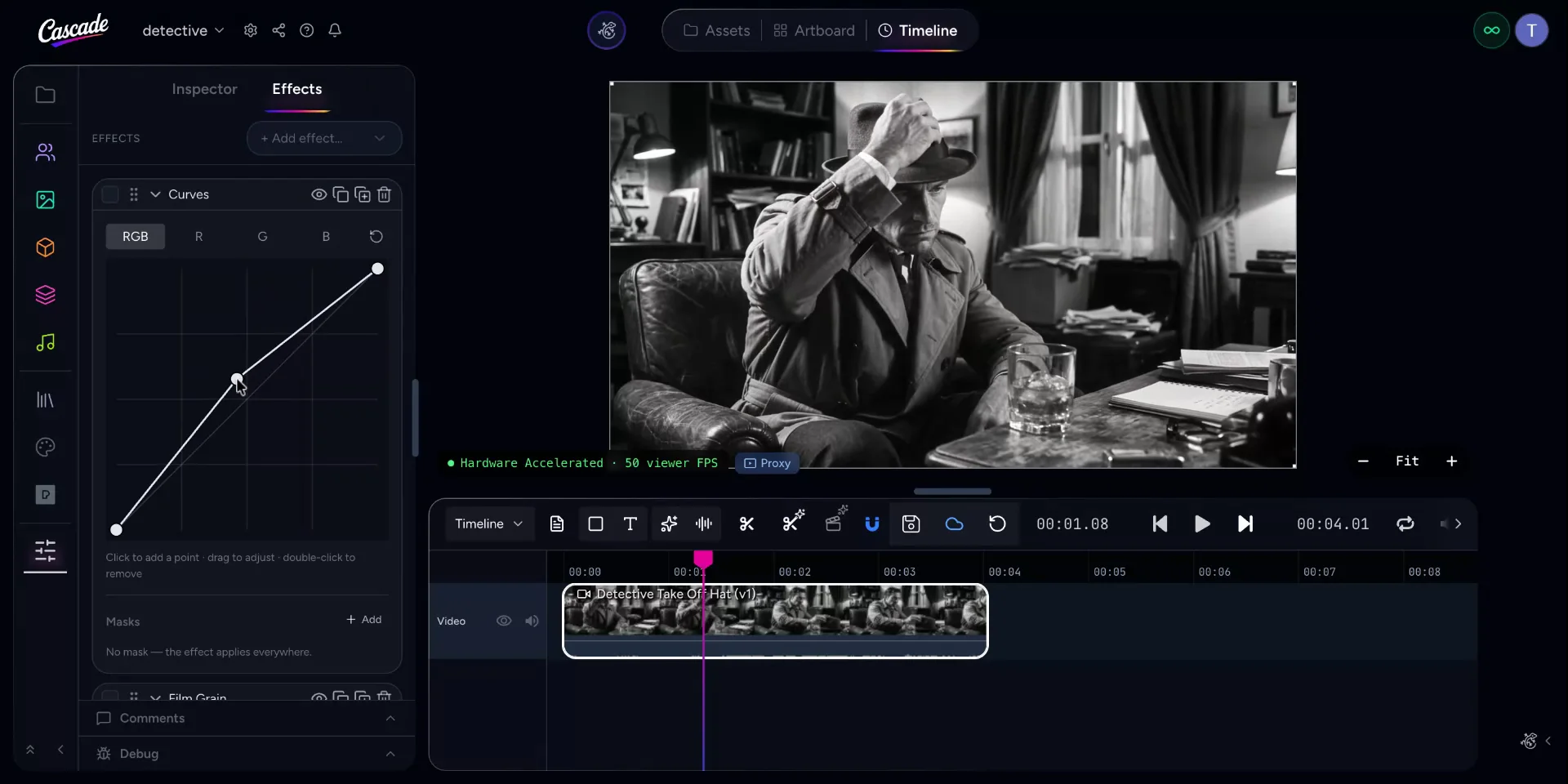
If you make a change you do not want:
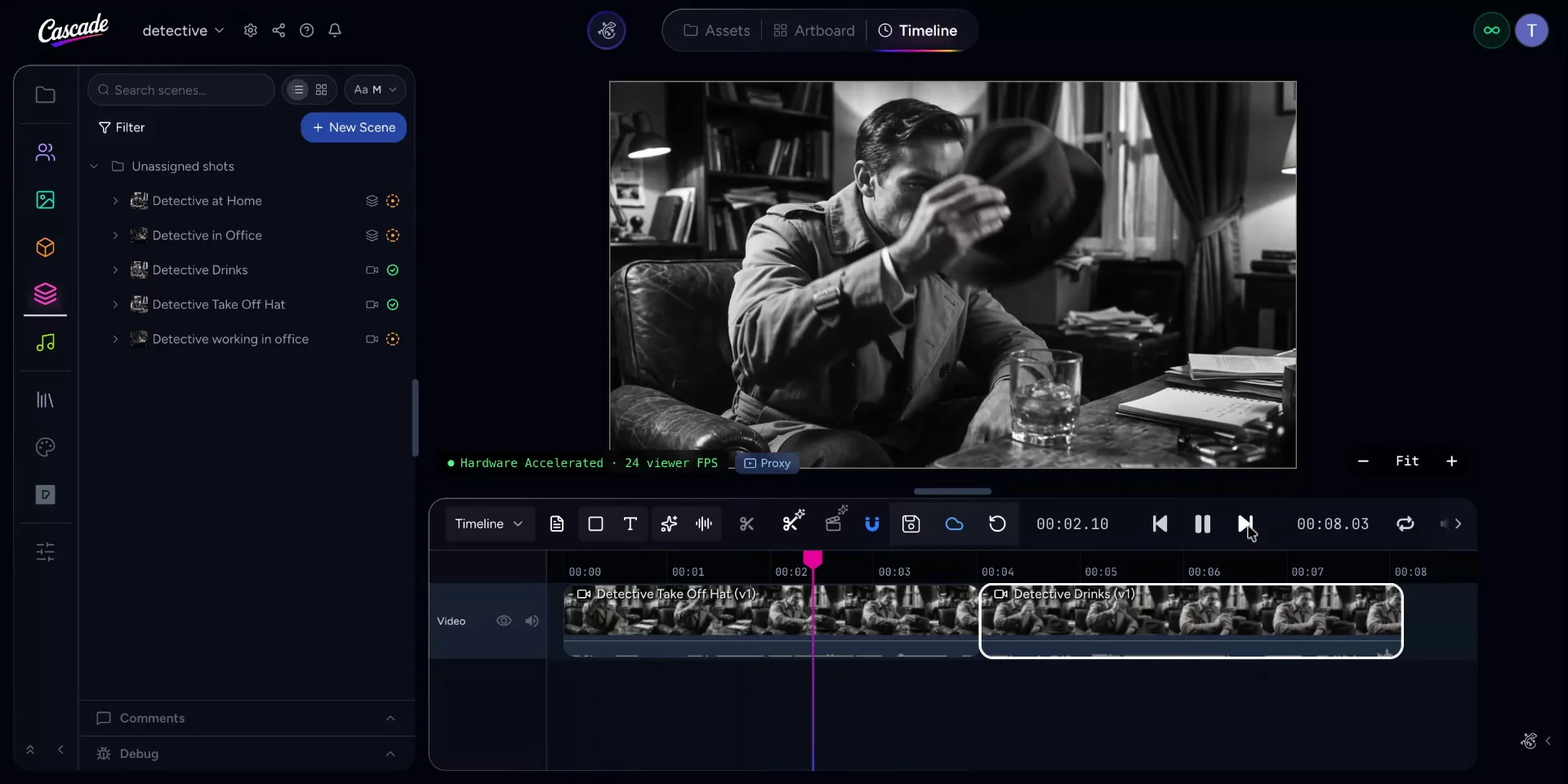
You can add more approved scenes and move around the timeline to review your work.
When your timeline is ready and you are satisfied with the edits, proceed to render.