
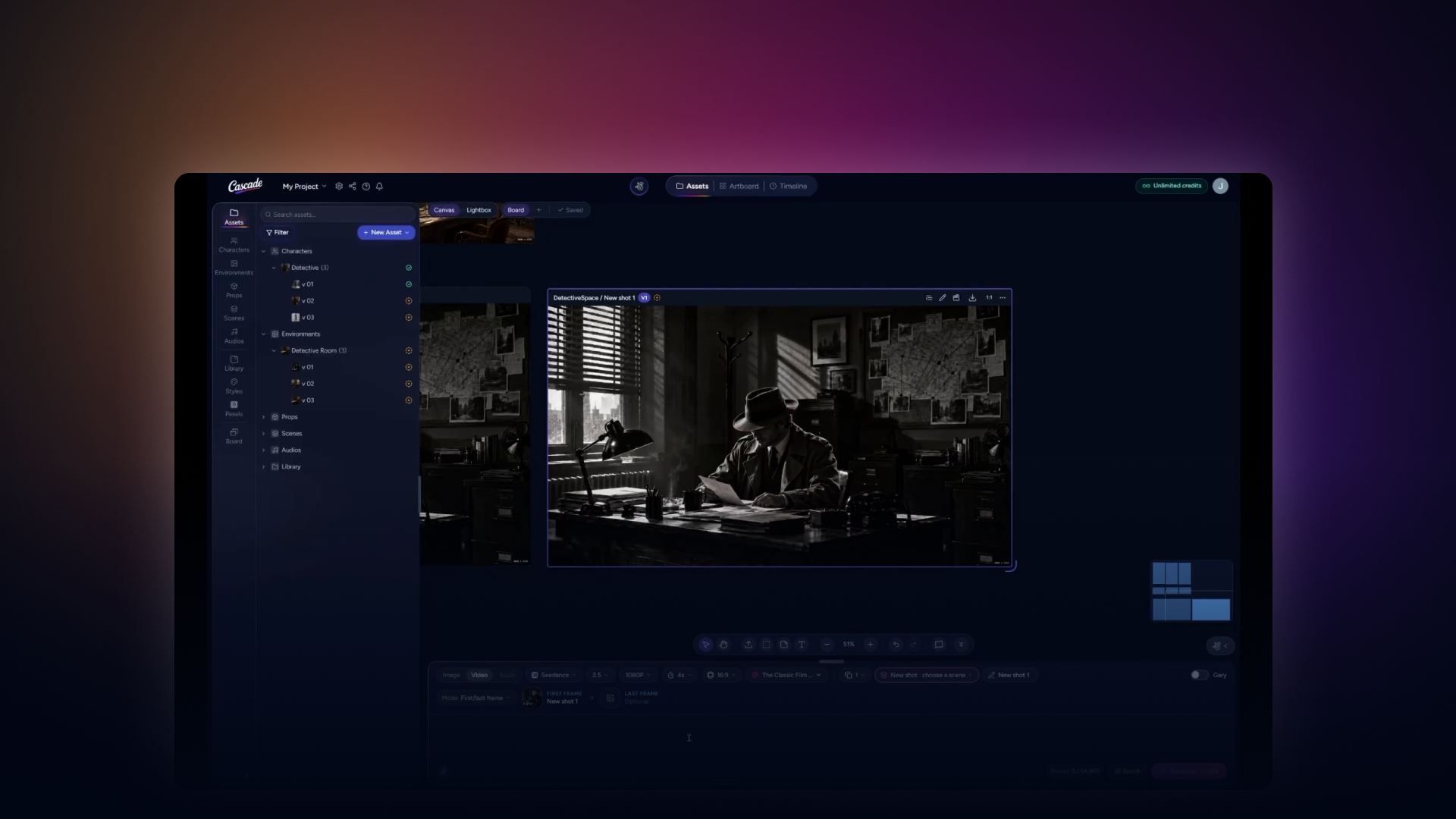
How to create characters, environments, and story scenes using Asset Mode, including approving assets, refining images, and turning them into short videos.
On the left is the Assets bar, which acts as your asset browser. On the right is the canvas, your infinite creative workspace. Light Box allows you to view an image or any asset in full screen.
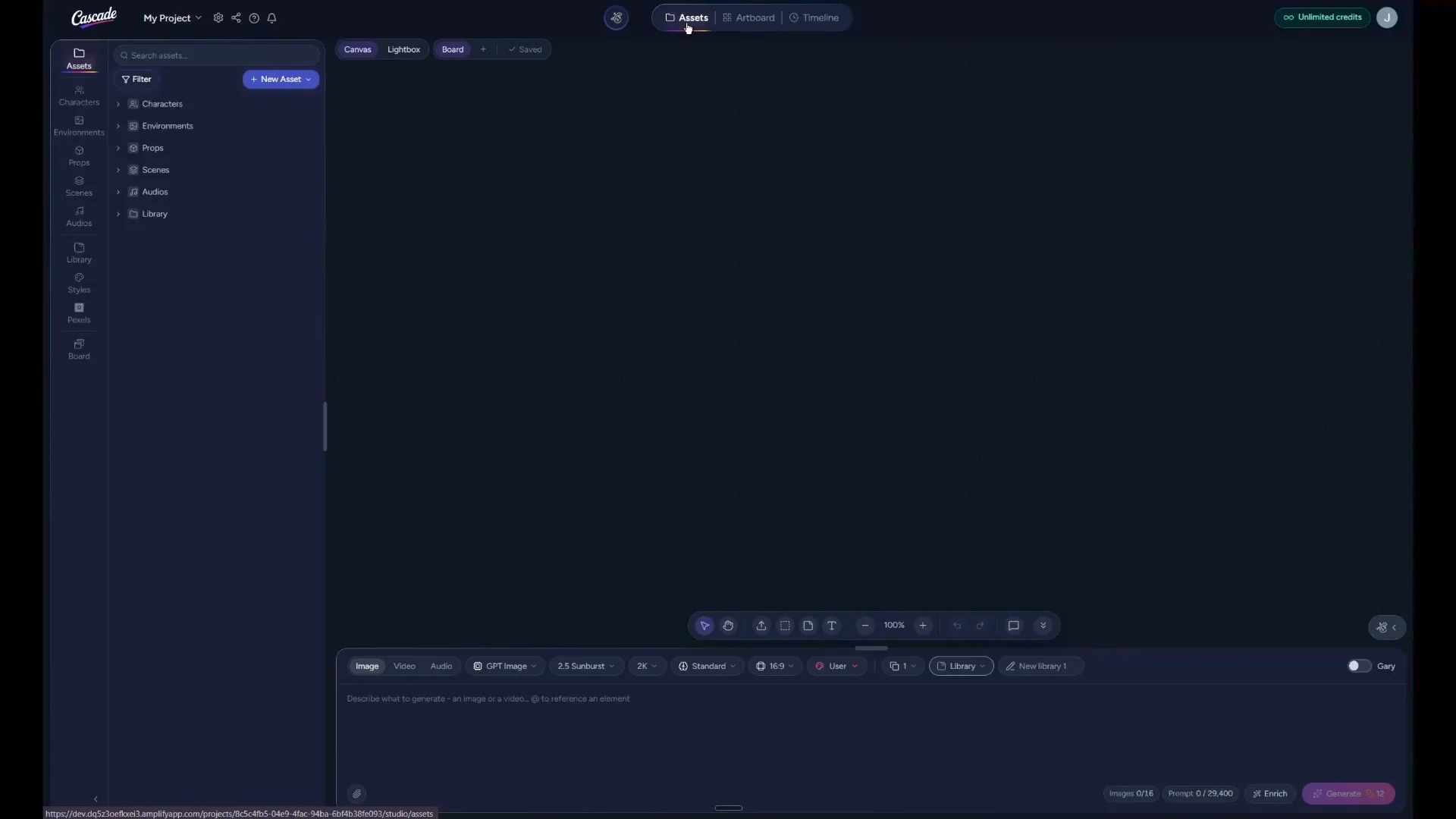
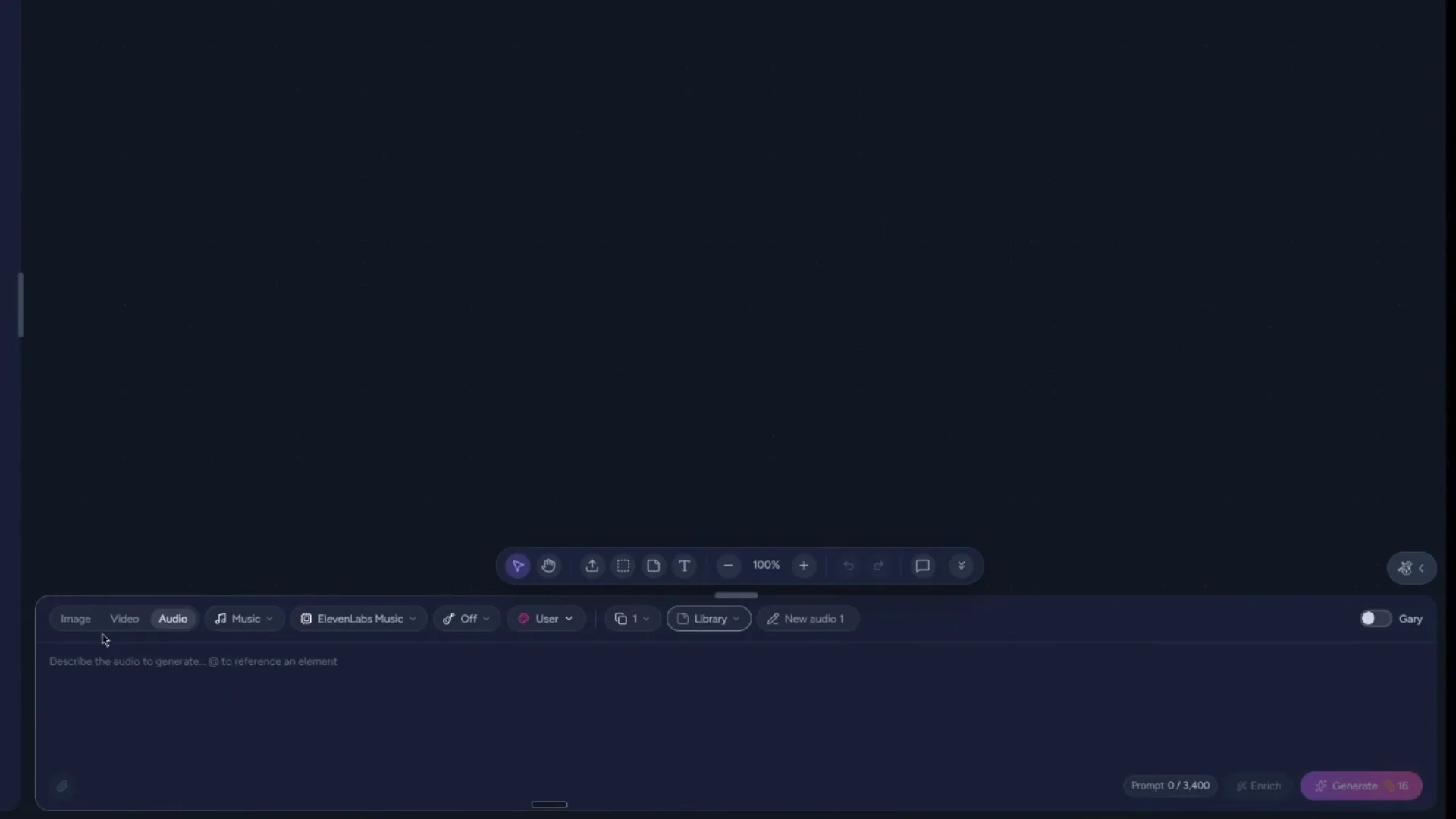
At the bottom is the prompt box, where you can enter a prompt, attach references, and drag and drop items from the Assets panel. Switching between image, video, and audio modes changes the model options displayed.
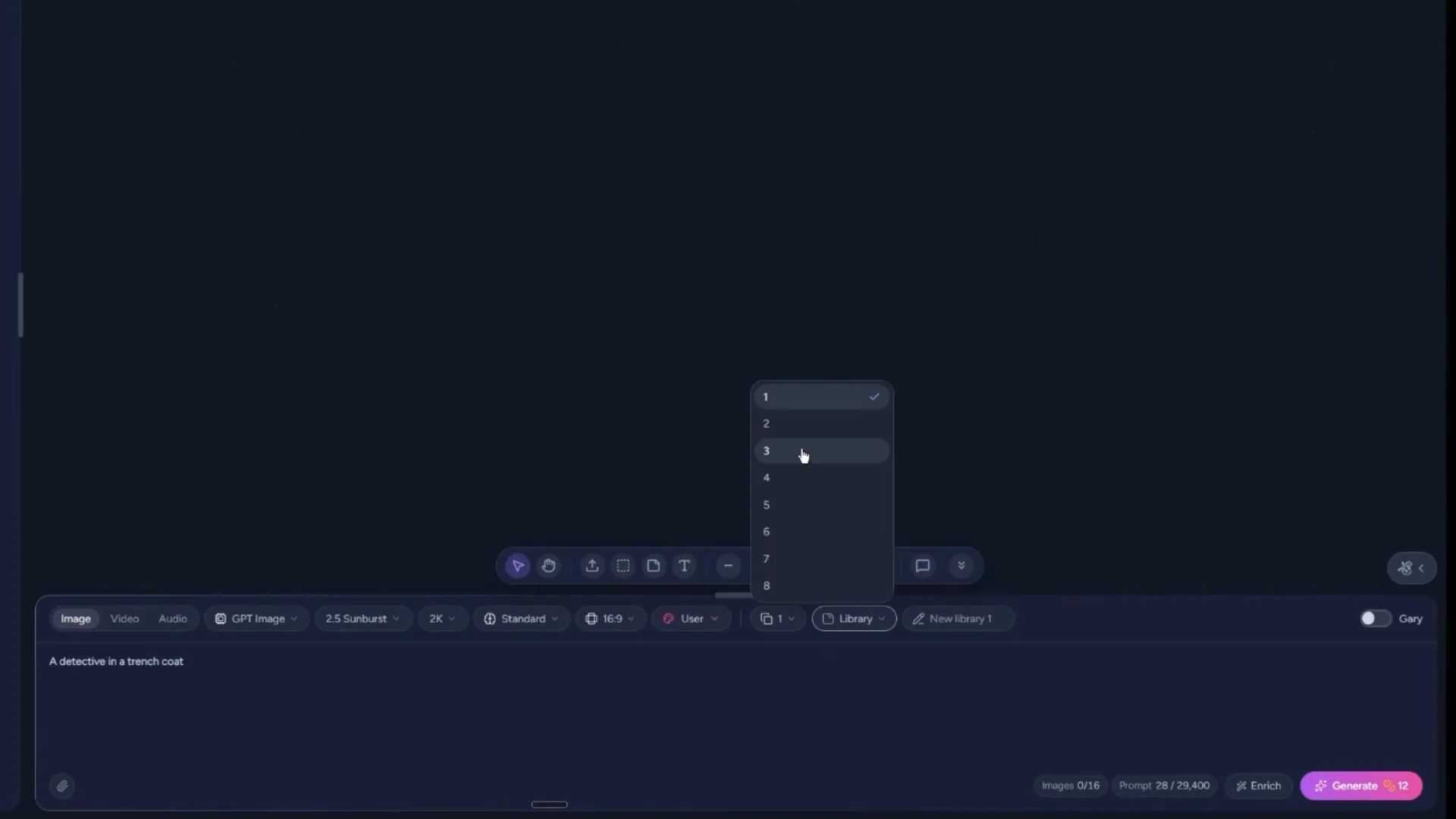
First, create a character, for example, a detective in a trench coat. You can generate up to eight versions at once to explore multiple variations. Select your image model and choose the LLM’s thinking level from Standard, Extended, or Max.
Choose your aspect ratio, such as 9:16 or 16:9.
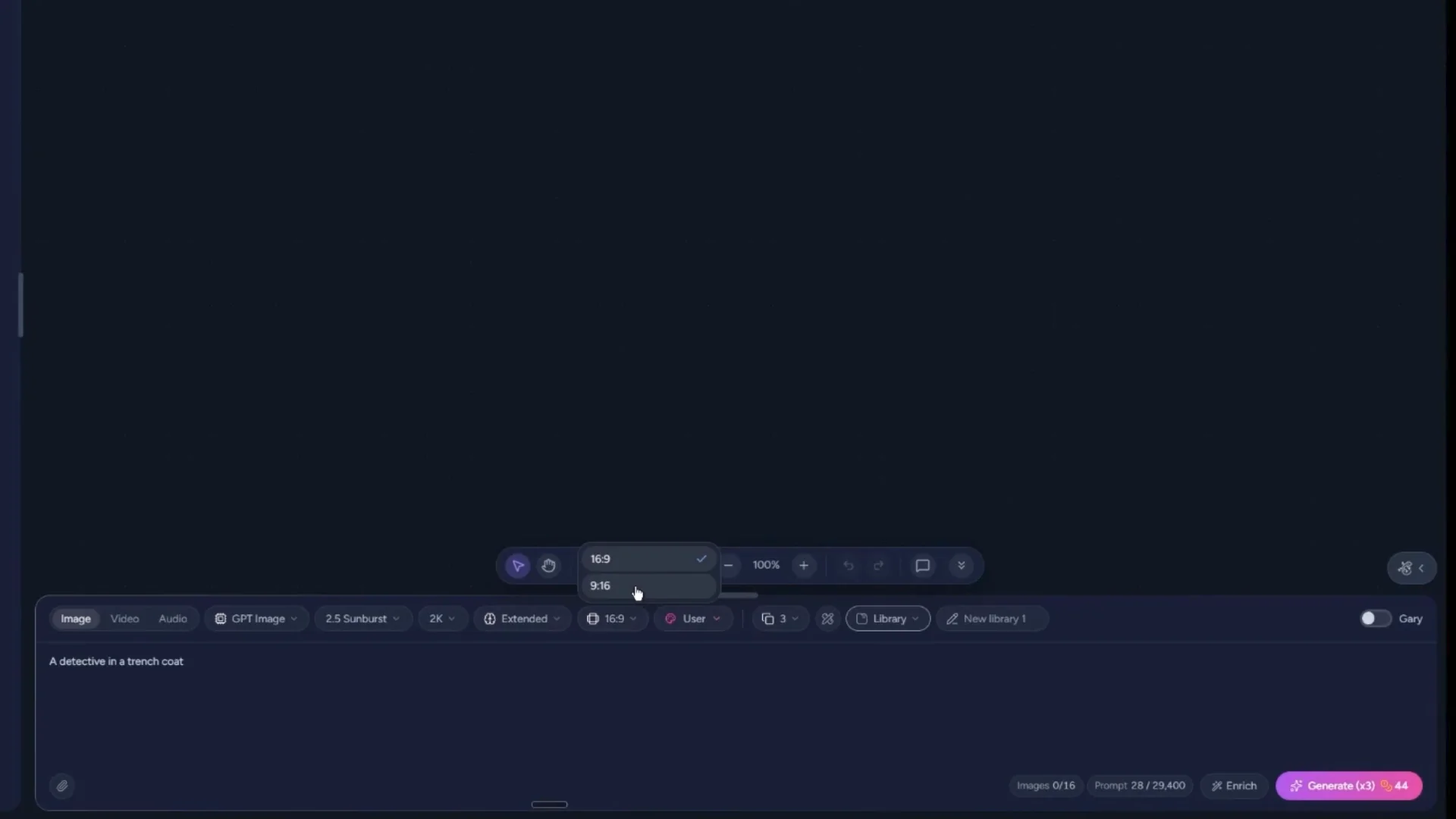
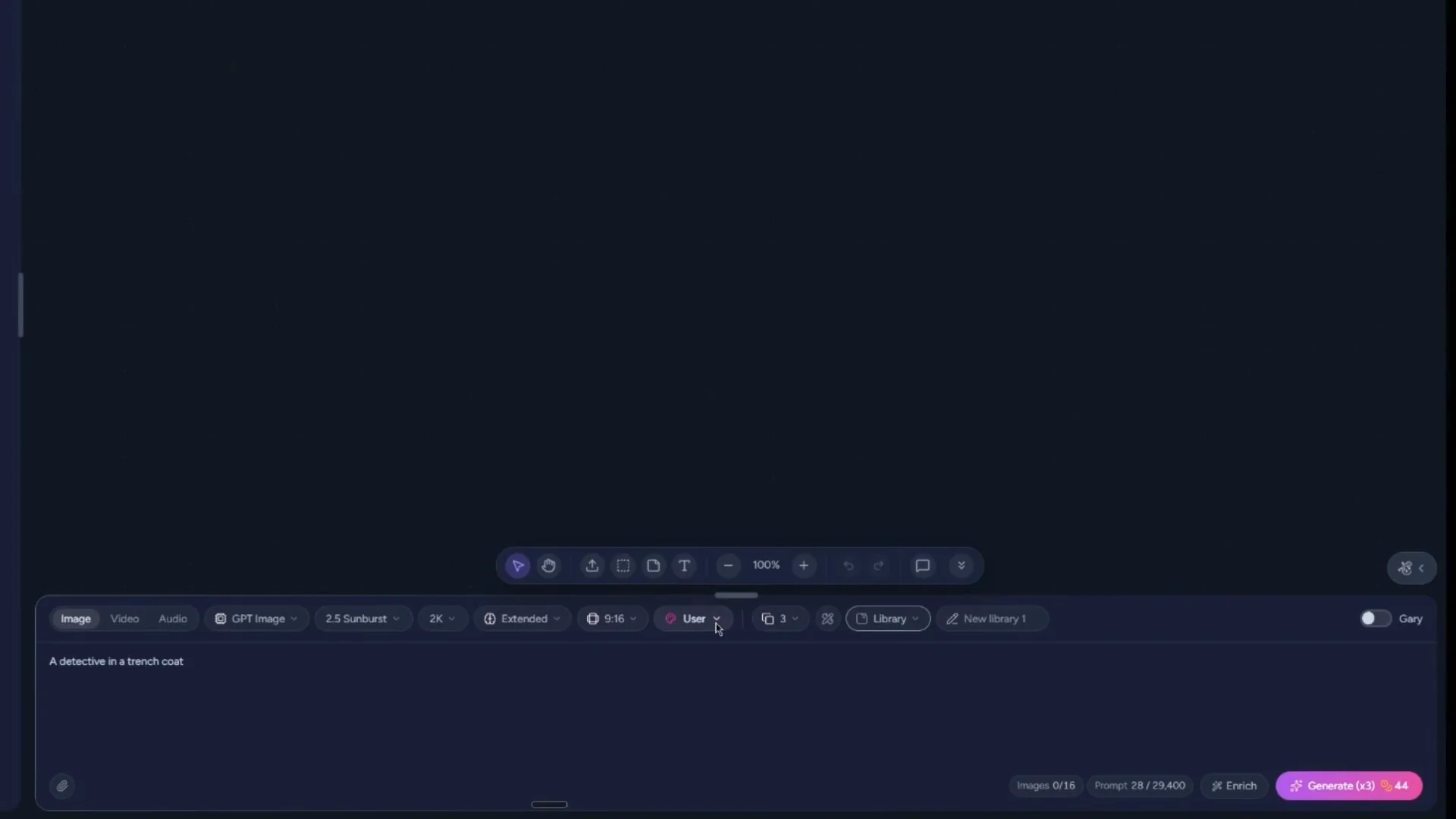
Next, choose a style reference. You can create your own user style or select one from the predefined style choices. To customize a style for each generation, click to open the style options and make your selection.
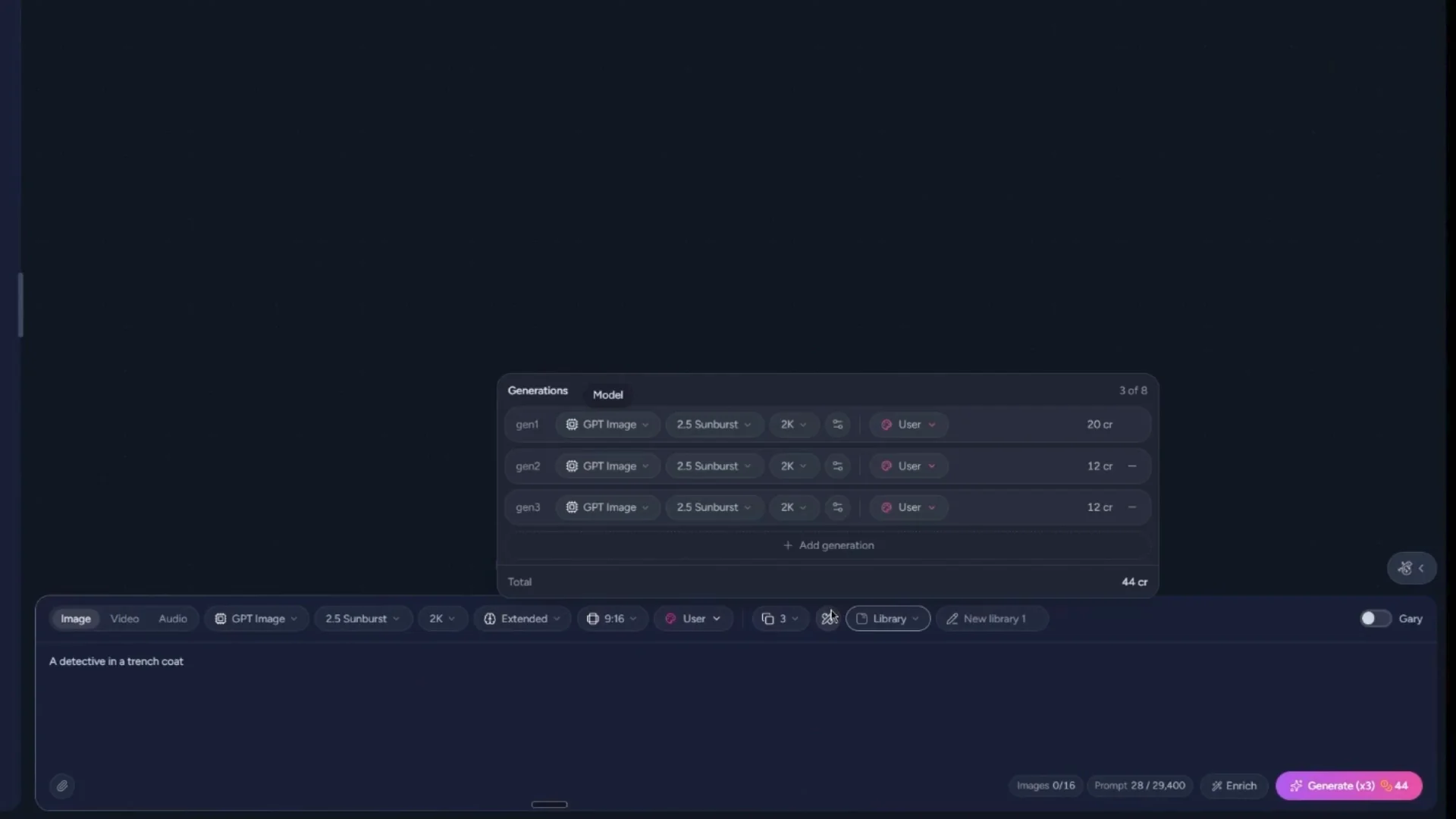
Set your primary style; for example, select a classic film noir look. For additional style slots, you might choose a documentary realism look and a period drama look. This setup lets you compare all three results side by side.
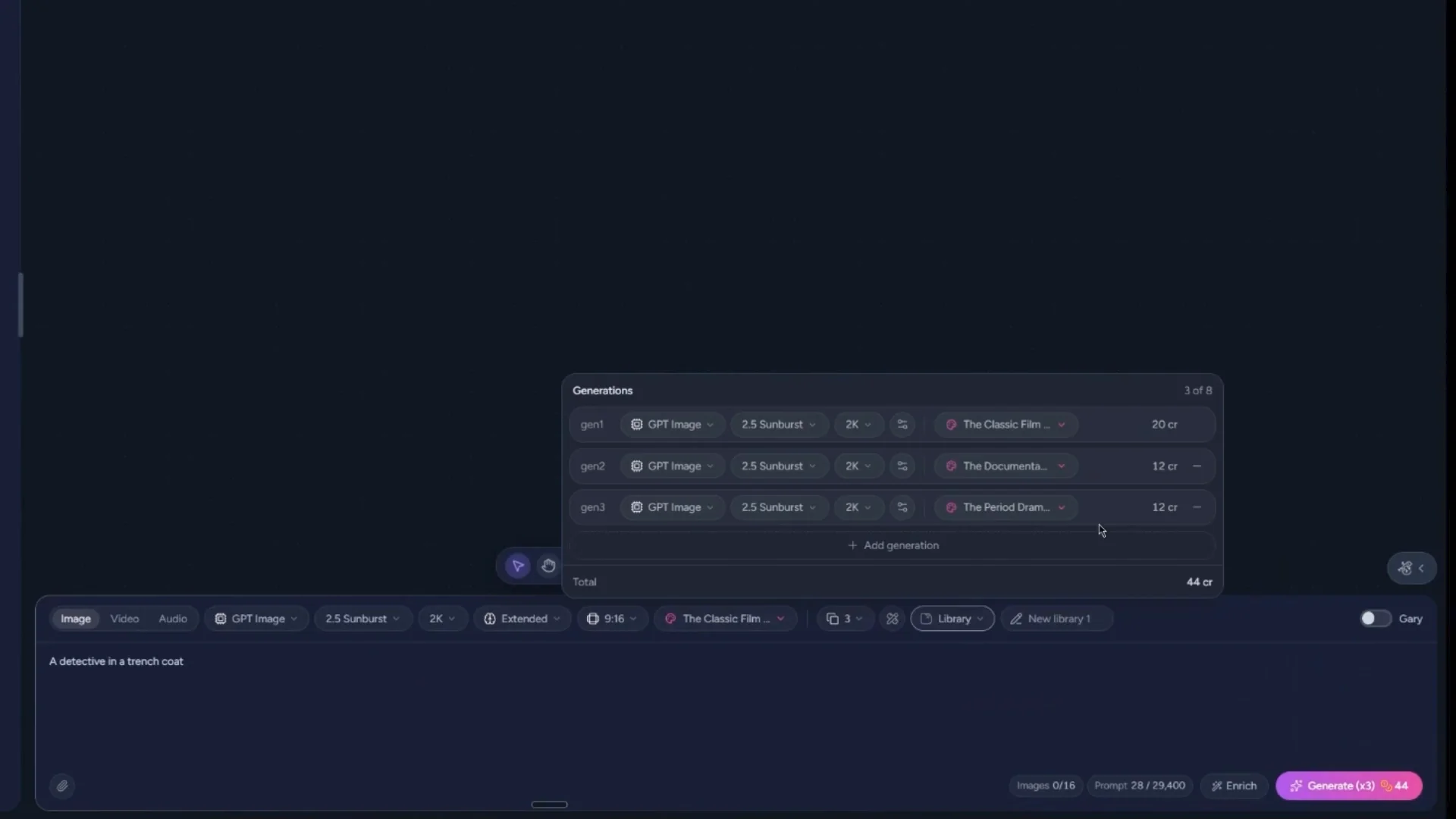
On the Generate button, confirm how many generations are selected and review the total credit cost. Also check where everything will be saved; in this example, the Library is selected. Since this will be a character, select Character, then New Character. Optionally name your character—e.g., “Detective”—and then click Generate.
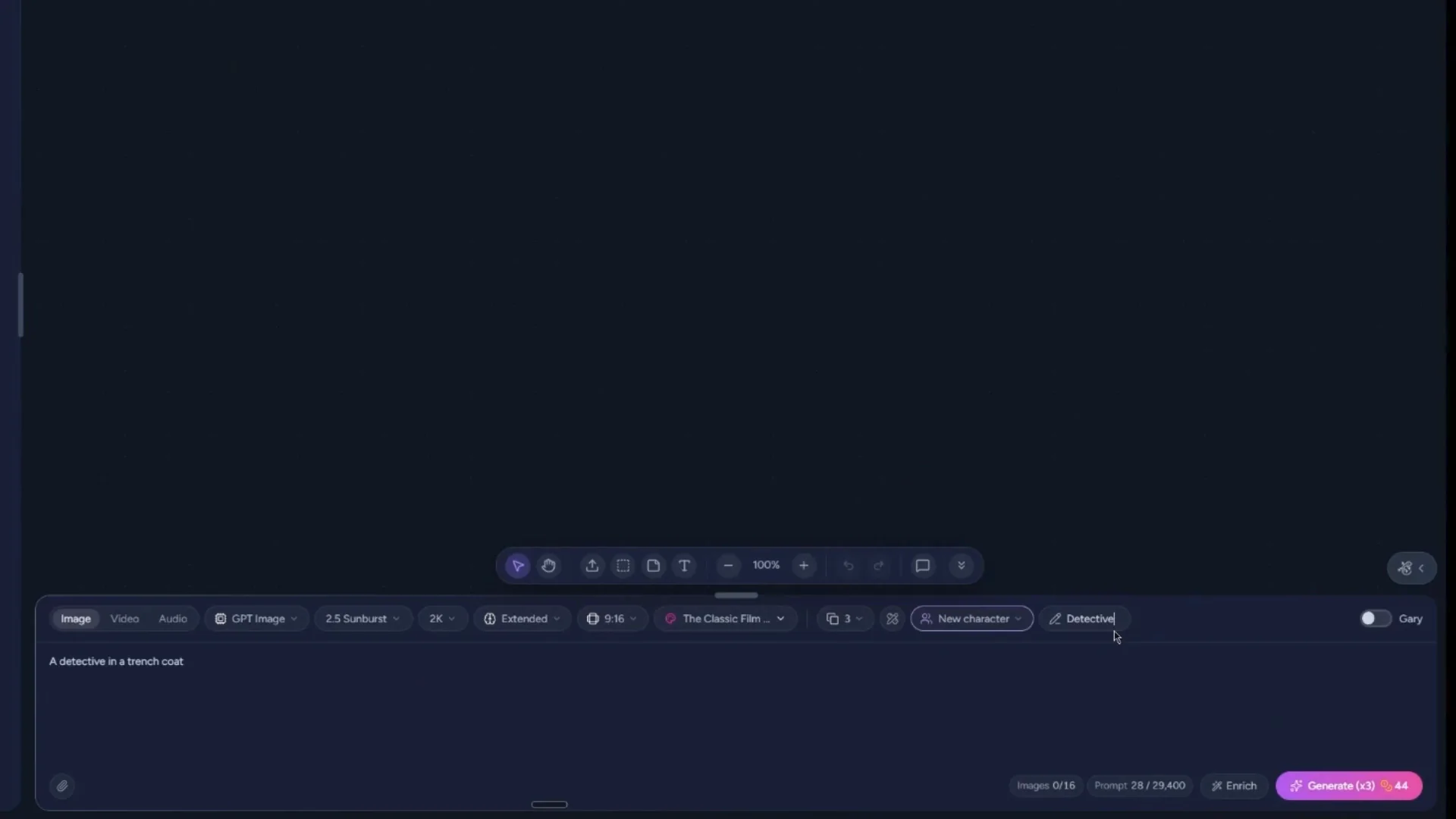
You can follow the same method to create environment assets.
Once the images are generated, find them on the left under Characters. The “Detective” asset appears with versions one, two, and three. Zoom in and hold the space bar while dragging around the canvas to review each asset in detail.
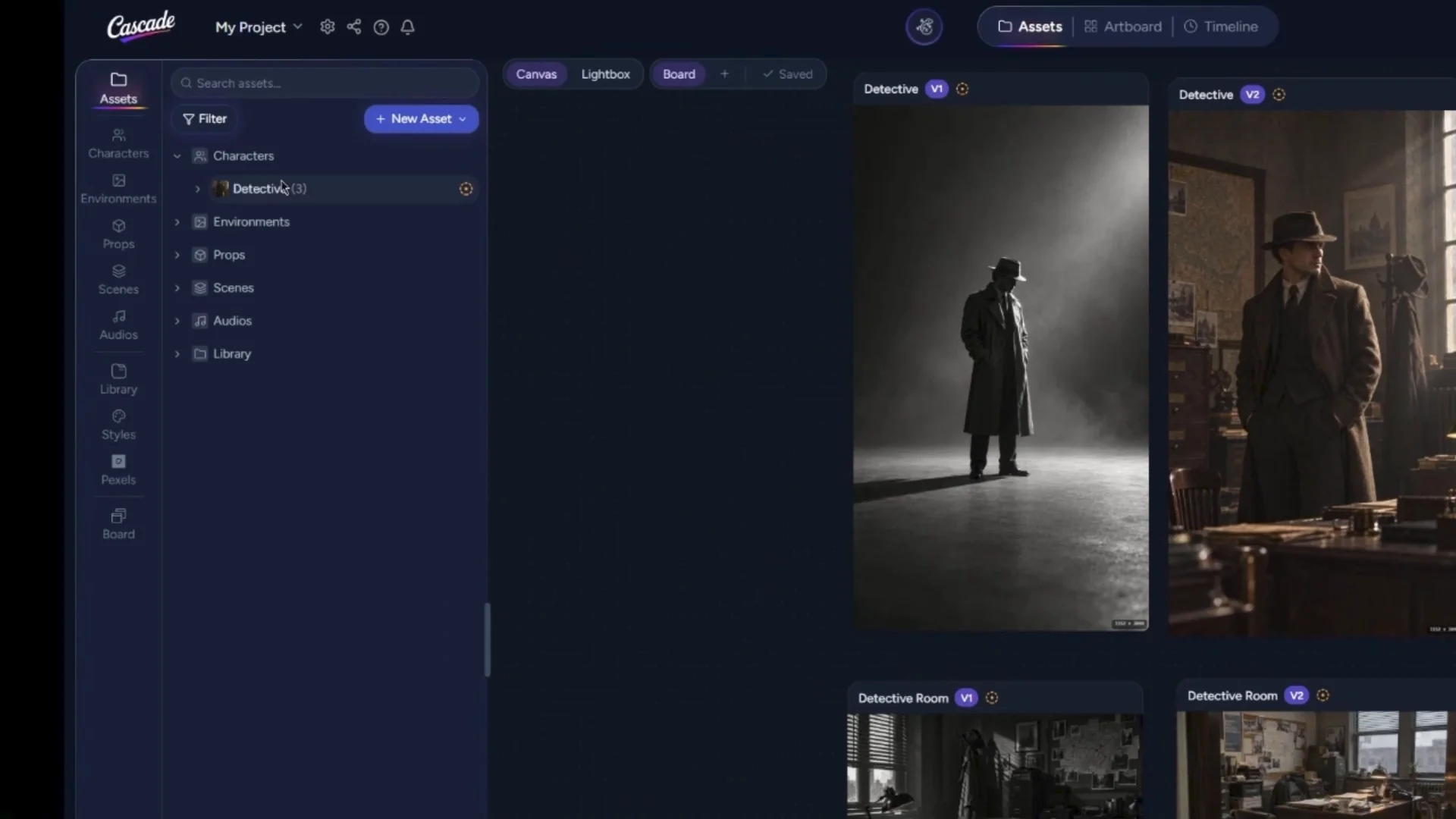
You can also enter Light Box mode. Click any asset to view it individually in Light Box.
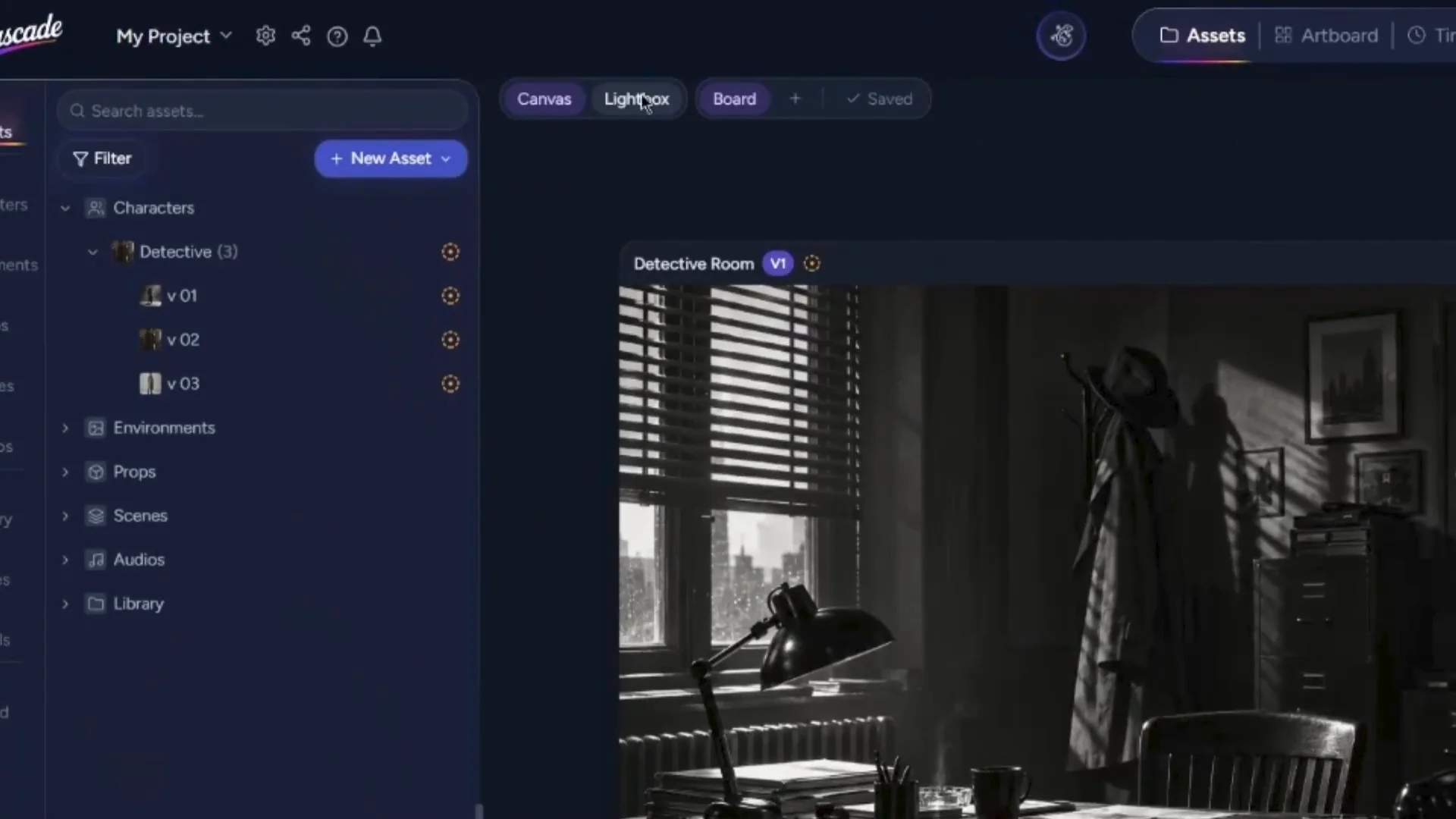
The same applies to environments: if you click one of the environment assets, it is displayed on its own in Light Box. As you select different assets, the toolbar updates to show the currently selected image as a reference in the prompt toolbar.
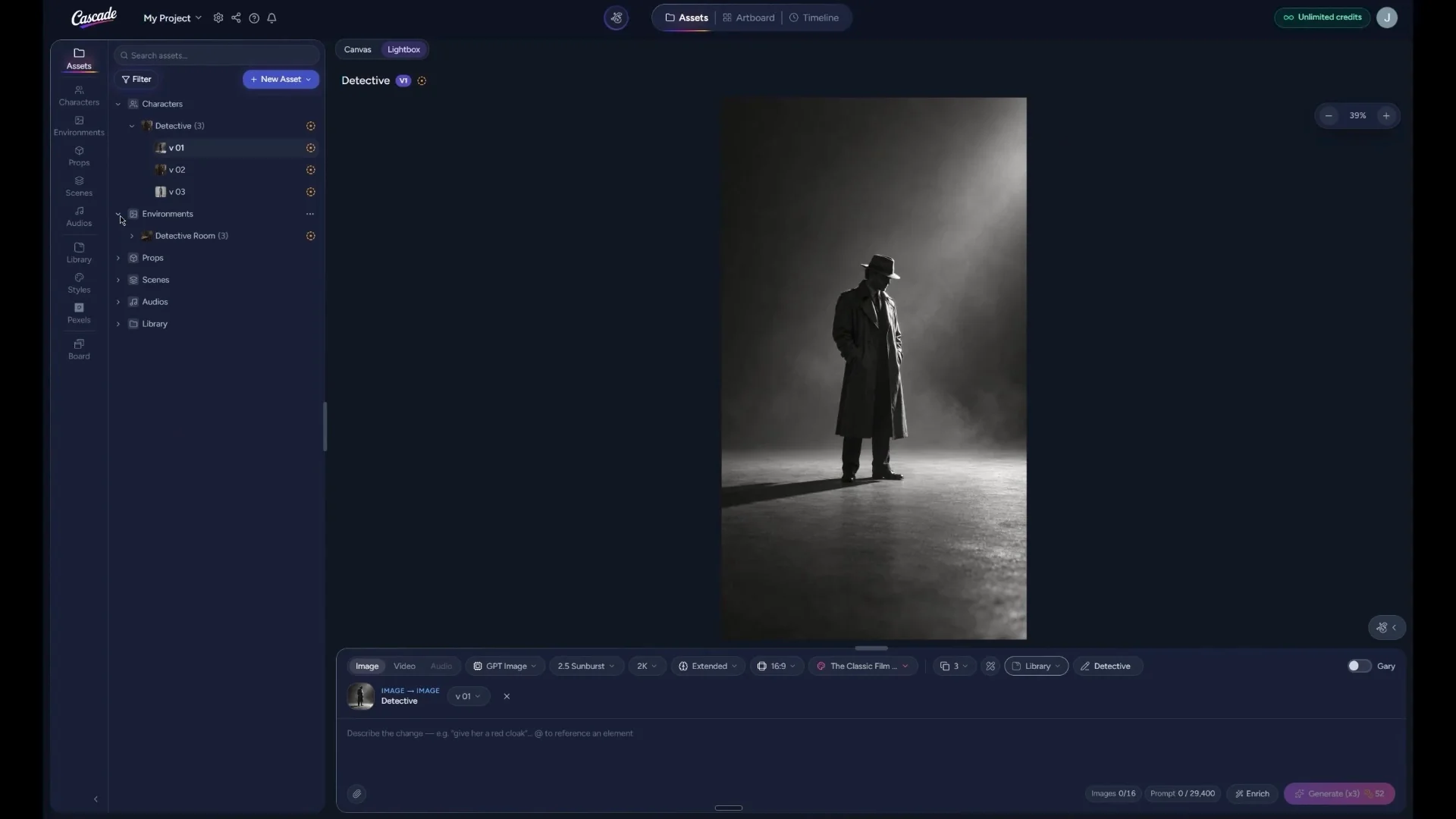
If you want to refine an asset, use the refinement controls in the prompt toolbar. This time, configure the generation to create just one variation, and choose where it should be saved.
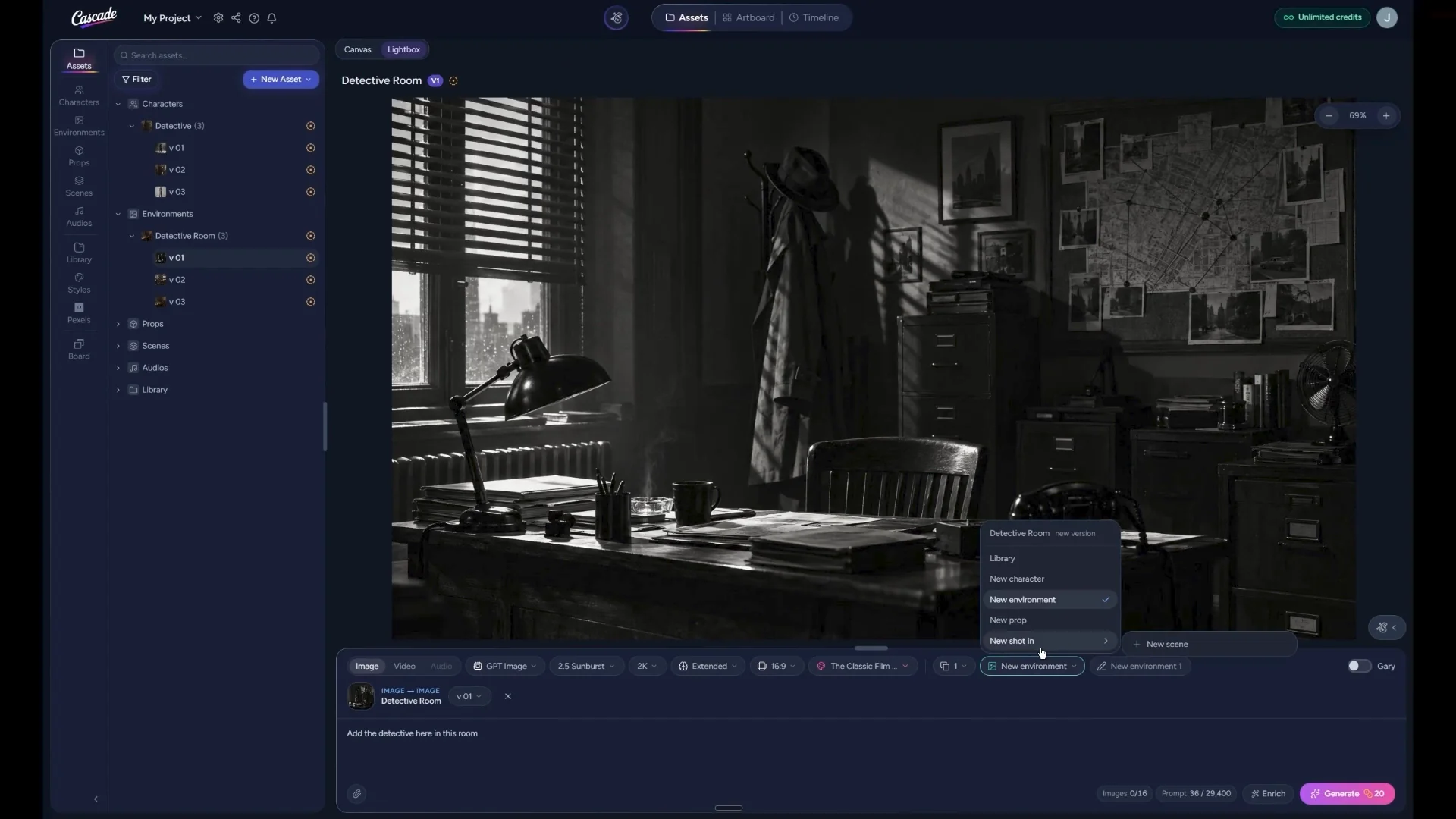
Name the new scene—for example, “Detective Space.” You can then plan to add a character to this scene by either dragging the character asset from the asset browser into the prompt box or by using the “@” symbol to insert references.
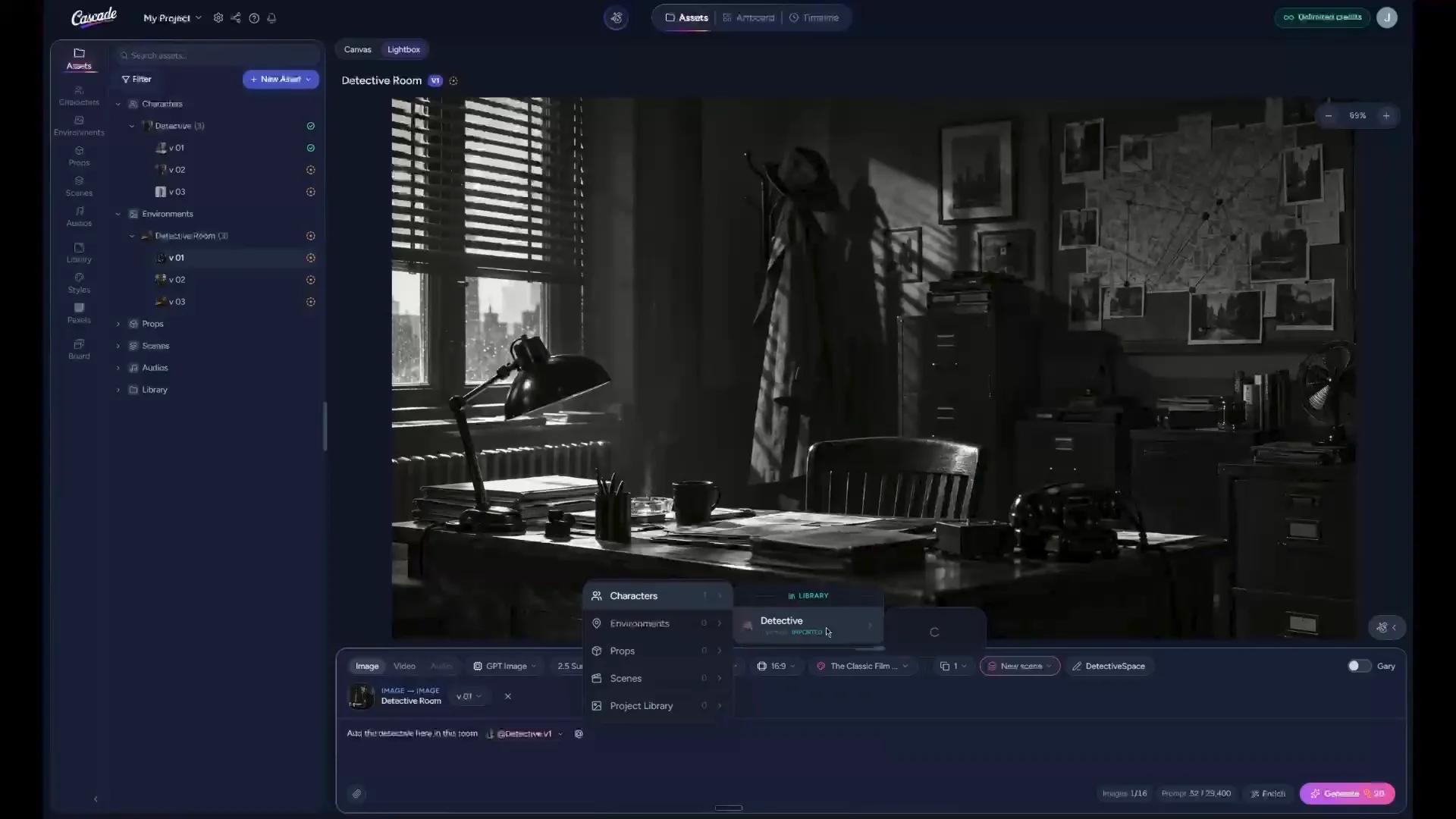
Press the “@” key to open the reference list. You may notice that none of the environments, characters, or other assets appear if they have not yet been approved.
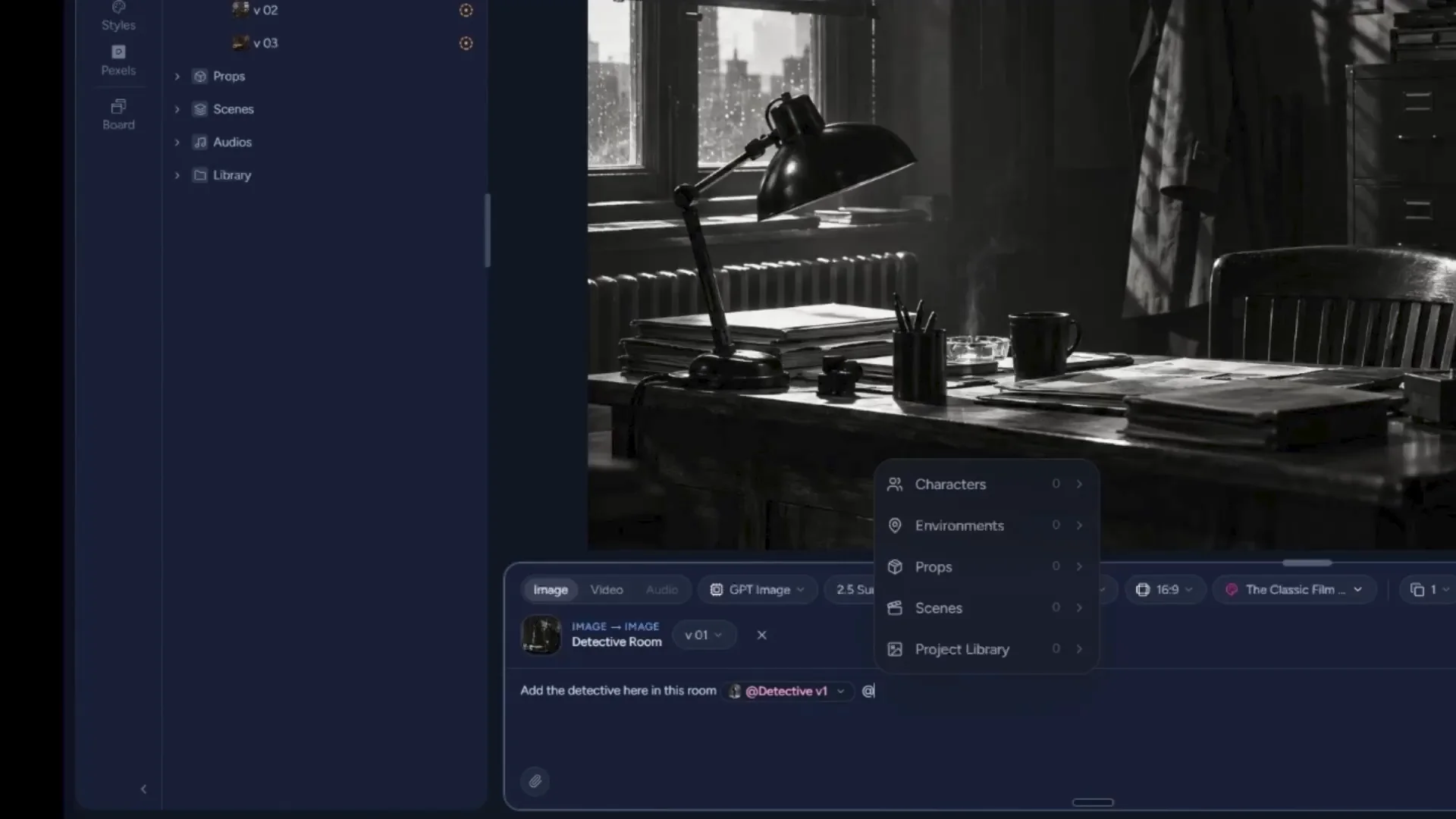
If you have an asset you like, select it and mark it as Approved. Only approved items will appear in the Add Reference menu. Now click Generate to create the new scene using the approved references.
After generation, zoom out to see the full result and use the node’s draggable handle to inspect the image more closely. If you like the result but want changes—for example, removing extra clothing in the background or having the detective seated—you can refine it further.
To refine the existing image, double-click it to auto-select it as a reference in the prompt toolbar. Since you are editing an existing image, click the edit option in the toolbar to use that image as the basis for a new generation.
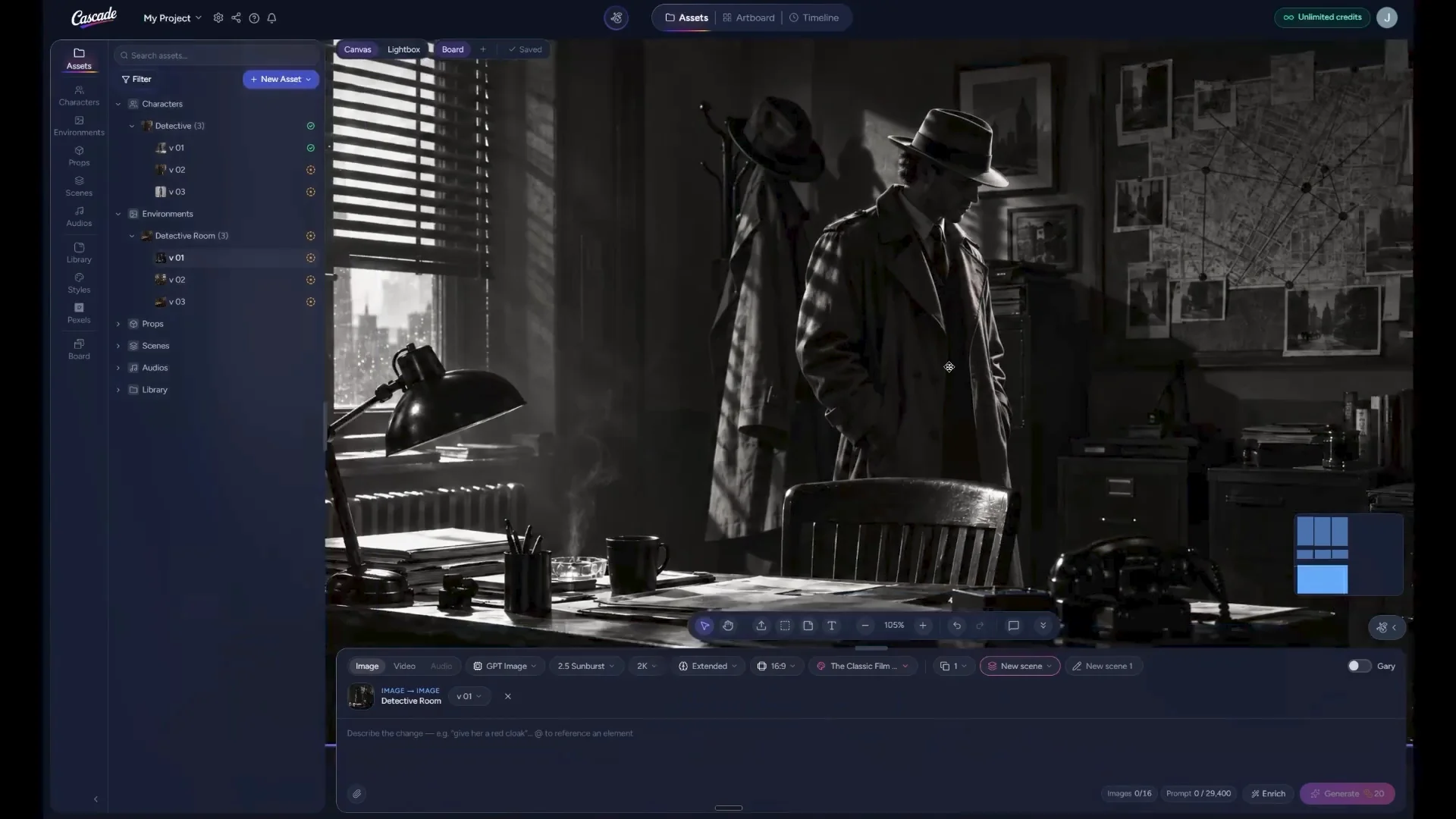
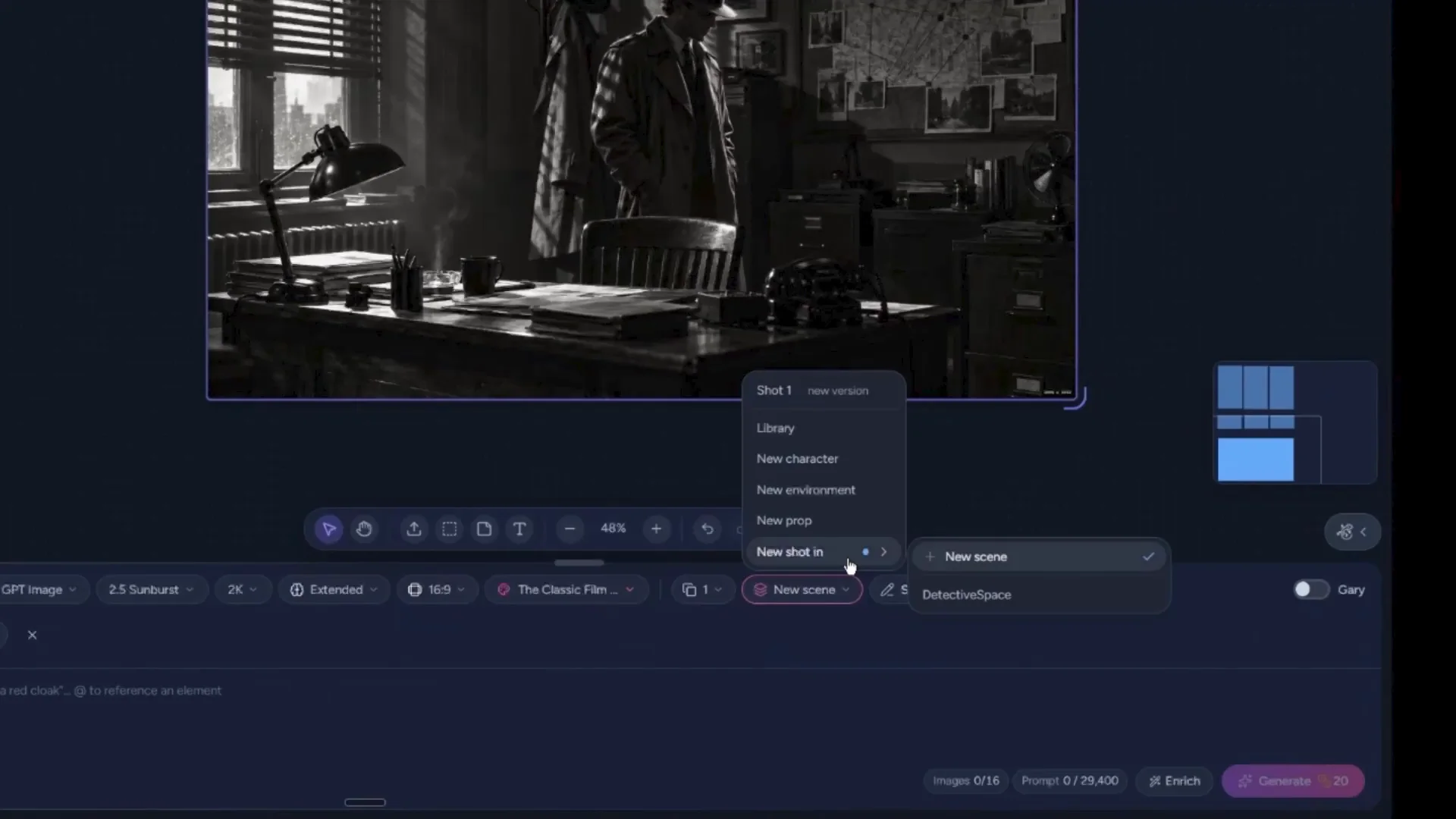
Review or update your prompt to describe the desired changes.
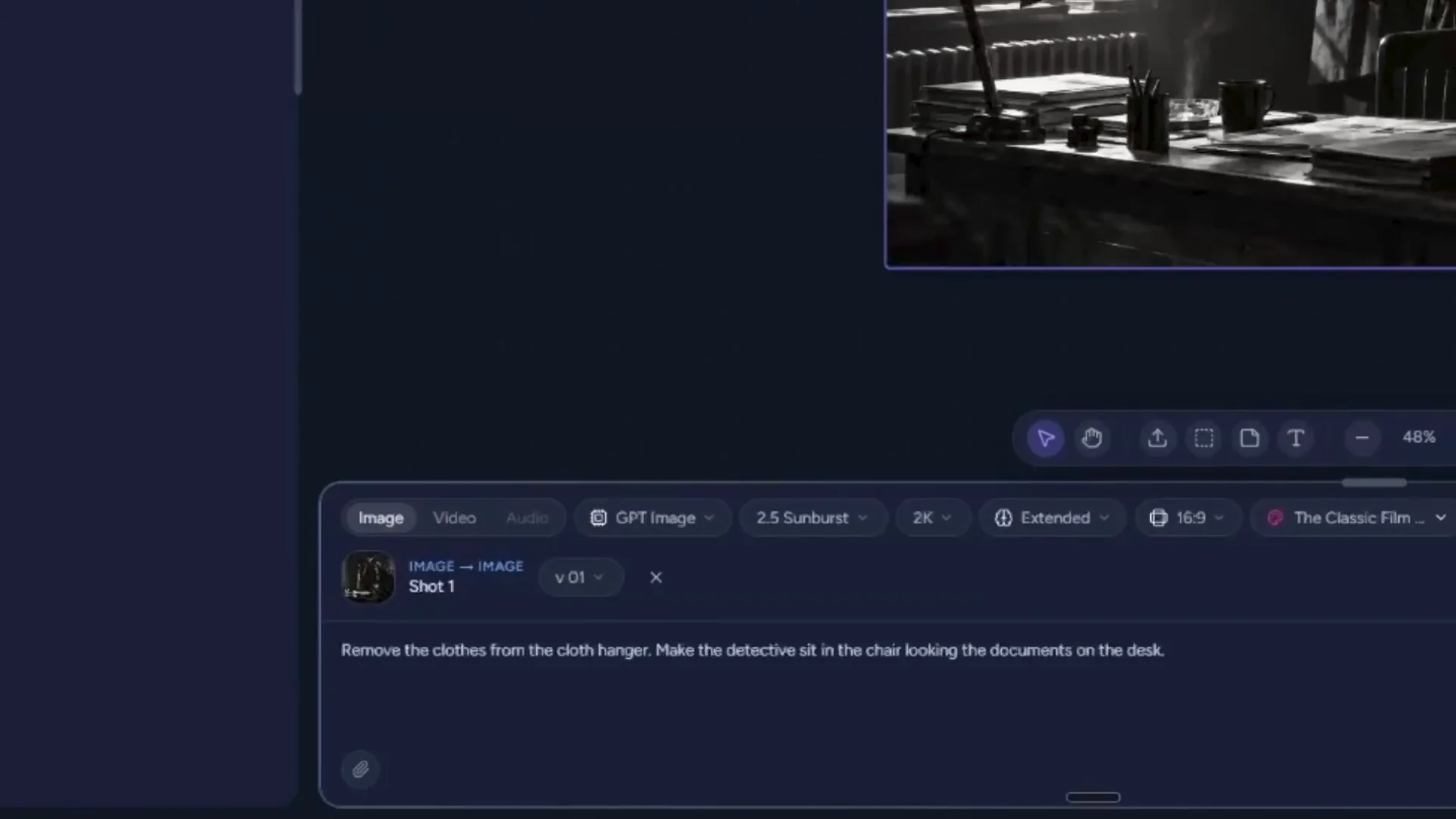
Then click Generate to produce the updated image. Review the new image to confirm it matches your request.
You can reuse the same prompt by placing it back into the prompt box, or you can start a new edit from the current image.
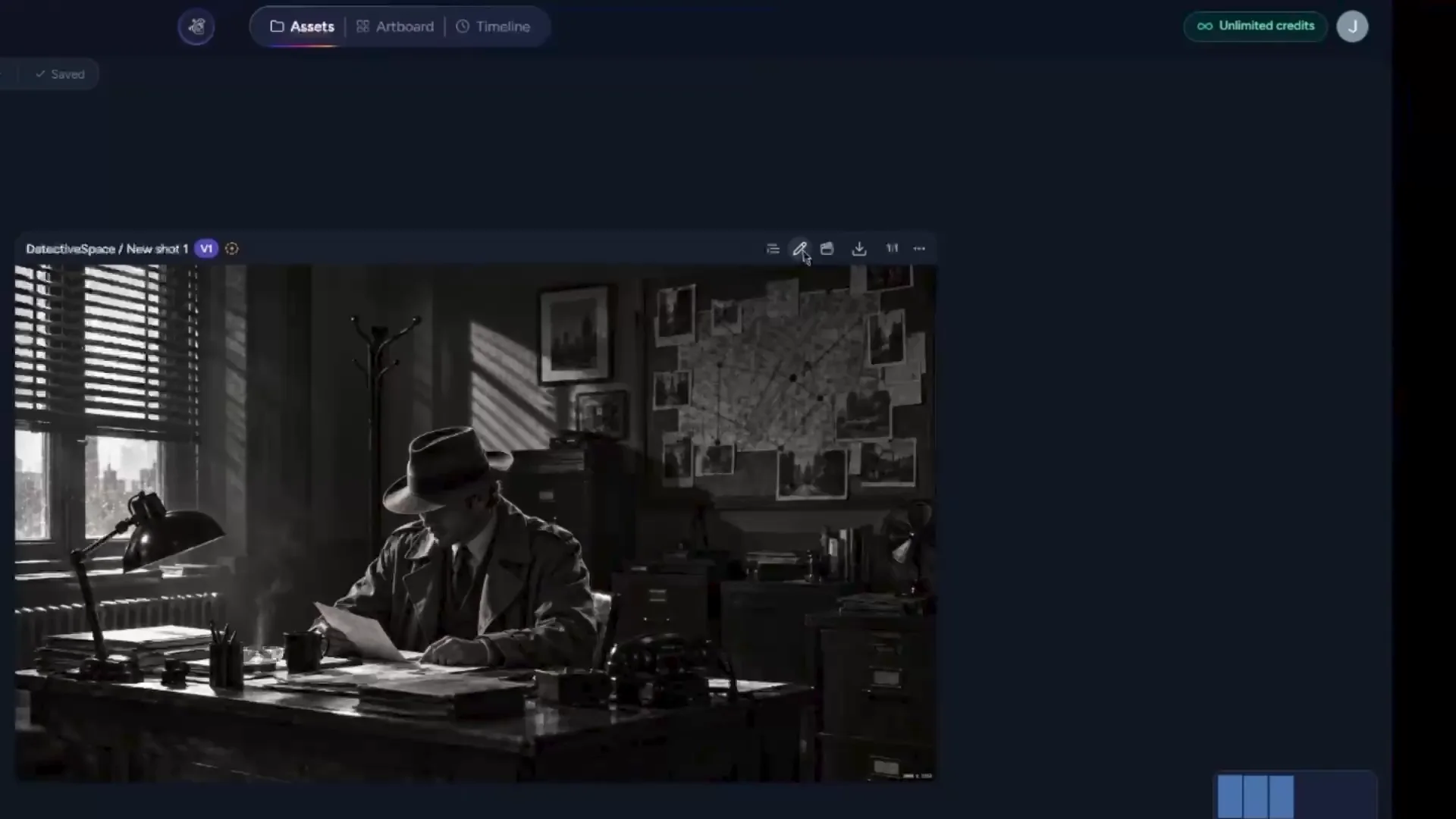
Starting an edit from the image works the same way as double-clicking it to select it as a reference. You can also choose Make Video from the toolbar.
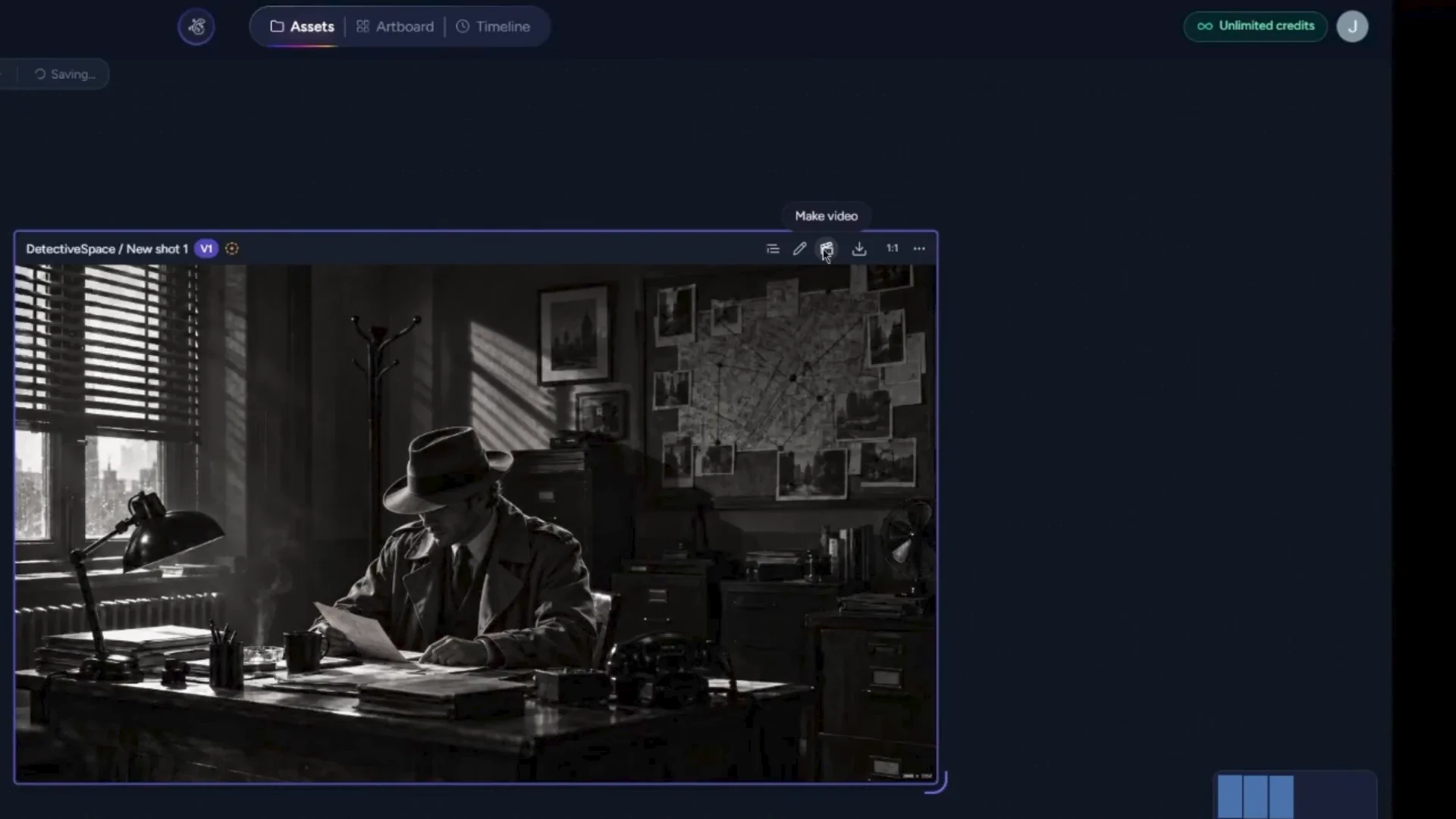
If you click Make Video, you are taken to the first and last frame mode.
There are several video modes available:
For this workflow, select the First and Last Frame mode.
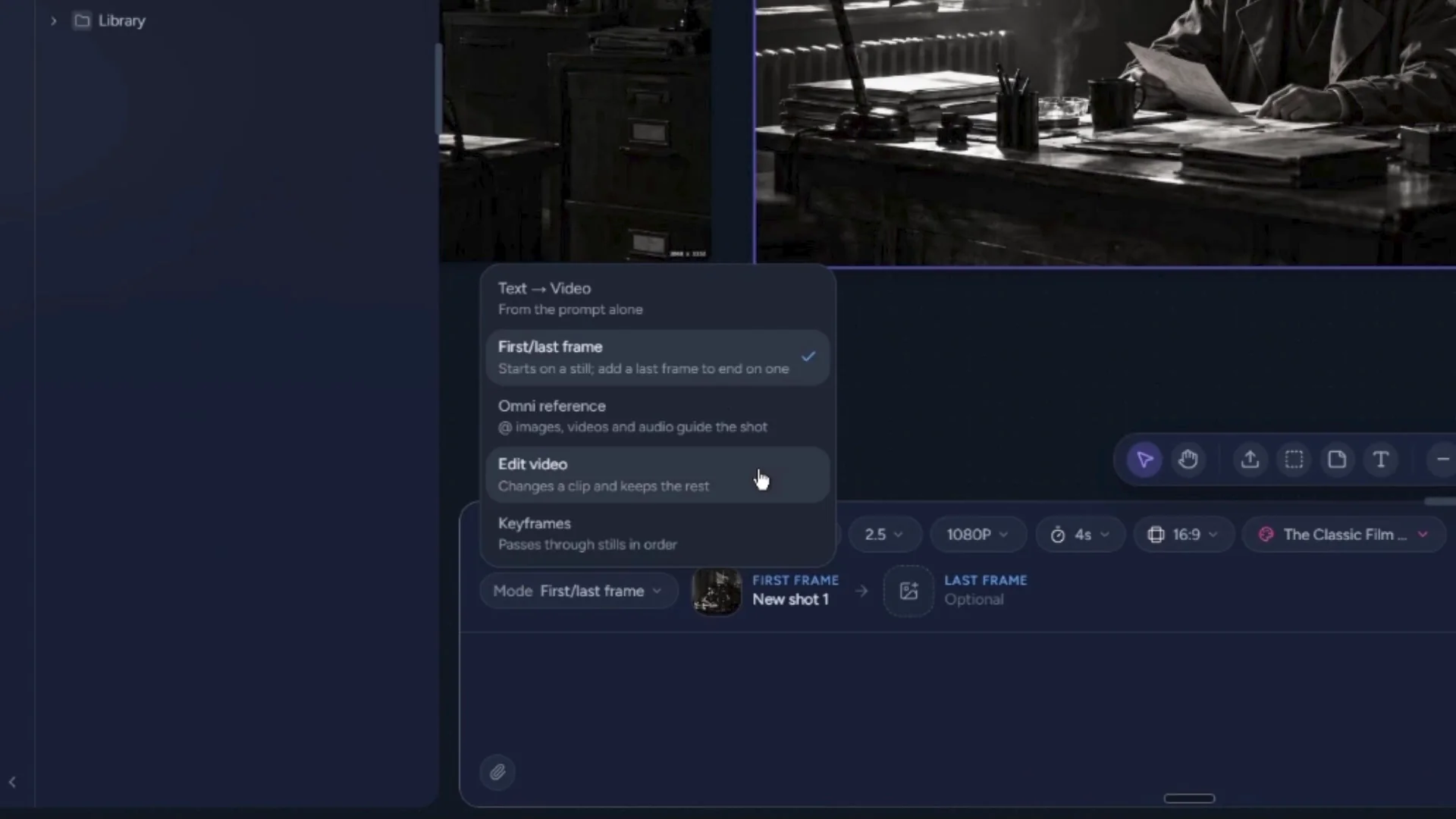
Set your duration—for example, create a five-second video. Enter your video prompt. You’ll notice that the classic film noir style is still selected, which affects not only the aesthetic but also the camera movement and overall look. When ready, generate the video.
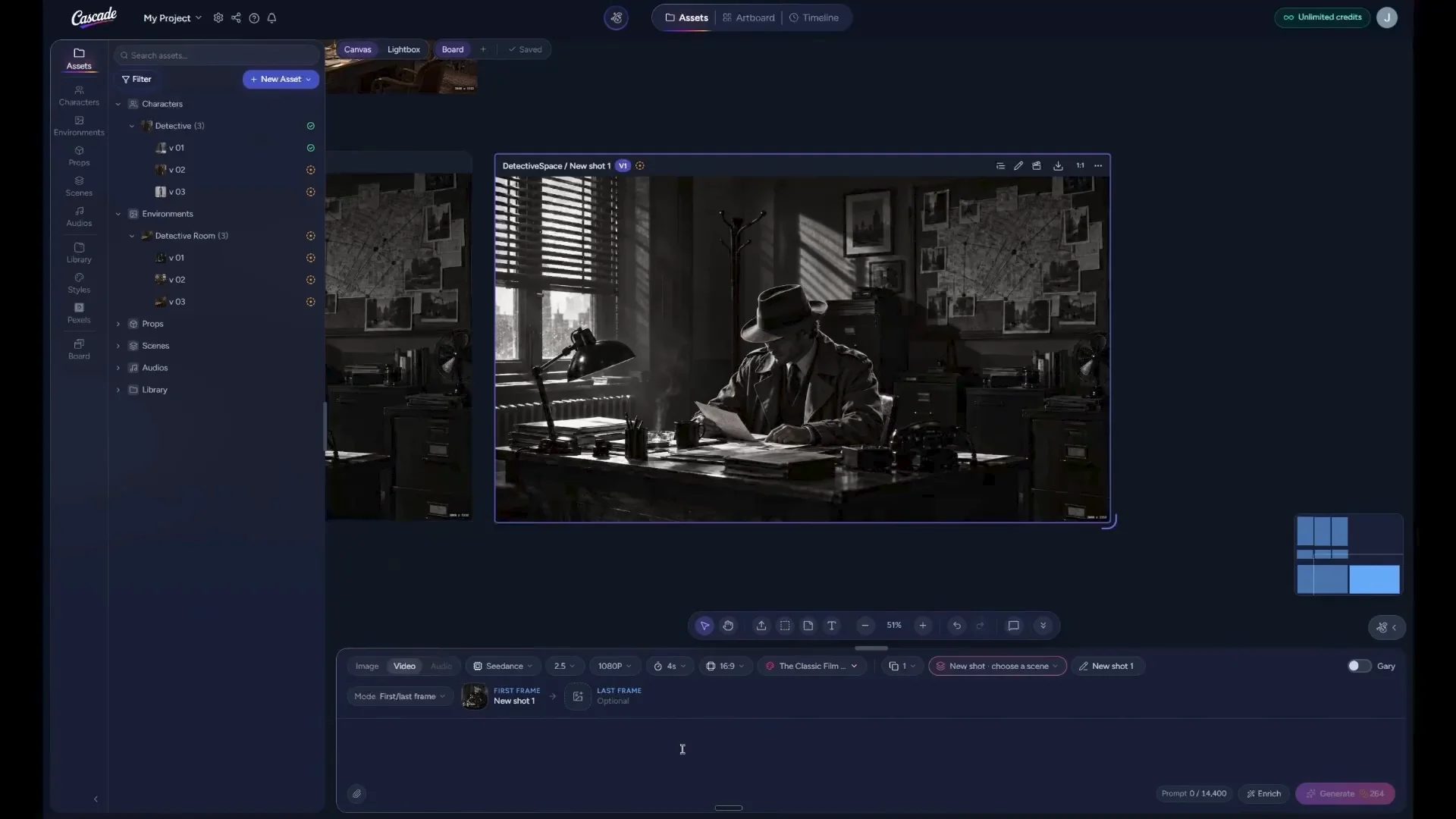
Before clicking Generate, you can always see how many credits the shot will consume. After generation, preview your video to review the final result. You’re now ready to start exploring the Artboard.