Here’s how you set up the script generator in Cascade, import your PDF script, generate and tidy up a shooting script, and then create and check over related assets like characters and environments. You can also find out how to build a script using characters, environments, and props, you already have by importing from your computer.
Here’s how you set up the script generator in Cascade, import your PDF script, generate and tidy up a shooting script, and then create and check over related assets like characters and environments. You can also find out how to build a script using characters, environments, and props, you already have by importing from your computer.
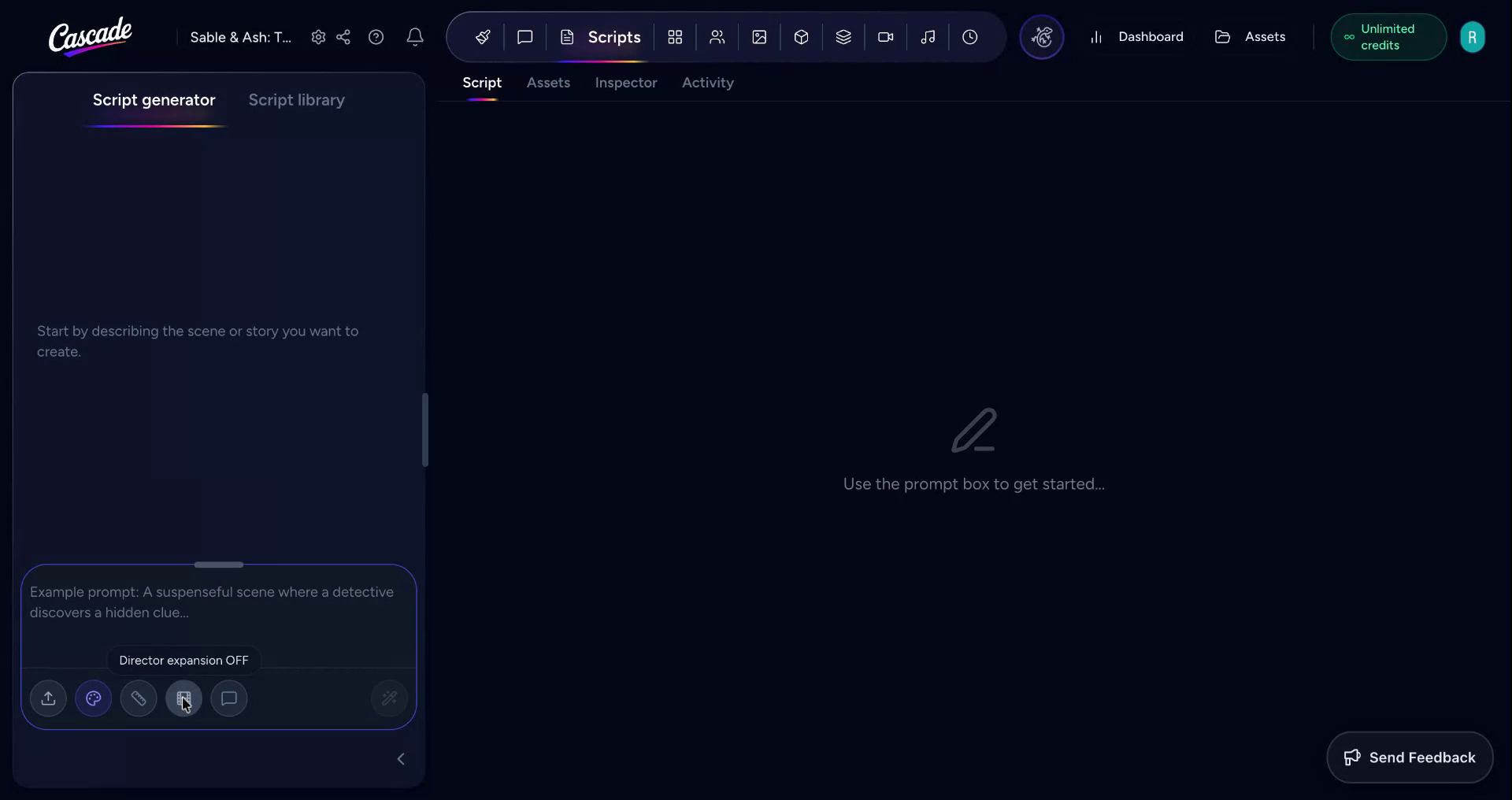
Start by setting up the script generator before you import anything. You will see several options to shape your script next to the Upload icon. Style lets you pick an animated style out of the platform’s library, a style you’ve defined for this project, or one you saved in your library. Script Length sets your target run-time: Short, Medium, or Feature. Director Expression will give you a breakdown of the scenes in detailed shots. The Creative Interview feature prompts you with questions before generating the script.
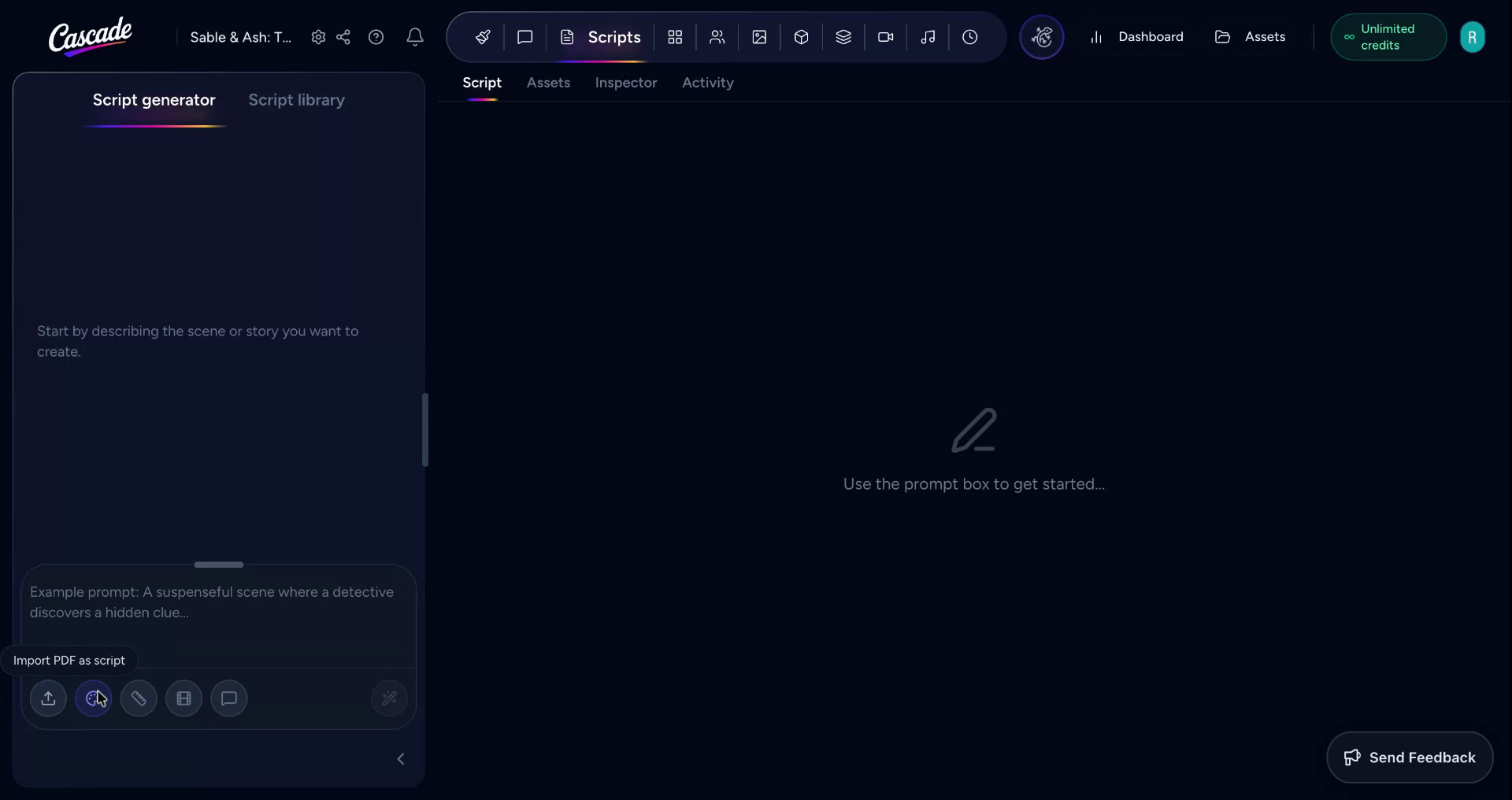
To generate a script, you can collaborate with Cascade to write a prompt, or you can upload an existing script into the platform. To import one, press the Import PDF as Script icon, select the right PDF from your project files, then click Import to load it into the system.
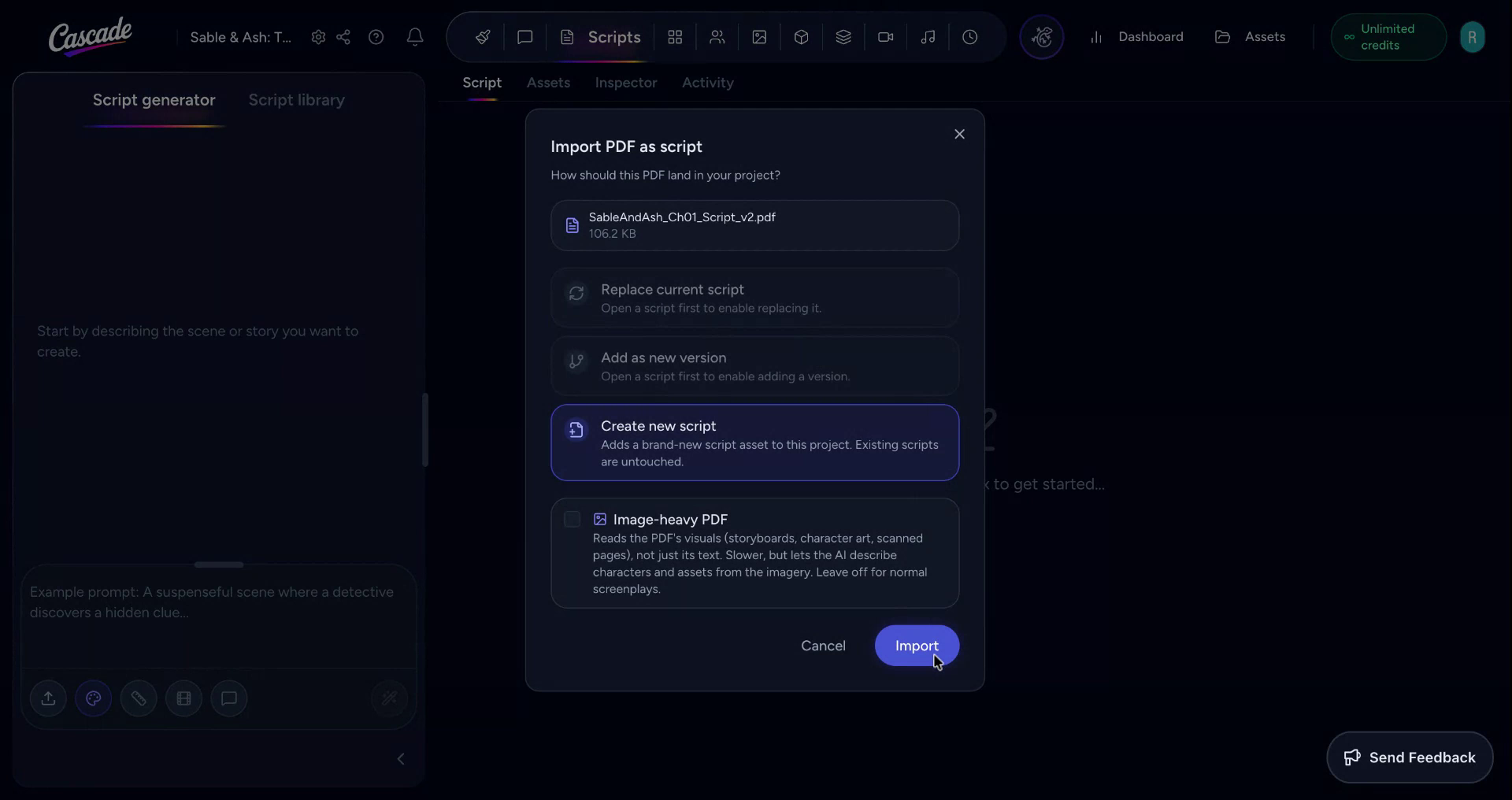
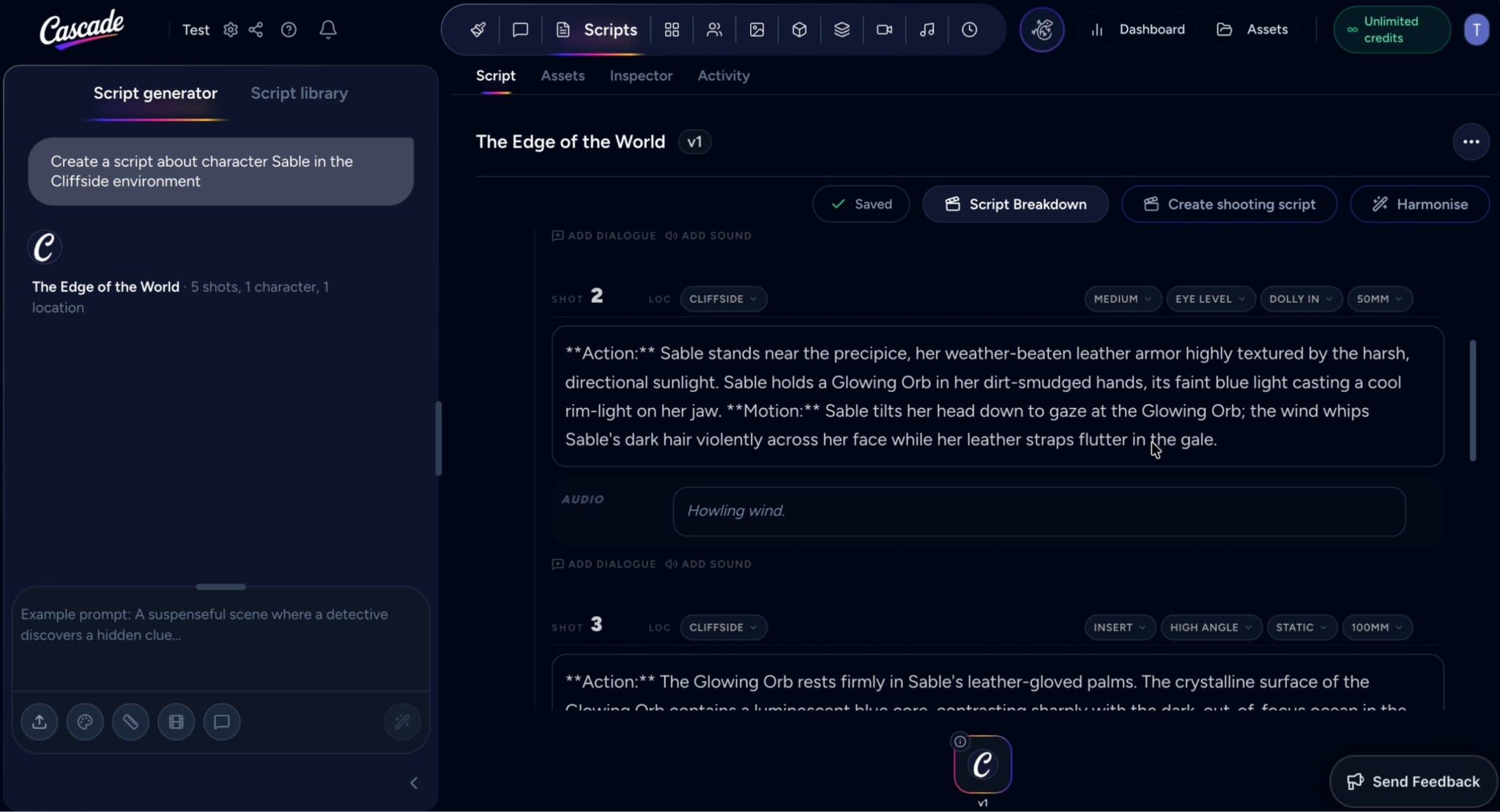
Once the script is generated or the import is finished, you will have your first version where you can read it to make sure everything looks good.
If you click the Create shooting script button, the AI engine will break your story down into clear shots and scenes. You can skip this step if you only want to generate assets from your current script.

You can edit any scene in-line in the script, this will create a new script version.
You can adjust the camera angles, camera placement, movement, and lens choice for each shot in the script.
To keep everything consistent across the scenes and characters, click Harmonise. Cascade will polish the script and generate another version. Have a read through the final version to make sure the story is consistent and all the visual details line up.

When you are happy with your script, you can create all your assets here.Click Generate Assets and a pop-up panel will open, showing all the characters, environments and props detected in your script.
Pick the assets you want to generate images for by clicking Generate.

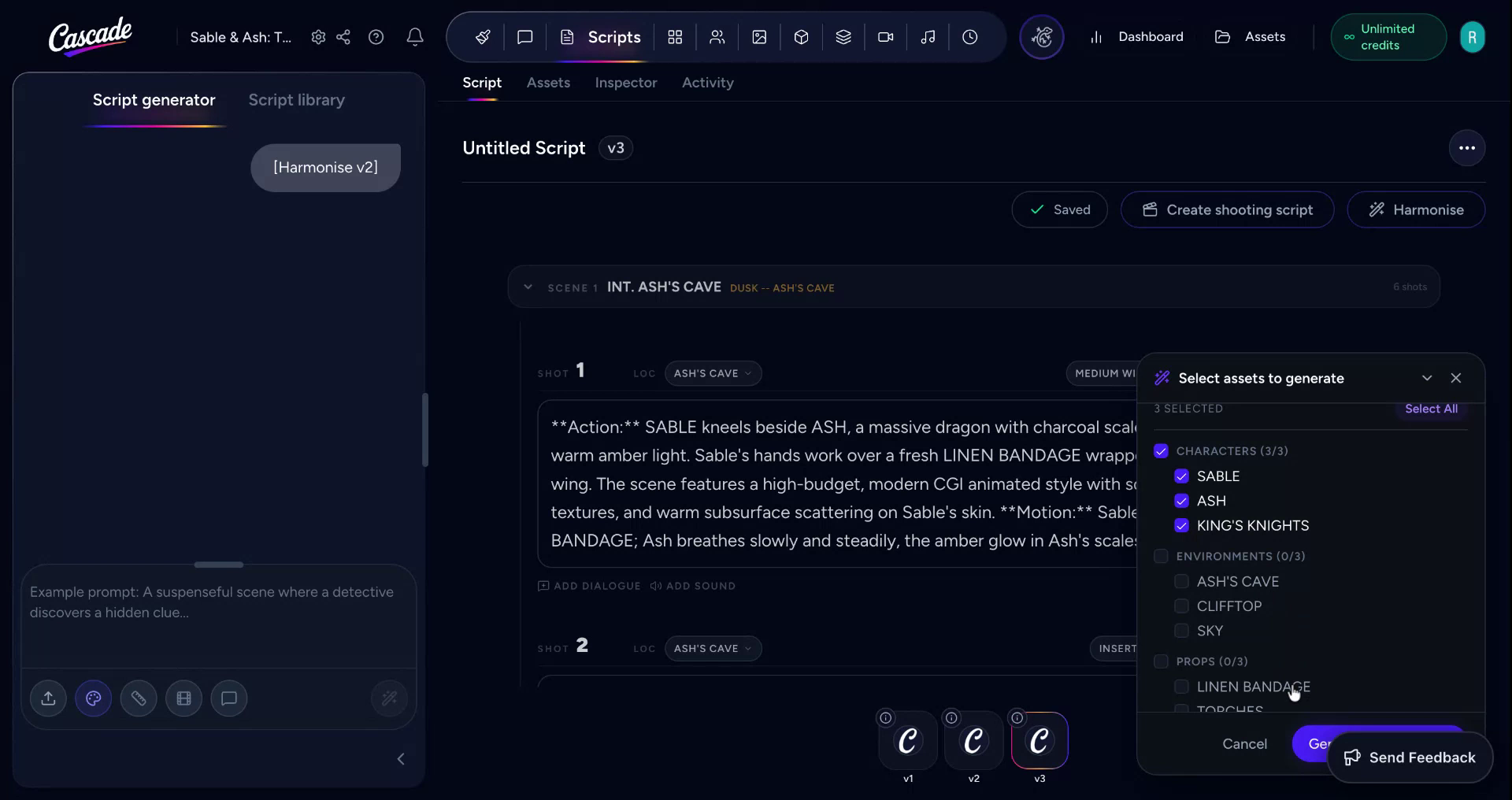
Head to the Assets tab to review the assets the script needs. Check the Inspector to review individual assets and their generations.
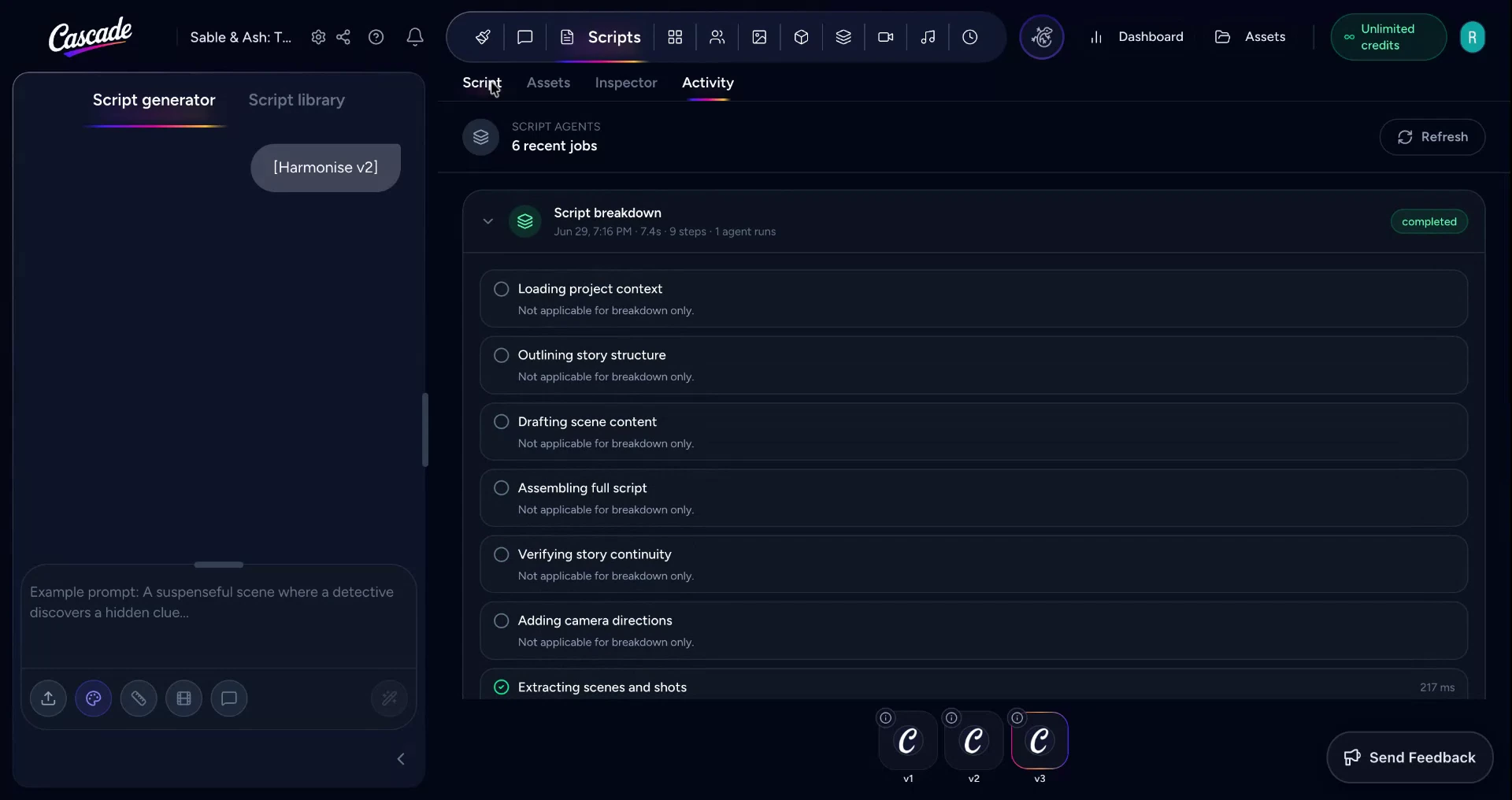
In the Activity tab you can monitor the status and history of your recent script and asset jobs.


For some projects, you may already have characters, environments, and props created and would like to build a script from those assets. To do that, add your new assets to their respective pages.
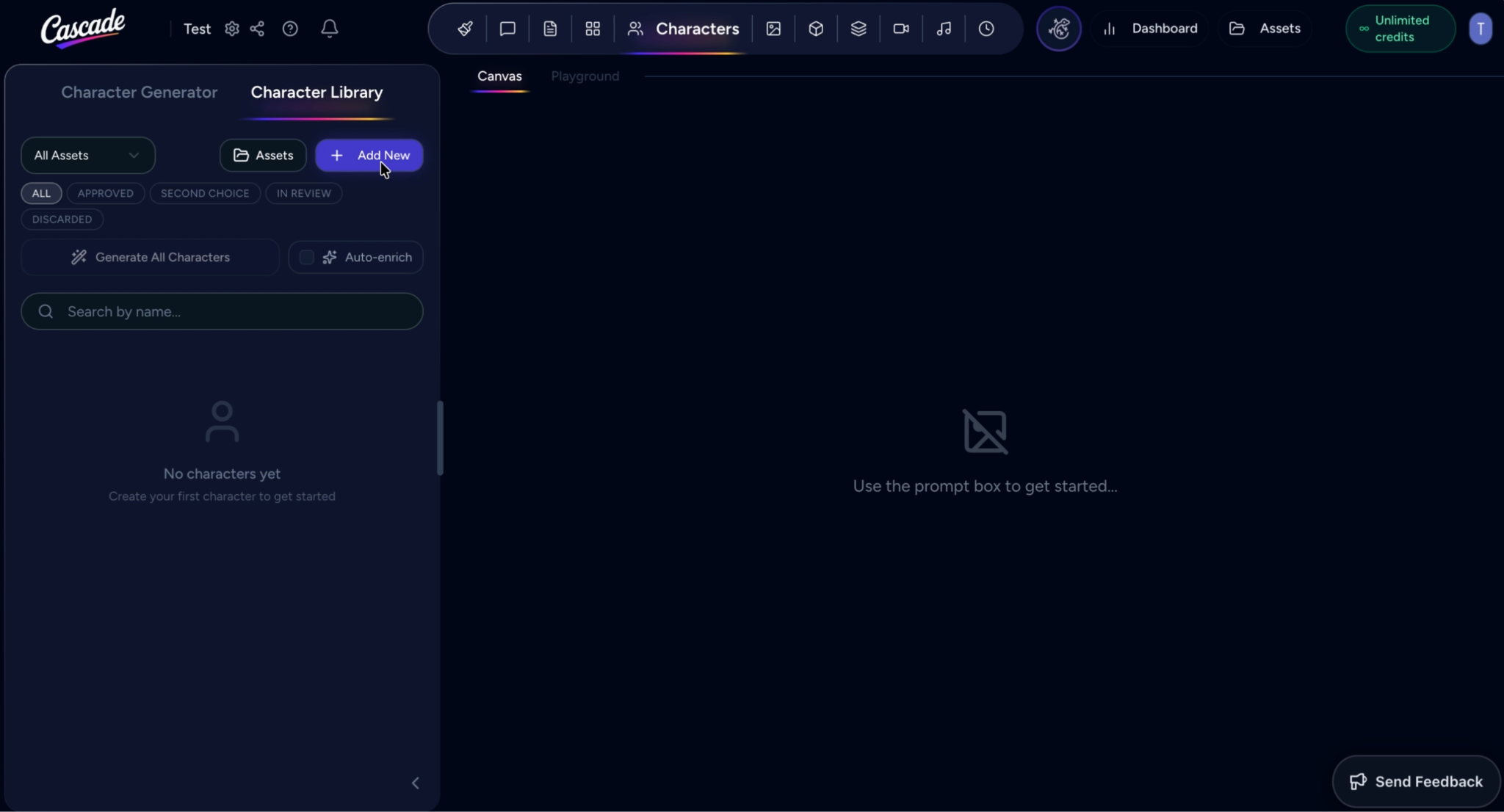
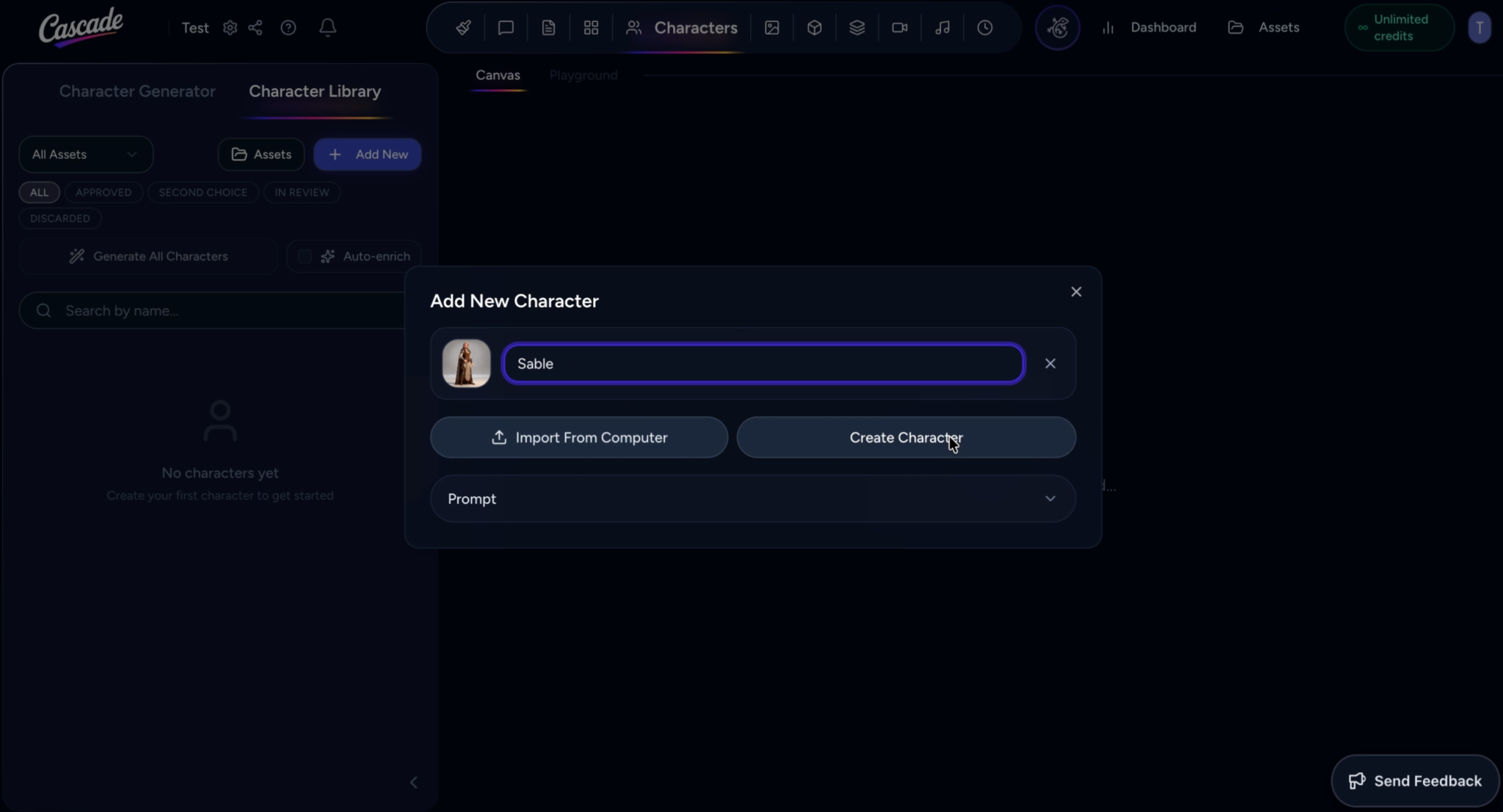
For instance, click the Character page, then navigate to the Character Library page and select +Add New. Import your asset from your computer here and name your character then select Create Character. You can follow the same process for Environments and Props.
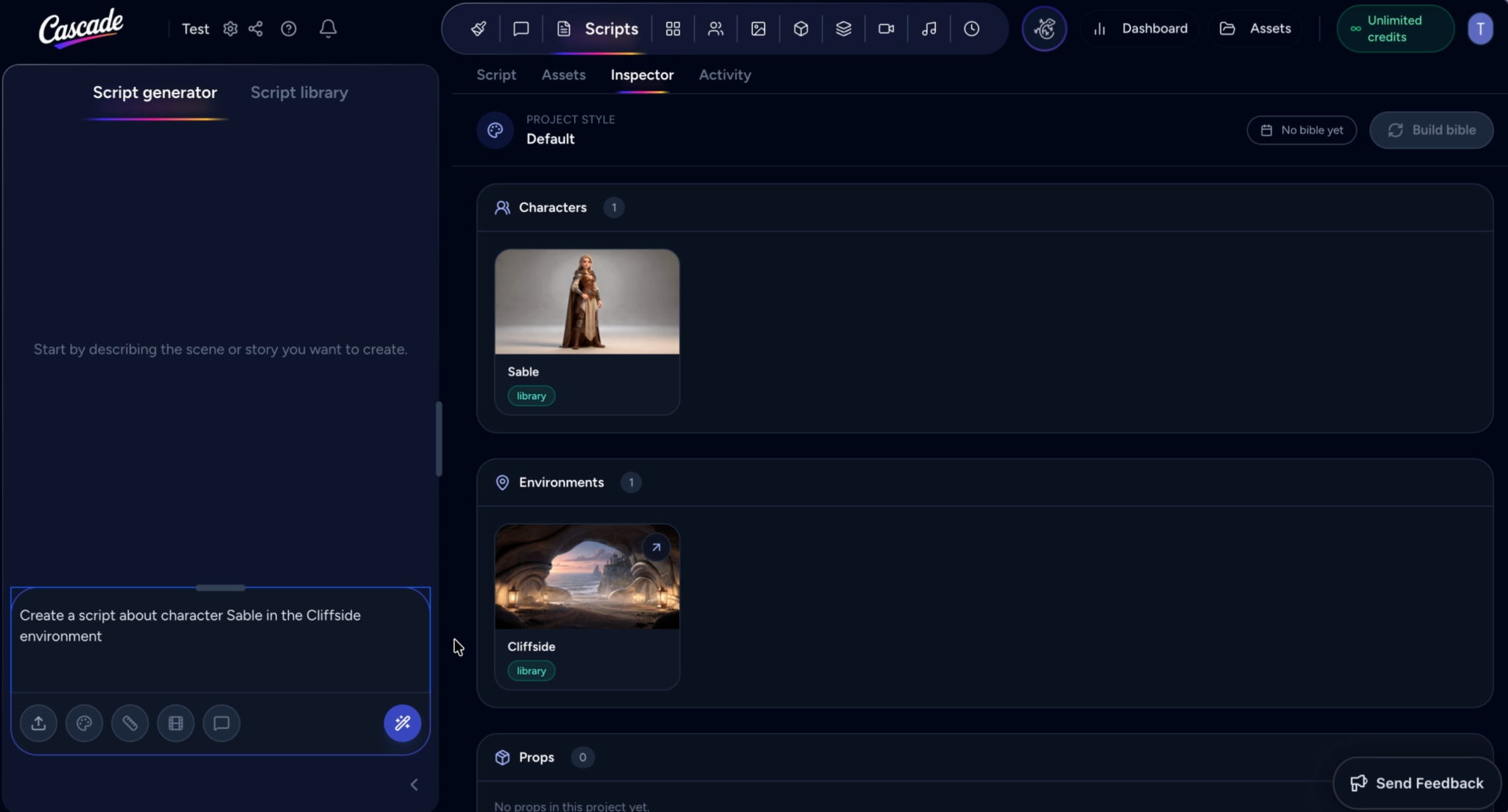
Then head back over to the Scripts page and in the Script Generator you can write a prompt to generate a script using your own assets.